VPS connection
for Windows
How to connect a VPS server for Windows?
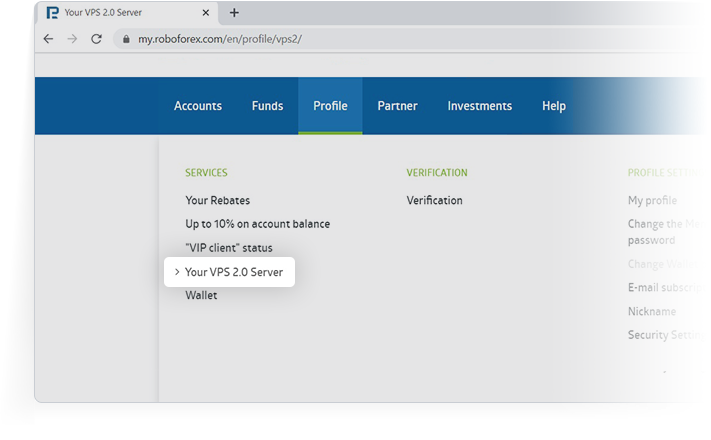
- 1.Log in to your Members Area and go to the "Your VPS 2.0 server" page. Here you can find all necessary data for VPS connection for Windows.
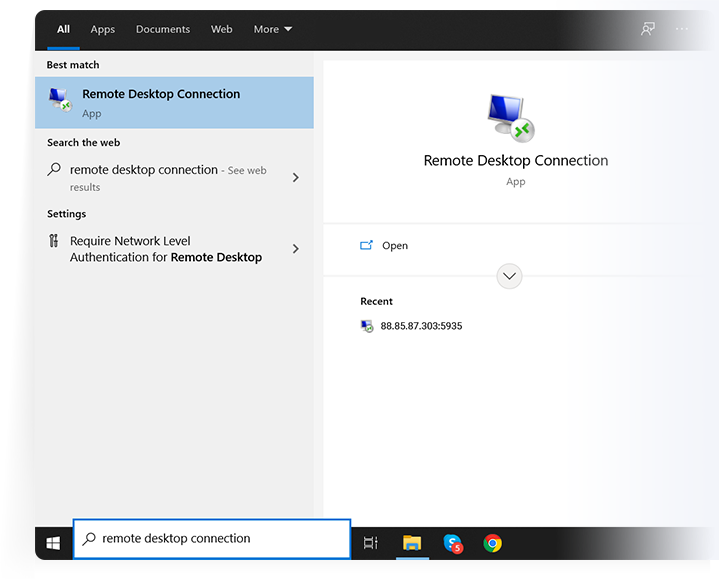
- 2.Using a search bar, find the Remote Desktop Connection app and run it on your PC.
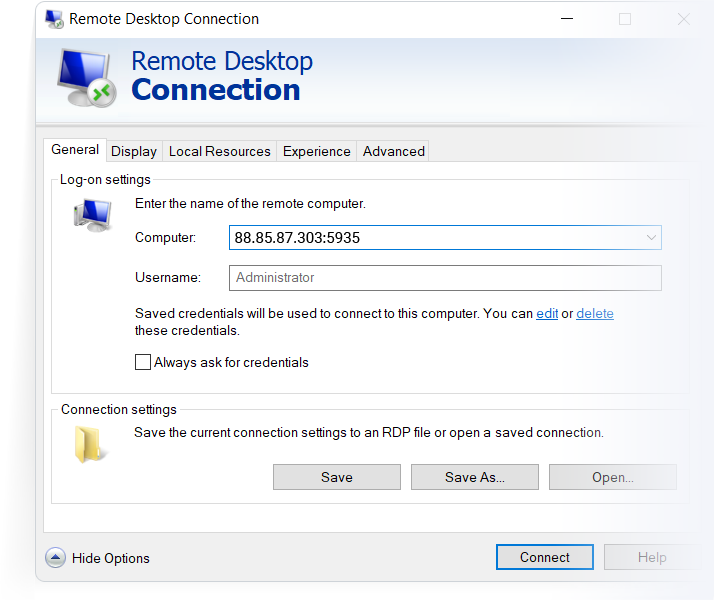
- 3.Enter the required information in the “Computer” field. You will need credentials for connecting to a server via RDP.
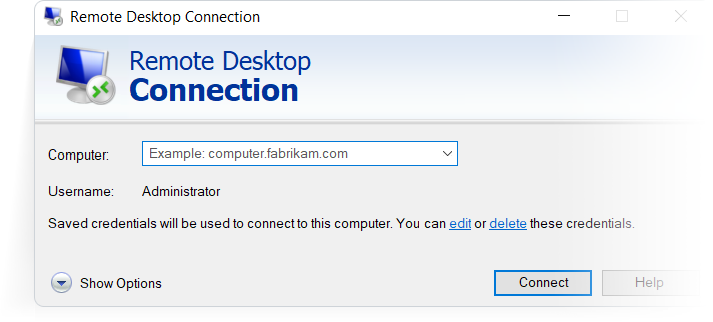
- 4.
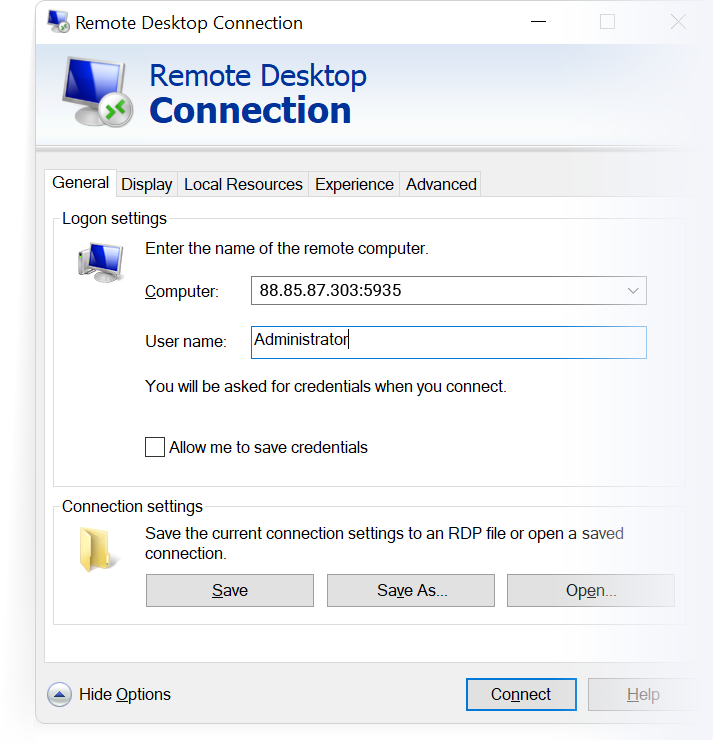
Click “Show options”, and enter Administrator login from your Members Area in the “User name” field.
To avoid entering this data every time you log in, tick the “Allow me to save credentials" box.
Then click “Connect”.
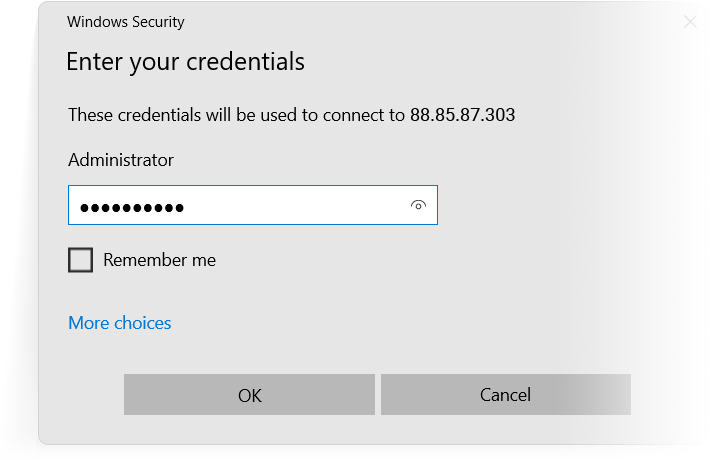
- 5.Enter the Administrator password and click "OK".
- 6.Your VPS server is ready to work on Windows.