MetaTrader 5 Automated Trading: How to Enable Algo Trading and Expert Advisor Permissions in MT5

MetaTrader 5 automated trading starts with two switches: the Algo Trading button on the MT5 toolbar and the Allow Algo Trading box in your Expert Advisor's own settings. With both on, the robot can send orders. With either one off, it keeps reading the market and places nothing.
TL;DR
- Press Algo Trading on the toolbar, or Ctrl+E on Windows.
- Tick Allow Algo Trading on the Common tab of the robot's properties.
- No trades? Read the Experts and Journal tabs of the Toolbox.
This guide shows where each switch sits, what the other options on the Experts tab do, when a robot needs WebRequest or DLL access, and how to find the reason when an Expert Advisor (EA) on the chart makes no trades.
Run Trading Robots in RoboForex MetaTrader 5
Expert Advisors, MetaEditor and the Strategy Tester in one terminal, on Windows and macOS.
How MetaTrader Automated Trading Works in MT5
An Expert Advisor is a program that runs on a chart and follows the rules written into it. With every new price, the robot checks its conditions: prices, indicator values, time of day. When the conditions are met, it forms a trade request. MetaTrader 5 passes that request to the RoboForex trade server, and the result depends on the trading conditions of your account, the instrument and the market at that moment.
The terminal decides whether a robot's request leaves your computer at all. That is the job of the permissions below. They form a chain, and a request goes out only when every link in it is open.
1
Algo Trading button
Toolbar, whole terminal
Off: no robot in the terminal can trade.
2
Allow Algo Trading
Robot's properties, Common tab
Off: this robot cannot trade, whatever the button shows.
3
WebRequest and DLL
Tools, Options, Experts
Only for robots that talk to websites or external libraries.
Step 1: Turn On the Algo Trading Button
The Algo Trading button sits on the top toolbar, next to New Order. Click it to switch automated trading on or off for the whole terminal. On Windows, Ctrl+E does the same.
- Off (red square icon): no Expert Advisor can place or close trades, even one with every other permission in place.
- On (green triangle icon): the terminal lets robots trade, provided each robot has its own permission from Step 3.
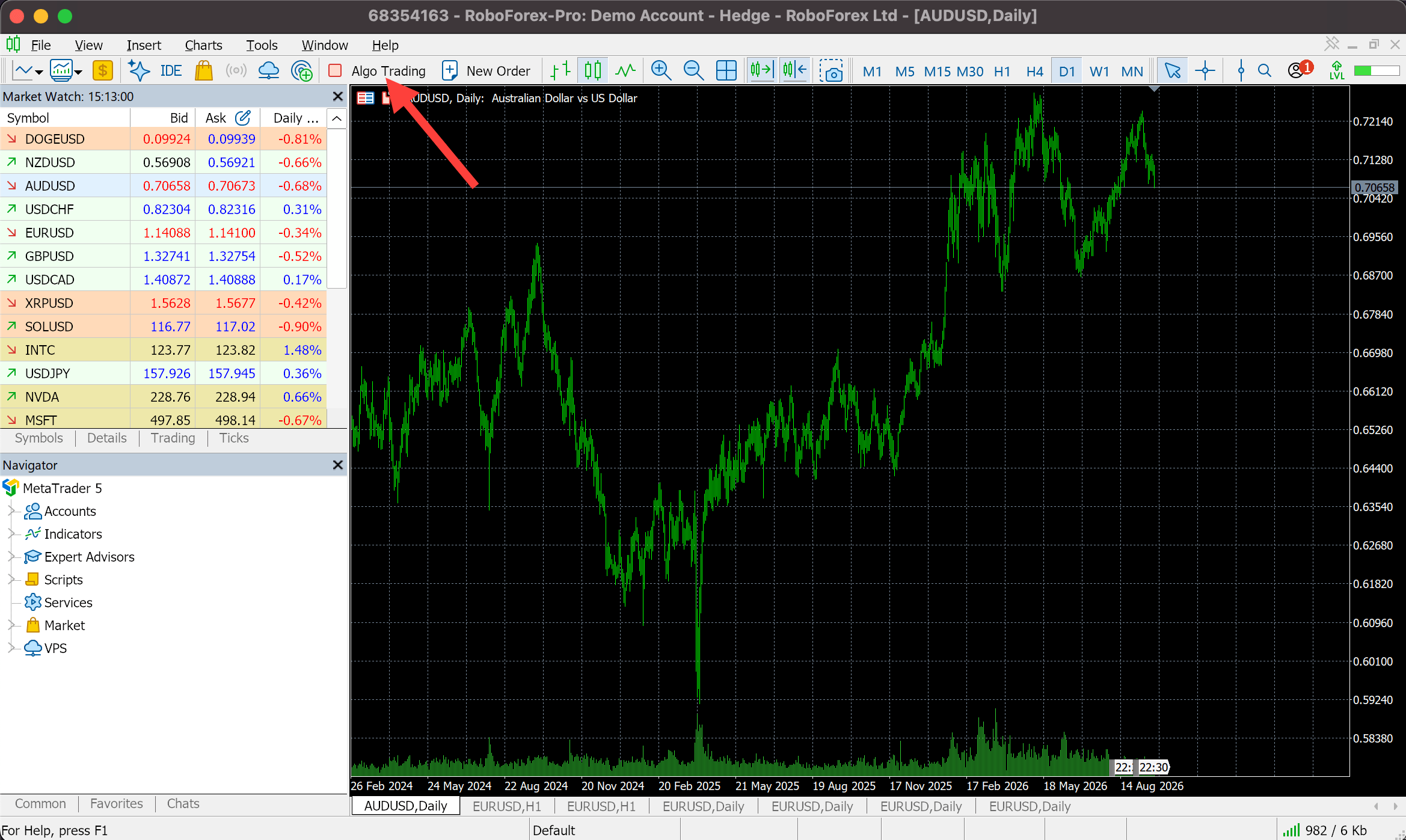
The button is the quickest way to stop every robot at once. Remember where it is before you start your first one: a single click pauses all automated trading while you check what a robot is doing.
Step 2: Check the Experts Tab in Tools, Options
The button has a full settings page behind it. Open it to confirm the permission and to decide when the terminal should switch automated trading off by itself.
- In the top menu, choose Tools → Options.
- Open the Experts tab.
- Check the automated trading settings and the extra permissions described below, then click OK.
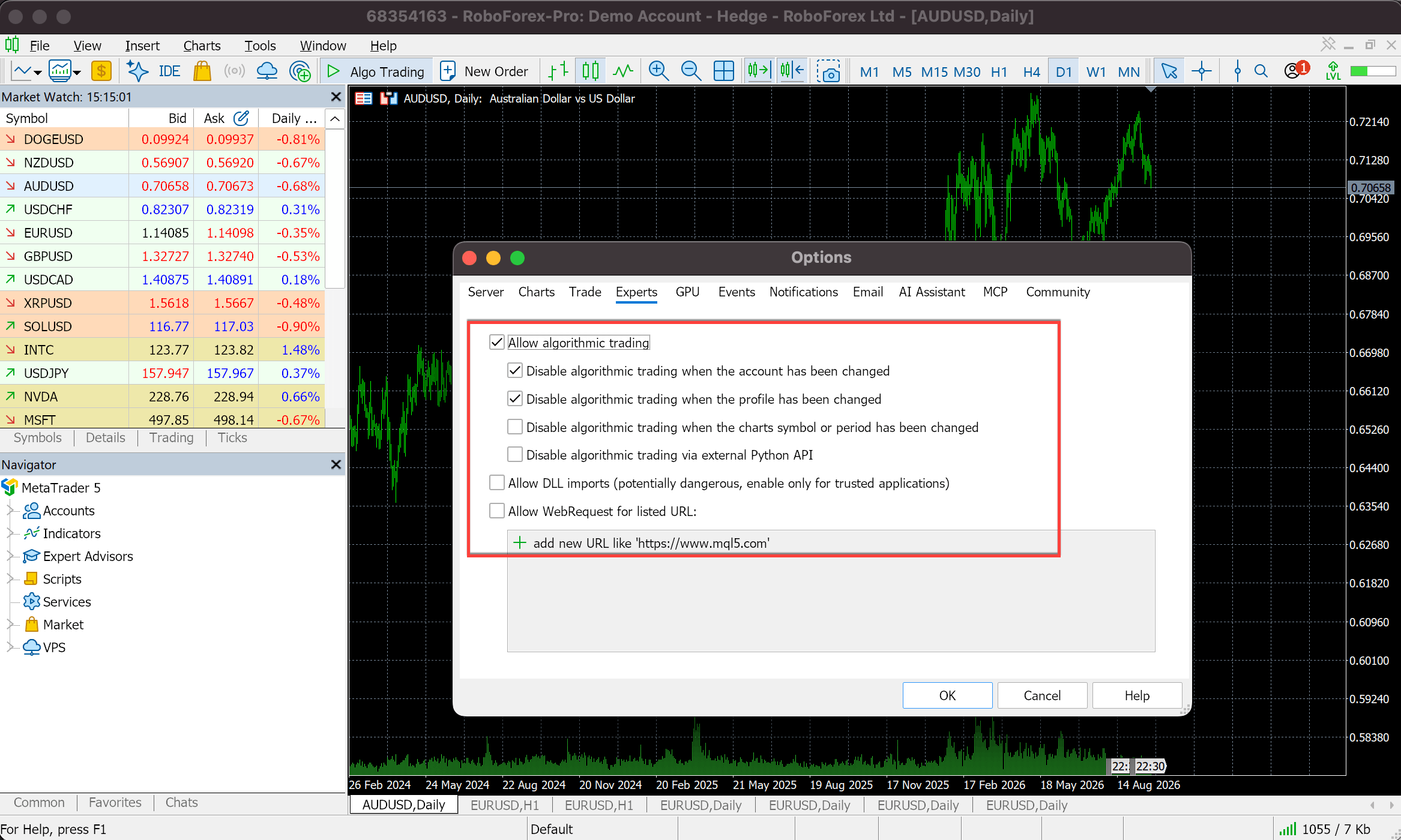
Automated Trading Settings
| Option | What it does |
|---|---|
| Allow algorithmic trading | Lets Expert Advisors and scripts trade. It is the same switch as the toolbar button: turn the button on and this box is ticked. The four options below it become available only while it is ticked. |
| Disable algorithmic trading when the account has been changed | Switches automated trading off when you log in to another account, so a robot set up for a demo account does not start trading on a real one. |
| Disable algorithmic trading when the profile has been changed | Switches it off when you load another set of charts (a profile). |
| Disable algorithmic trading when the chart's symbol or period has been changed | Switches it off when you change the instrument or timeframe of a chart that carries a robot. |
| Disable algorithmic trading via external Python API | Covers external Python scripts that trade through the MetaTrader 5 module. Unticked by default. It does not affect Expert Advisors. |
The three switch-off options are protection against trading you did not intend. If automated trading keeps turning itself off, one of them is usually the reason: switch the button back on after changing the account, profile or chart.
Step 3: Allow Algo Trading for Your Expert Advisor
The terminal-wide permission opens the door for robots in general. Each robot then gets its own permission, so you can let one EA trade and keep another in watch-only mode.
- Open the Navigator window and expand Expert Advisors.
- Drag the robot onto the chart of the instrument it should trade. Its properties window opens.
- On the Common tab, tick Allow Algo Trading.
- Check the robot's settings on the Inputs tab, then click OK.
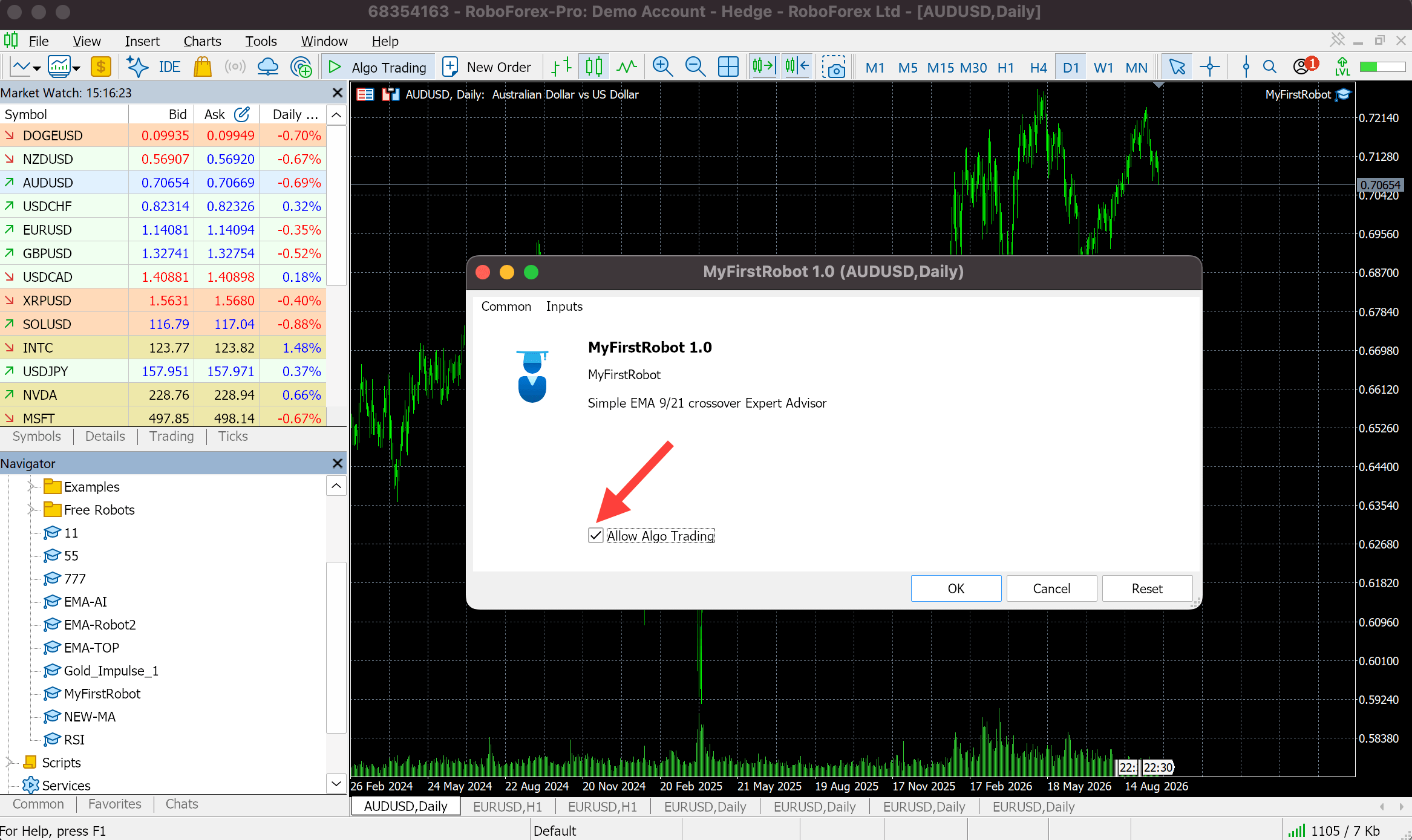
With this box unticked, the robot cannot trade even when the toolbar button is on. Older guides and the MetaQuotes help call the same box Allow Auto Trading. To change it later, right-click the chart and open the robot's properties again.
For orders to go out, both conditions hold together: automated trading is on in the terminal, and Allow Algo Trading is ticked for this robot.
Run Your First Robot on a Free Demo Account
Virtual funds and live prices in MetaTrader 5, so you can watch an Expert Advisor trade before any real money is involved.
WebRequest and DLL: Extra Permissions Some Robots Need
Some robots and scripts need more than trading rights. They exchange data with websites or call functions from external program libraries. MetaTrader 5 keeps both off until you allow them, on the same Experts tab. Most robots need neither: turn them on only when the robot's description asks for them.
Allow DLL Imports
A DLL (Dynamic-Link Library) is a program library whose functions an MQL5 application can call to do something MQL5 cannot do by itself, such as work with third-party software or certain system functions.
A DLL runs with access to your operating system and other programs on your computer. That is why MetaTrader 5 labels the option "potentially dangerous, enable only for trusted applications". Before you tick Allow DLL imports, confirm that the robot really uses a DLL, and never grant it to a program from an unknown or unverified source.
The box in Options sets the default. A robot that imports a DLL also shows a Dependencies tab in its own properties window, with its own Allow DLL imports box, so the permission can be given to that one robot only.
WebRequest
WebRequest is an MQL5 function that lets robots and scripts send HTTP requests to web servers and receive data back. It works only with addresses you add by hand to the allowed list. A robot can send data out through it as well as receive, so allow only the addresses it needs.
What robots use it for in practice:
- Telegram alerts. The robot sends a message through the Telegram API when it opens or closes a position or when a trading condition fires.
- News filters. The robot pulls an economic calendar from an external server and stops trading around major releases.
- External analytics and AI services. The robot sends data to a remote server, receives the processed result and uses it according to its own logic.
How to Allow WebRequest
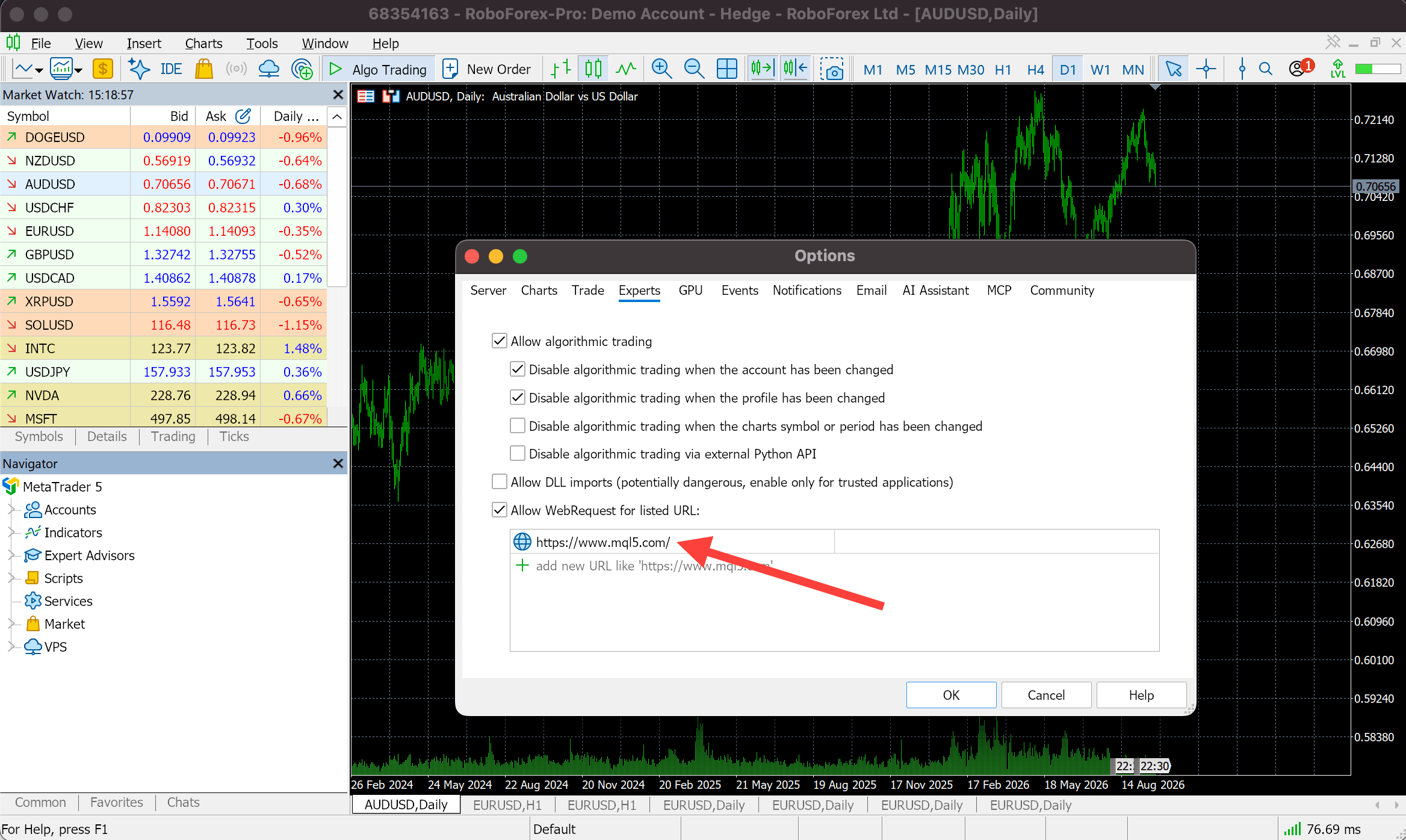
- Open Tools → Options.
- Go to the Experts tab.
- Tick Allow WebRequest for listed URL.
- Click add new URL and enter the exact address the robot needs, as given in its description, for example https://www.mql5.com/. Click OK.
Troubleshooting: Seven Checks That Get Your Expert Advisor Trading
When a robot sits on the chart and makes no trades, work from the permissions to the trading conditions. Open the Toolbox (Ctrl+T) and keep its Experts and Journal tabs in view: the Experts tab shows the robot's own messages, the Journal shows the terminal's.
| Cause | What you see | What to do |
|---|---|---|
| Automated trading is off | The Experts or Journal tab reports that automated trading is disabled | Turn on the Algo Trading button and tick Allow Algo Trading in the robot's properties |
| The server does not accept trades | The Journal reports that trading is disabled for the account or instrument | Check the account's trading conditions, the instrument's status and its trading hours. If it persists, contact RoboForex support |
| No new prices | The robot receives no new ticks, and the log shows no price-related events | Check that quotes are updating for the instrument and that it is open for trading now |
| Not enough margin, or the lot is too large | The Journal reports insufficient funds or margin | Reduce the volume and check that free margin covers the position |
| Strategy conditions not met yet | No errors in the logs, and no trade requests either | Check the robot's inputs, the instrument, the timeframe and its entry rules |
| WebRequest or DLL blocked | The robot reports a failed web request or a library it cannot load | Allow WebRequest or DLL imports, and for WebRequest add the required address to the list |
| Instrument or account type not supported | The Journal reports a rejected request or invalid trade parameters | Check the instrument's specification, the account type and the robot's own requirements |
An empty trade history is not always a fault. A robot can run correctly and wait for hours or days until its entry conditions line up. If the logs are clean and both permissions are on, compare the chart with the robot's rules before changing anything.
Checklist Before Your Robot’s First Run
Before you leave a robot to trade on its own, run through this list:
0 of 6 checked
✓ All six checked. Start the robot on a demo account first and watch its first trades in the Toolbox.
Test the robot on a demo account or in the Strategy Tester before it trades real money, and check that its volume and parameters suit the instrument you picked.
Conclusion
MetaTrader automated trading needs the Algo Trading button on, Allow Algo Trading ticked for the robot, and WebRequest or DLL access only where the robot asks for it. The Experts and Journal tabs then tell you whether the robot is trading, waiting for its conditions or blocked. A correct setup lets the robot trade; whether its strategy makes money is a separate question, which testing on a demo account answers before real funds are at stake.
A good next step is to build your first MQL5 Expert Advisor, the robot in the screenshots above, and put it through a 15-minute backtest. If the terminal is not installed yet, start with the MT5 download and setup guide or the RoboForex MetaTrader 5 page.
FAQ
Why is my Expert Advisor not opening trades in MetaTrader 5?
Check that the Algo Trading button is on, that Allow Algo Trading is ticked in the robot's properties, and that the Experts and Journal tabs show no errors. If all three are fine, the robot is most likely waiting for its entry conditions.
What does the Algo Trading button do?
It switches automated trading on or off for the whole terminal. When it is off, no Expert Advisor can trade, even one with Allow Algo Trading ticked in its own settings. On Windows, Ctrl+E toggles it.
Why does my robot need WebRequest?
WebRequest lets robots and scripts send HTTP requests to web servers and receive data. Robots use it to send Telegram alerts, load news calendars or work with external analytics services. It works only for addresses you add to the allowed list.
Do I need to allow DLL imports for my Expert Advisor?
Only if the robot uses functions from an external library, and most robots do not. MetaTrader 5 marks the option as potentially dangerous, so allow it only for software from a source you trust.
Does the robot keep trading if I close MetaTrader 5?
No. An Expert Advisor runs inside the terminal and stops when the terminal closes or the computer sleeps. For round-the-clock trading, run the terminal on a VPS, a remote server that stays online.
Any information provided in articles on this website is based solely on the personal opinions of the authors. These articles should not be construed as trading recommendations or a call to action. The authors and RoboForex accept no responsibility for the results of any trades made on the basis of these recommendations and reviews. Past performance is not indicative of future results. Trading stocks and CFDs involves a high risk of capital loss.