MT5 Download and Setup: How to Install MetaTrader 5 and Connect Your Account
The official MT5 download is available on the MetaQuotes website and on the RoboForex MetaTrader 5 page, and the mobile app is in Google Play and the App Store. Install the platform, log in with your account number, trading password and server name, and the terminal is ready in a few minutes.
Below you will find step-by-step instructions with screenshots for Windows, macOS, Android, iPhone and the browser-based Web Terminal, how to open and connect a RoboForex account, and the first settings to make before you trade. Screenshots taken in September 2026.
In Brief
- Download MetaTrader 5 from metatrader5.com or the RoboForex MT5 page. On a phone, install the app by MetaQuotes Software Corp. from Google Play or the App Store.
- Run the installer and follow its screens. On macOS it sets up the Wine components by itself.
- Log in with three details: the account number, the trading password and the server name.
- Use the desktop version for trading robots, MetaEditor and the Strategy Tester, and start on a demo account to learn the platform.
MT5 Download: Where to Get MetaTrader 5 for Your Device
Get the installer only from an official source: the MetaQuotes website, the developer of the platform, or the RoboForex MT5 page and Members Area, where the broker also gives you the data you need to connect. Find your device below and jump to its steps.
| Device | System | Where to get it | Guide |
|---|---|---|---|
| Windows | Windows 10 or later | MetaQuotes website or RoboForex MT5 page | Windows steps |
| Mac | macOS 10.15.7 Catalina or later, Apple Silicon from M1 | MetaQuotes website | macOS steps |
| Linux | Official Linux version from MetaQuotes | MetaQuotes website | metatrader5.com |
| Android, iPhone, iPad | Smartphone or tablet; on iOS, availability depends on the App Store region | Google Play or App Store | Mobile steps |
| Any browser | A modern web browser, nothing to install | Web Terminal | Web Terminal |
Every version needs a stable internet connection. For manual trading, any modern computer is usually enough; the load grows with the number of charts, indicators and trading robots you run, and with long tests in the Strategy Tester.
Check the domain name in the address bar before every download, and skip installer links that arrive in unexpected emails, messages or ads. Unknown websites and file archives raise the risk of installing modified or unsafe software.
How to Install MetaTrader 5 on a Computer
Installing on Windows
- Download the installer from the MetaQuotes website or the RoboForex MT5 page.
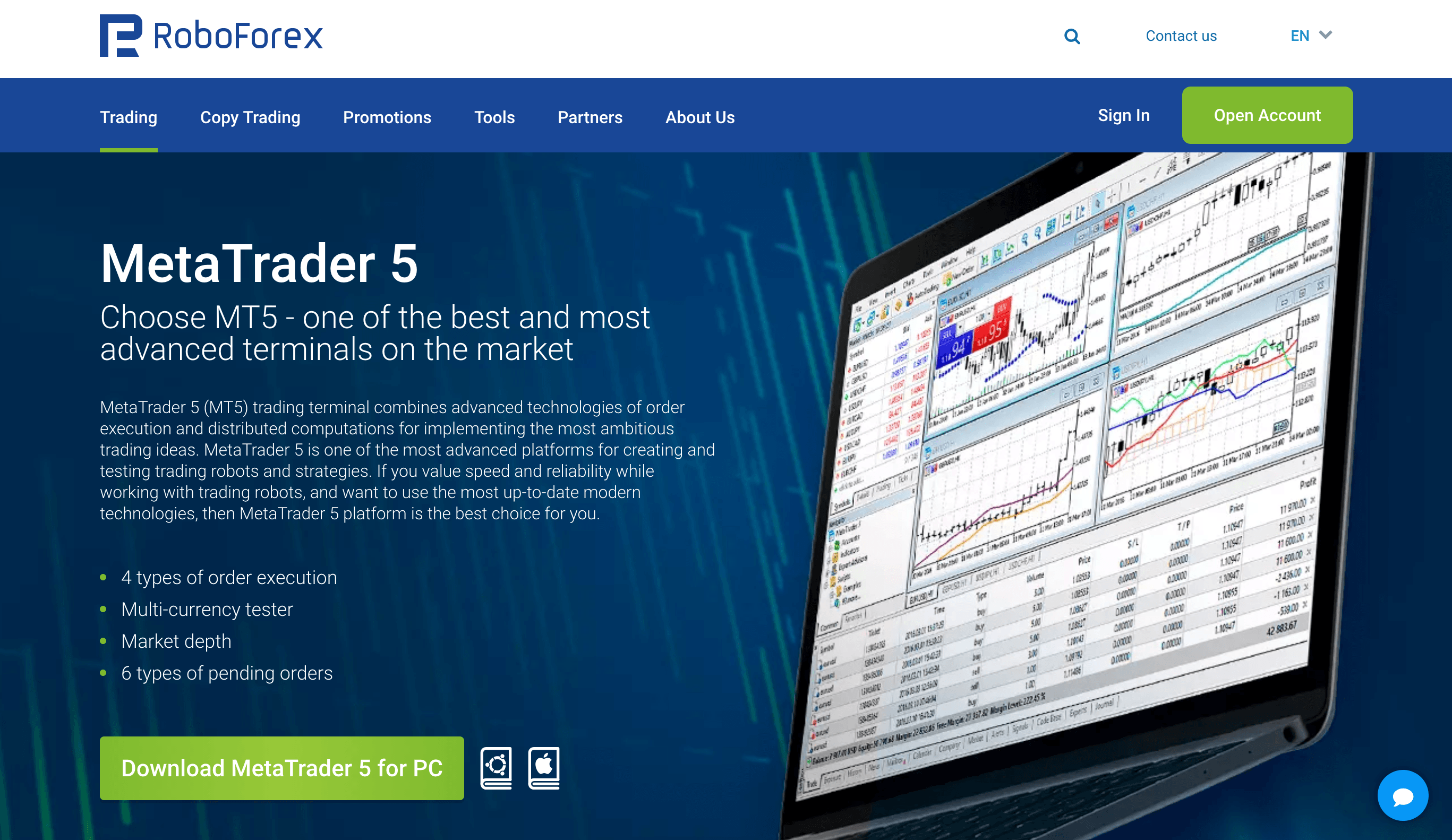
- Double-click the downloaded file to start the installer.
- Read the licence agreement. If you accept it, click Next.
- To change the installation folder or other options, click Settings first.
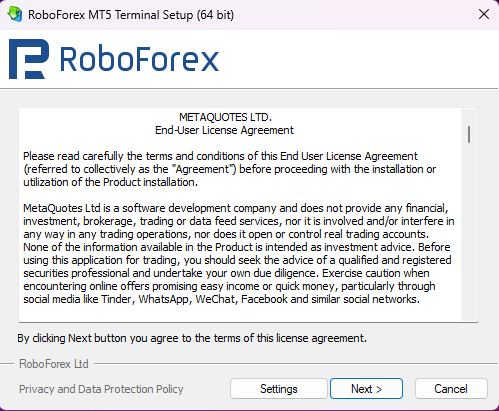
- Click Next. The installer downloads the components it needs from the MetaQuotes servers and installs the platform.
- When installation is complete, click Finish.
- Launch MetaTrader 5 from the desktop shortcut.
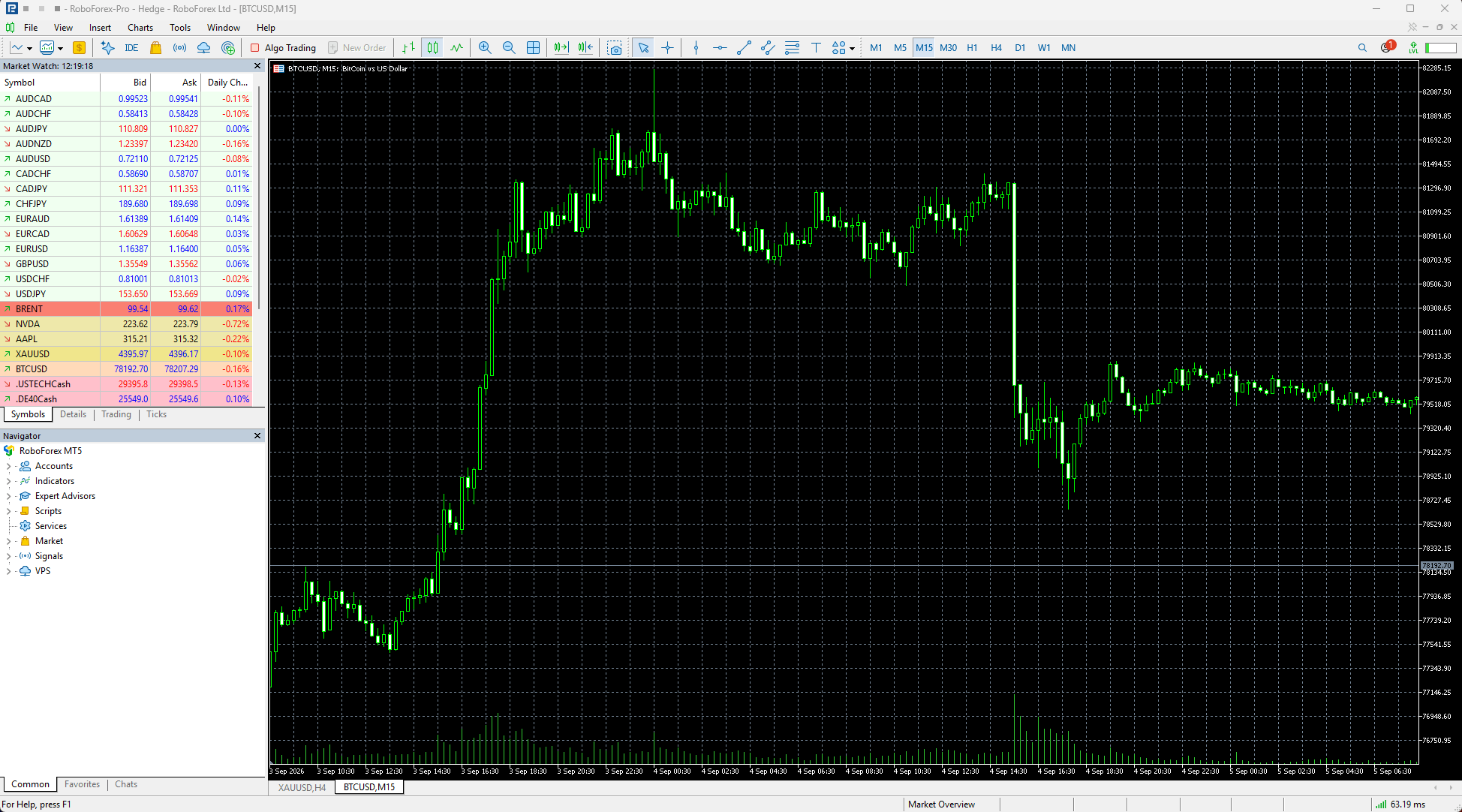
The installer from the MetaQuotes website goes through the same steps under its own branding. After the first launch, the terminal is ready to log in to your account.
Installing on macOS
MetaTrader 5 has its own installer for macOS. It detects your system, sets up the Wine components the platform needs and then installs MetaTrader 5, so there is nothing to configure by hand.
- Download the macOS installer from the MetaQuotes website.
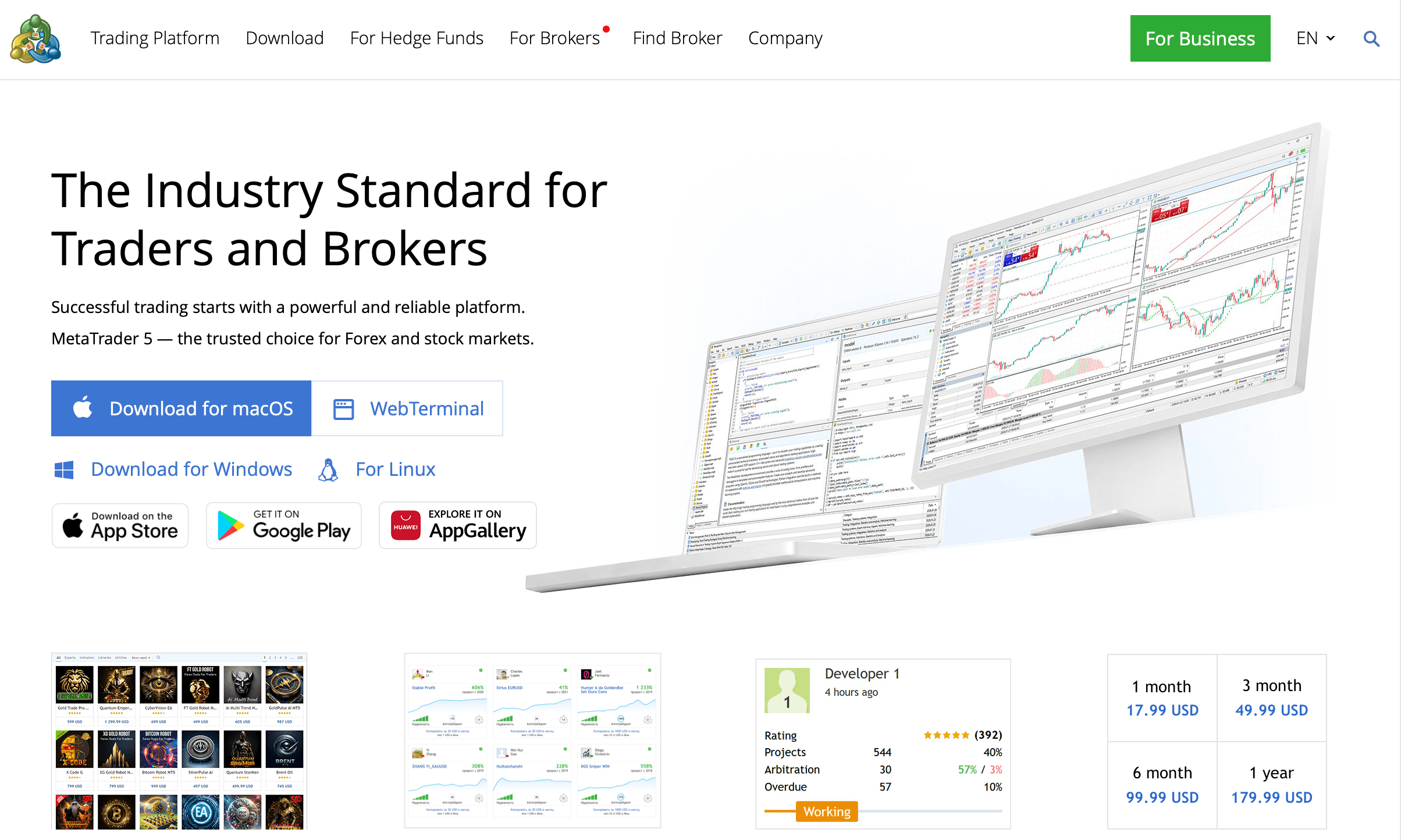
- Open the downloaded installer.
- Click Continue and accept the licence agreement.
- Click Install. If the installer asks to install additional Wine components, confirm. The platform needs them to run.
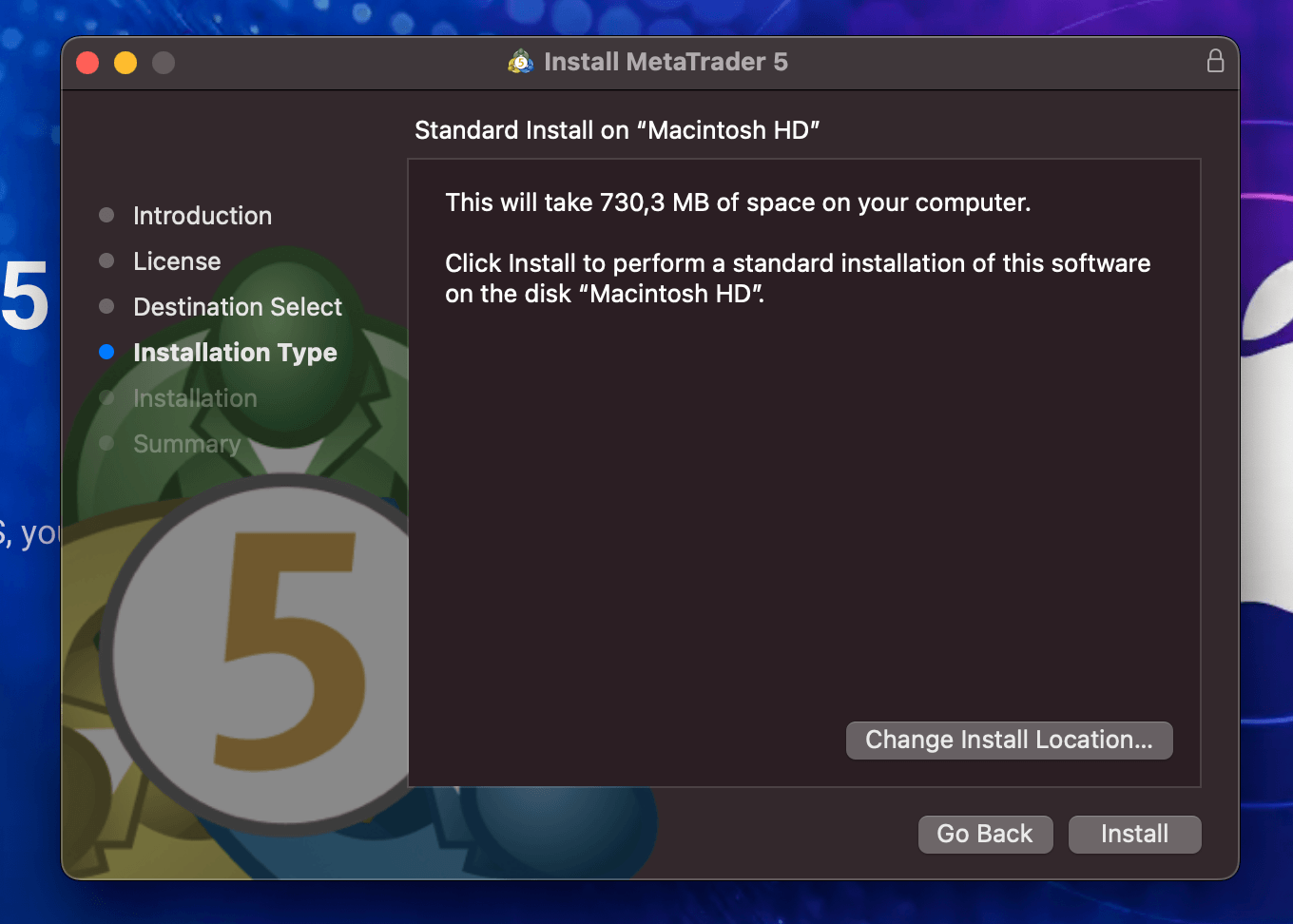
- Wait for installation to finish, then open MetaTrader 5 like any other macOS application.
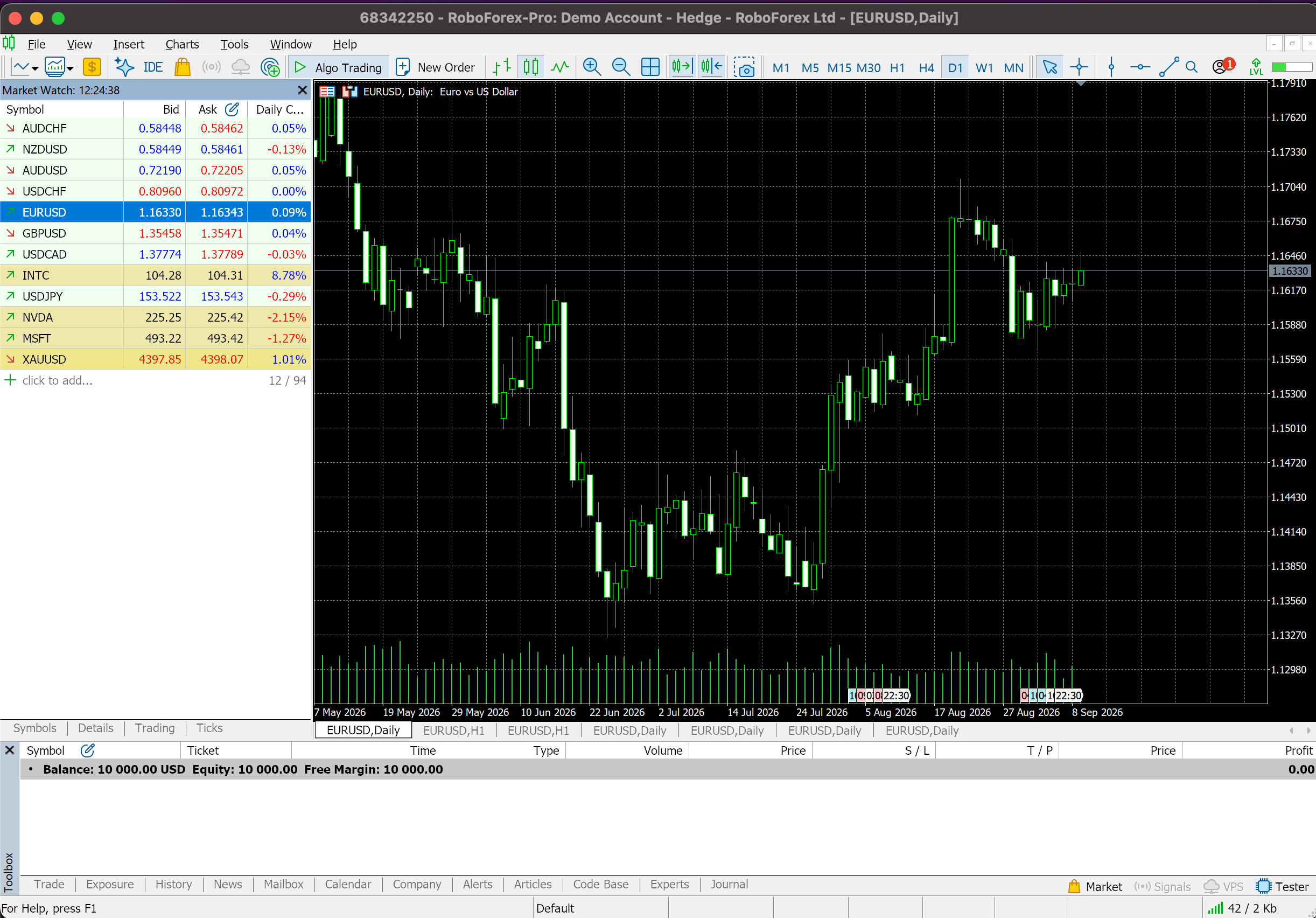
If macOS blocks the application on its first launch, first make sure the installer came from an official source, then allow the launch in the system's security settings.
How to Install MetaTrader 5 on Android and iPhone
The mobile app is built for keeping an eye on the market, managing open positions and placing manual trades from a smartphone or tablet. The steps are the same in both stores:
- Open Google Play on Android or the App Store on iPhone and iPad.
- Search for MetaTrader 5.
- Check that the developer is MetaQuotes Software Corp.
- Tap Install on Android or the download button on iOS.
- Open the app and connect your trading account.
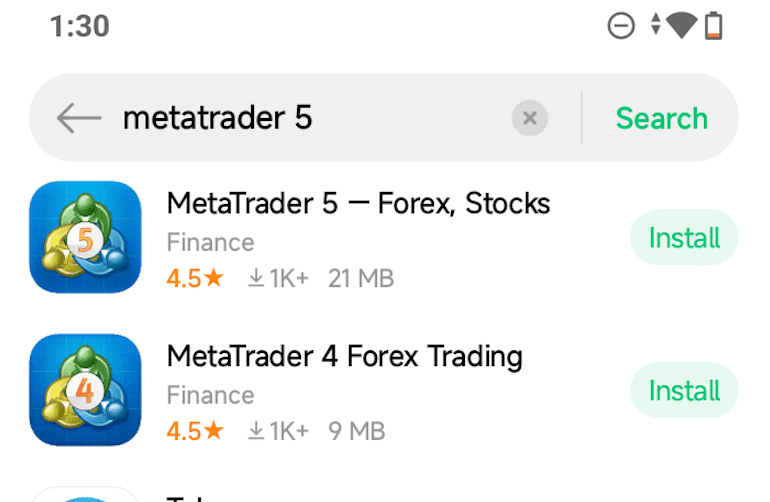
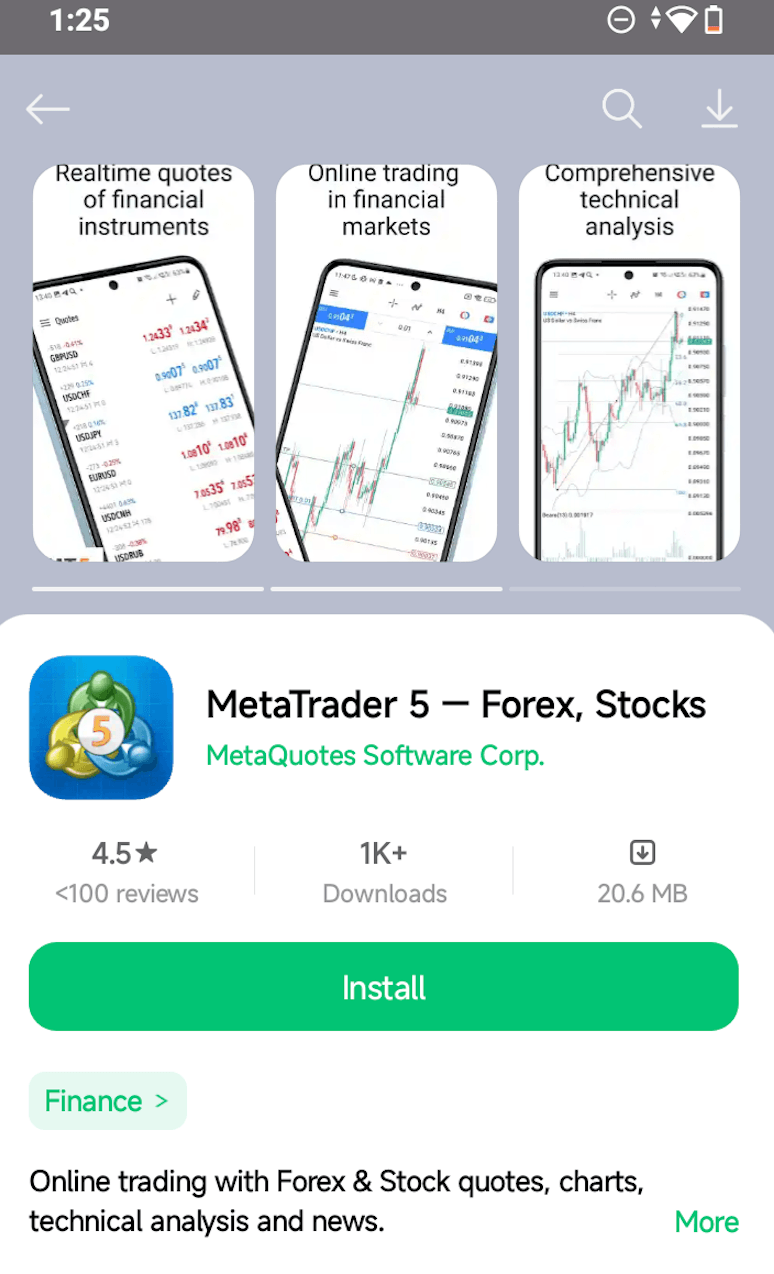
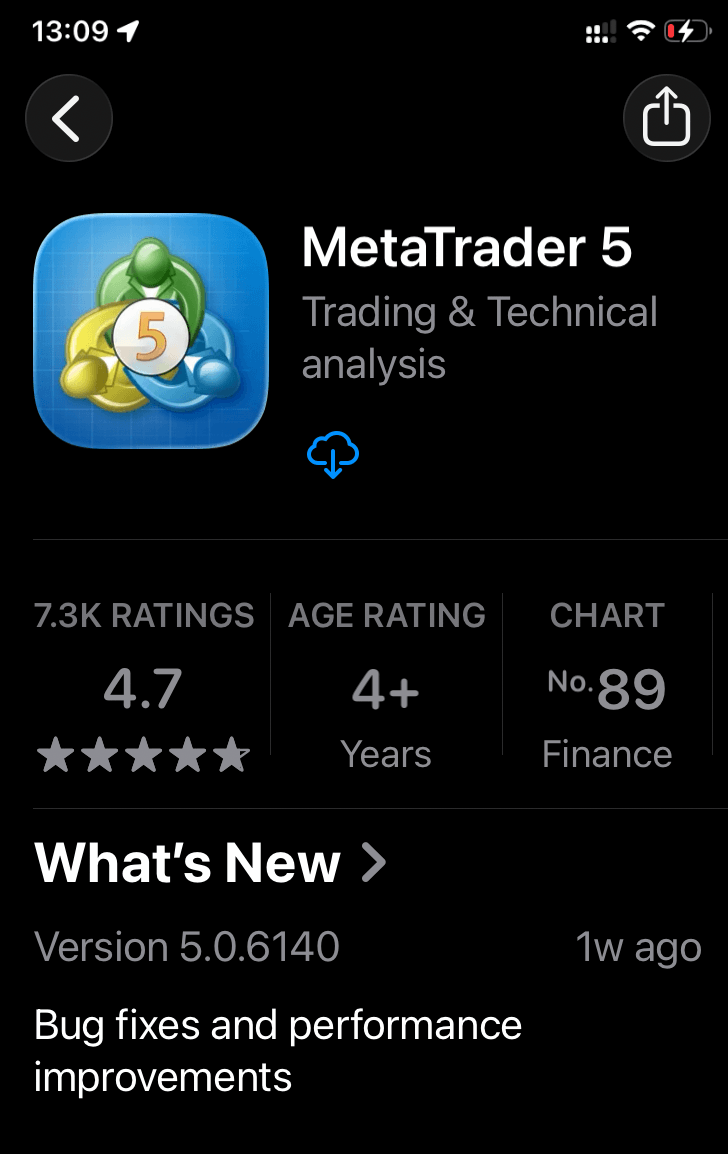
If you follow a link to the app from the broker's website, check that it opens an official app store. Avoid installing MetaTrader 5 APK files from third-party websites, and keep installation from unknown sources switched off on your phone. On iOS, availability of the app can depend on your App Store region.
MT5 Web Terminal: Trading in the Browser
The MetaTrader 5 Web Terminal opens your trading account right in the browser, with nothing to install. Open it from the broker's website or the MetaQuotes website and log in with your trading account details.
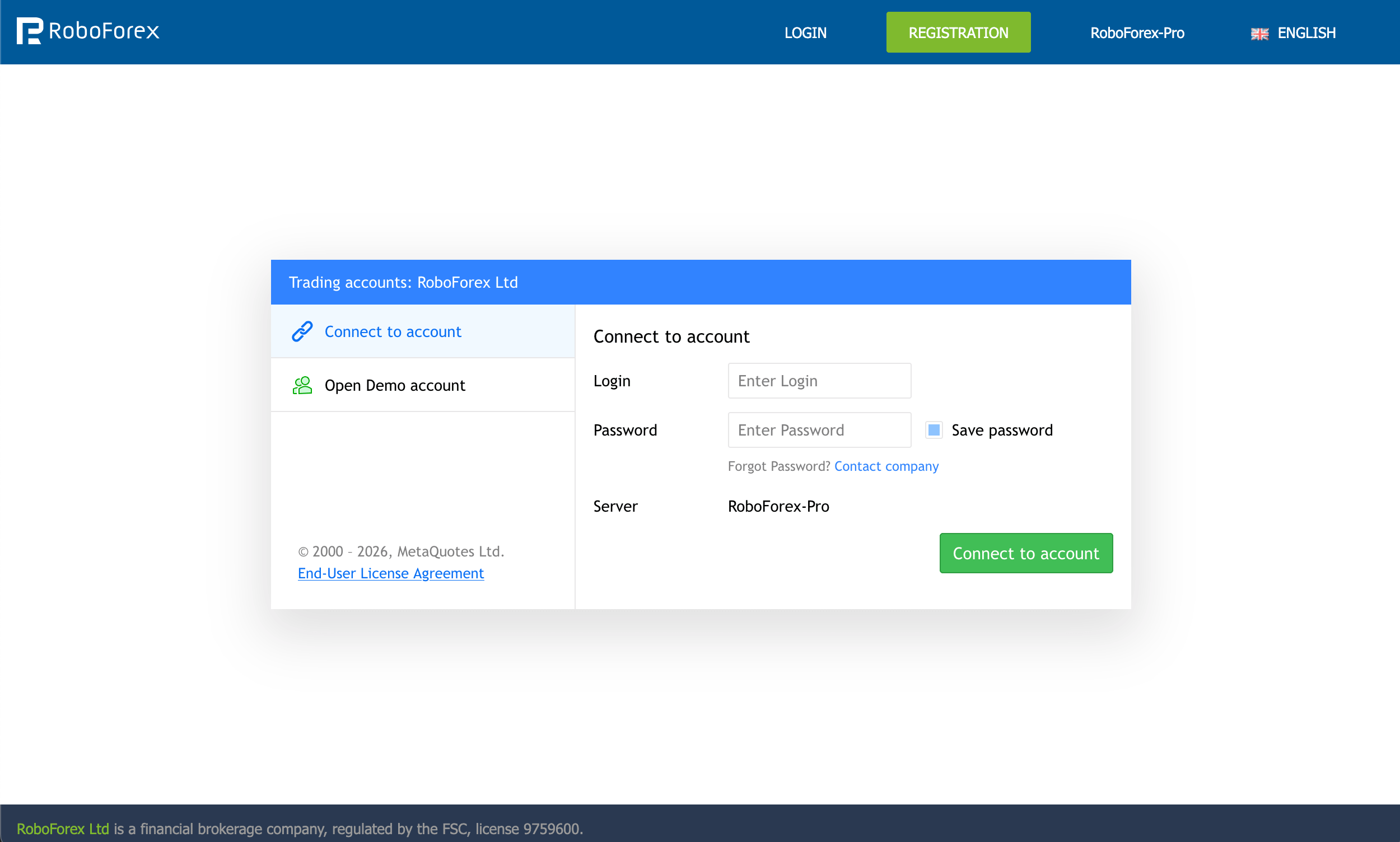
It comes in handy when:
- your work computer blocks software installation
- your device or operating system makes the desktop version hard to install
- you need quick access to your account from another computer
- your main terminal is temporarily out of reach
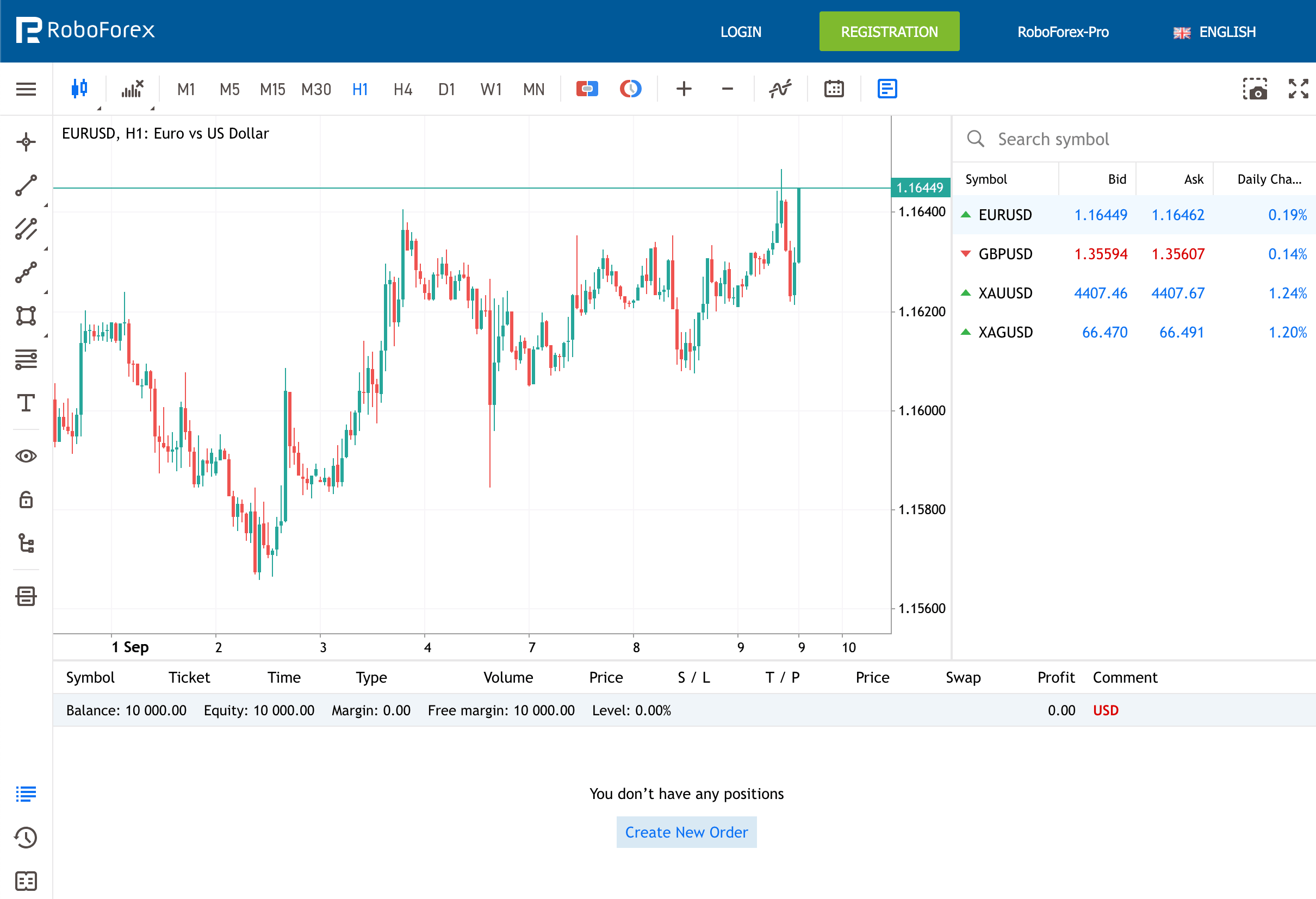
The set of features can vary from one web terminal to another. For building and running Expert Advisors, working in MetaEditor, and testing or optimising strategies, use the desktop version.
Desktop, Mobile or Web Terminal: Which Version Fits Your Task
For manual trading, all three versions do the job. For automated strategies, the desktop terminal gives you far more tools than the other two.
| Feature | Desktop | Mobile | Web Terminal |
|---|---|---|---|
| Best for | Robots, custom indicators, strategy testing | Watching the market and managing positions on the go | Quick access from any computer |
| Algo trading | Supported | Not supported | Not supported |
| MetaEditor | Available | Not available | Not available |
| Strategy Tester | Available | Not available | Not available |
| Custom indicators | Supported | Built-in indicators only | Built-in indicators only |
| Charts | Several charts at once | Adapted to a phone screen | One chart at a time |
| Push notifications | Sends them | Receives them | Not supported |
| Runs on | Windows, macOS, Linux | Android, iOS | A modern web browser |
Practise in MetaTrader 5 on a Free Demo Account
Virtual funds and live market prices, so you can learn the terminal before any real money is involved.
How to Open a MetaTrader 5 Account at RoboForex
To see live quotes and place trades, you need a trading account that supports MetaTrader 5. Decide first which kind you need:
- Demo account. Runs on virtual funds. Use it to learn the interface, try strategies, set up indicators and test trading robots with no real money at stake.
- Real account. Trades with real money, so every result is real too. Weigh the deposit size, the level of risk you accept and the conditions of the account type before you start.
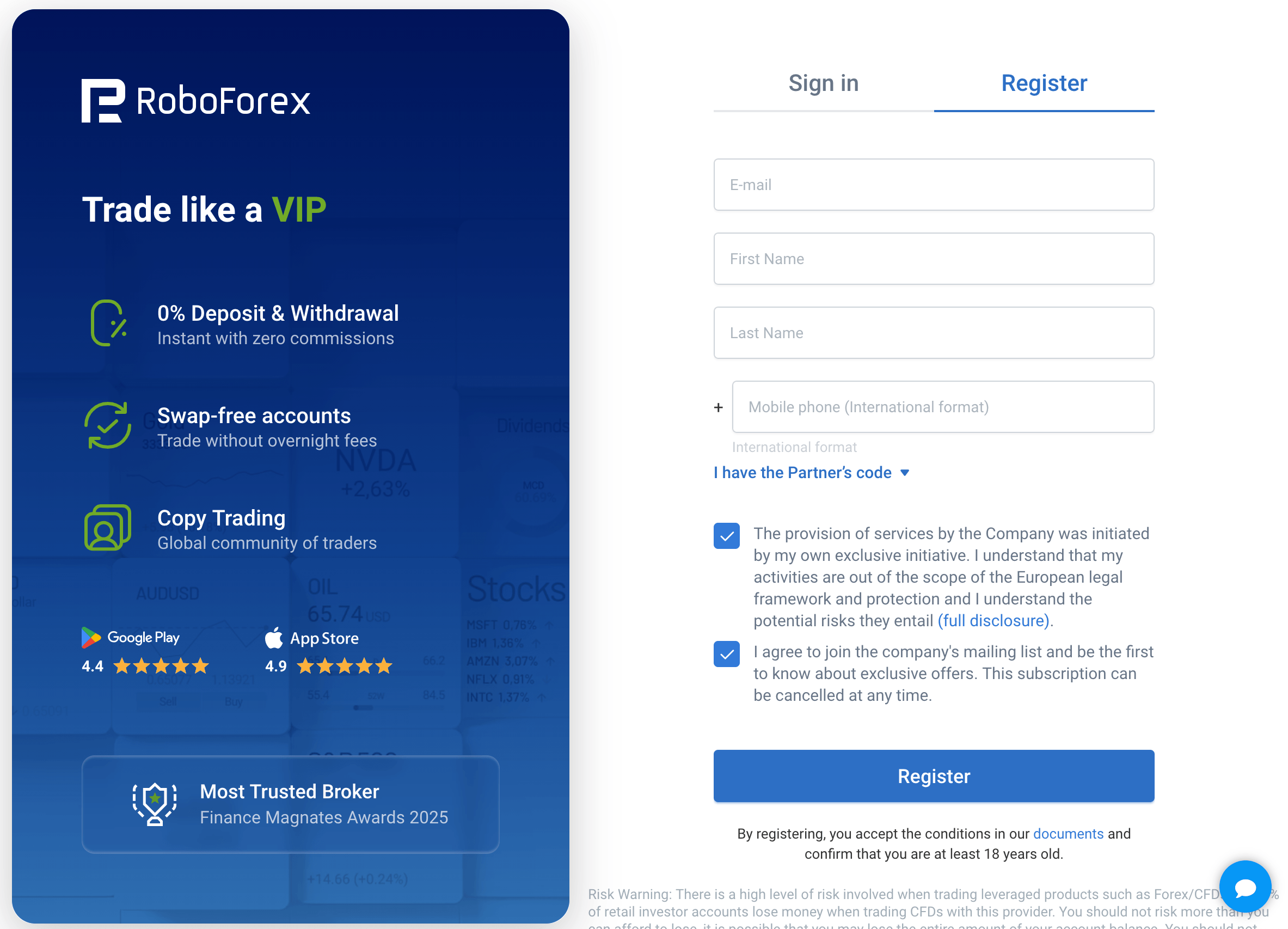
- Go to the RoboForex website and sign in to the Members Area, or register a new profile.
- Open the section for creating a new trading account.
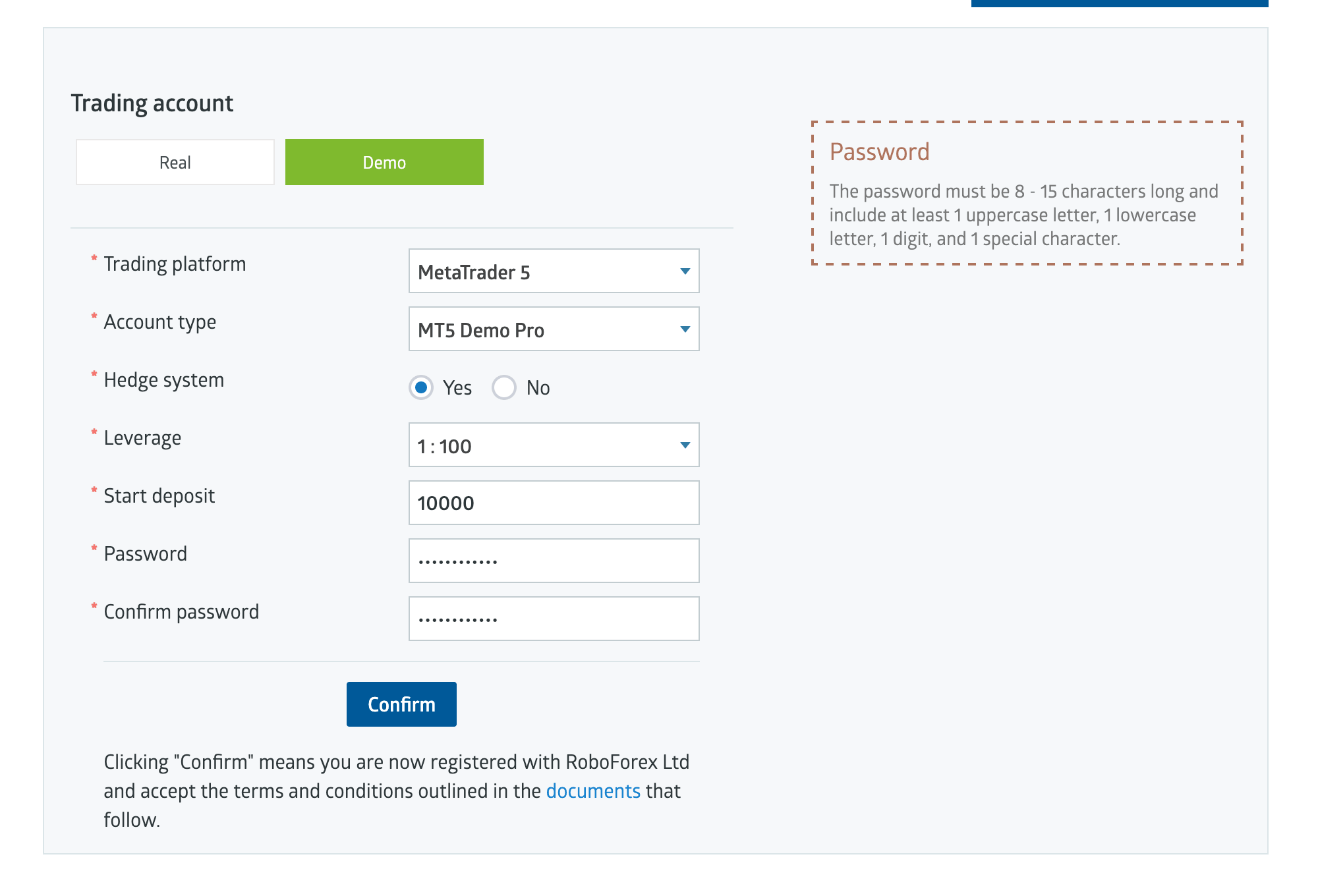
- Choose Demo to practise or Real to trade with real funds.
- Select MetaTrader 5 as the trading platform, if it is available for the account type you want, then pick the account type, leverage and password, and click Confirm.
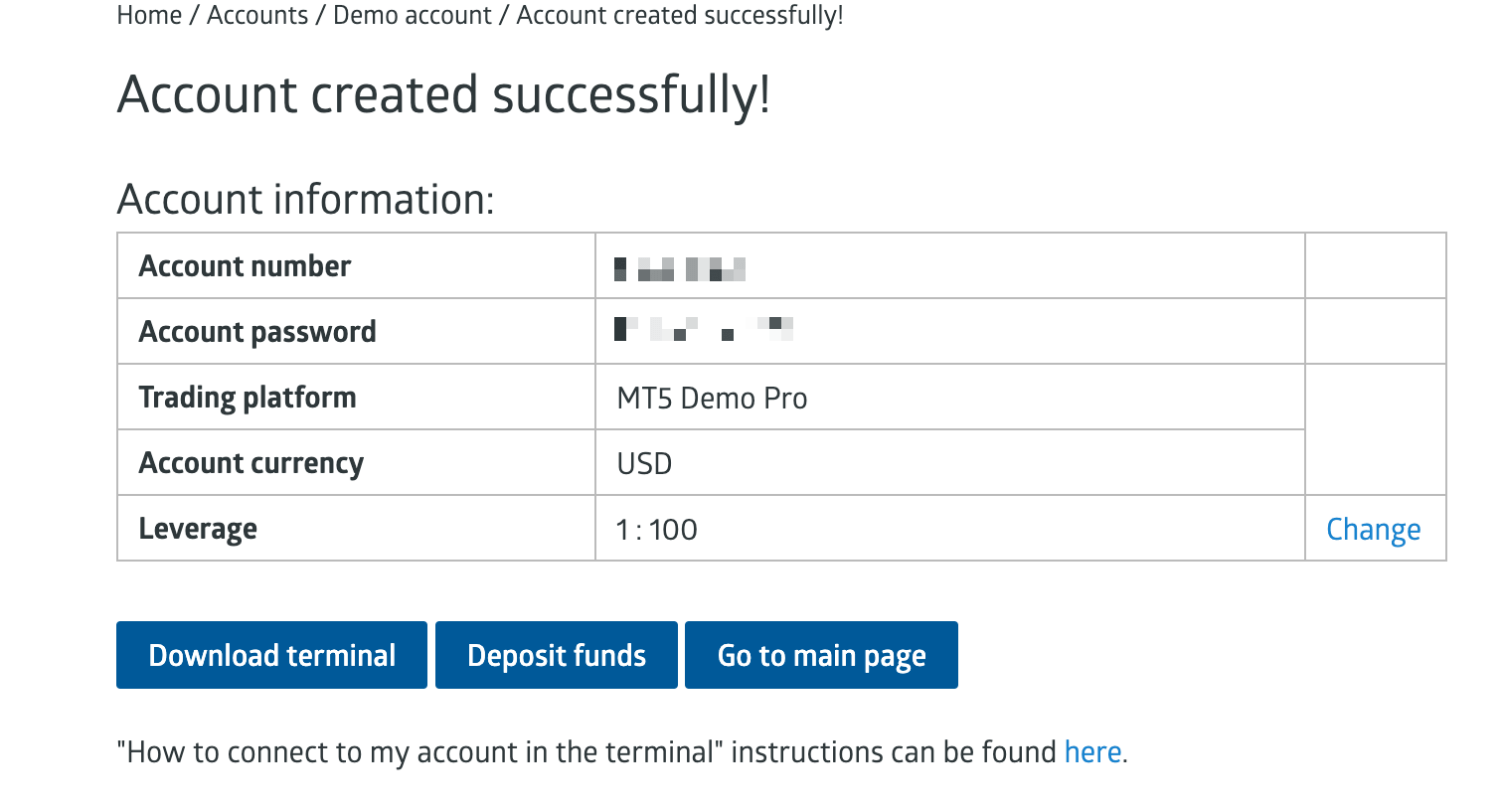
- Once the account is created, save its number, the trading password and the server name. You will need all three in the terminal.
Before trading on a real account, check the conditions of its type: the minimum position size, spreads, commissions and the instruments available to trade.
MT5 Login: How to Connect Your Trading Account
You connect MetaTrader 5 to a RoboForex account with three details:
Login
The unique account number, digits only.
Trading password
The password that lets you log in and place trades.
Server
The trading server of this specific account, listed in the RoboForex Members Area.
Keep the trading password separate from the investor password. The investor password opens the account in view-only mode: you see the balance and trade history, and you cannot place trades.
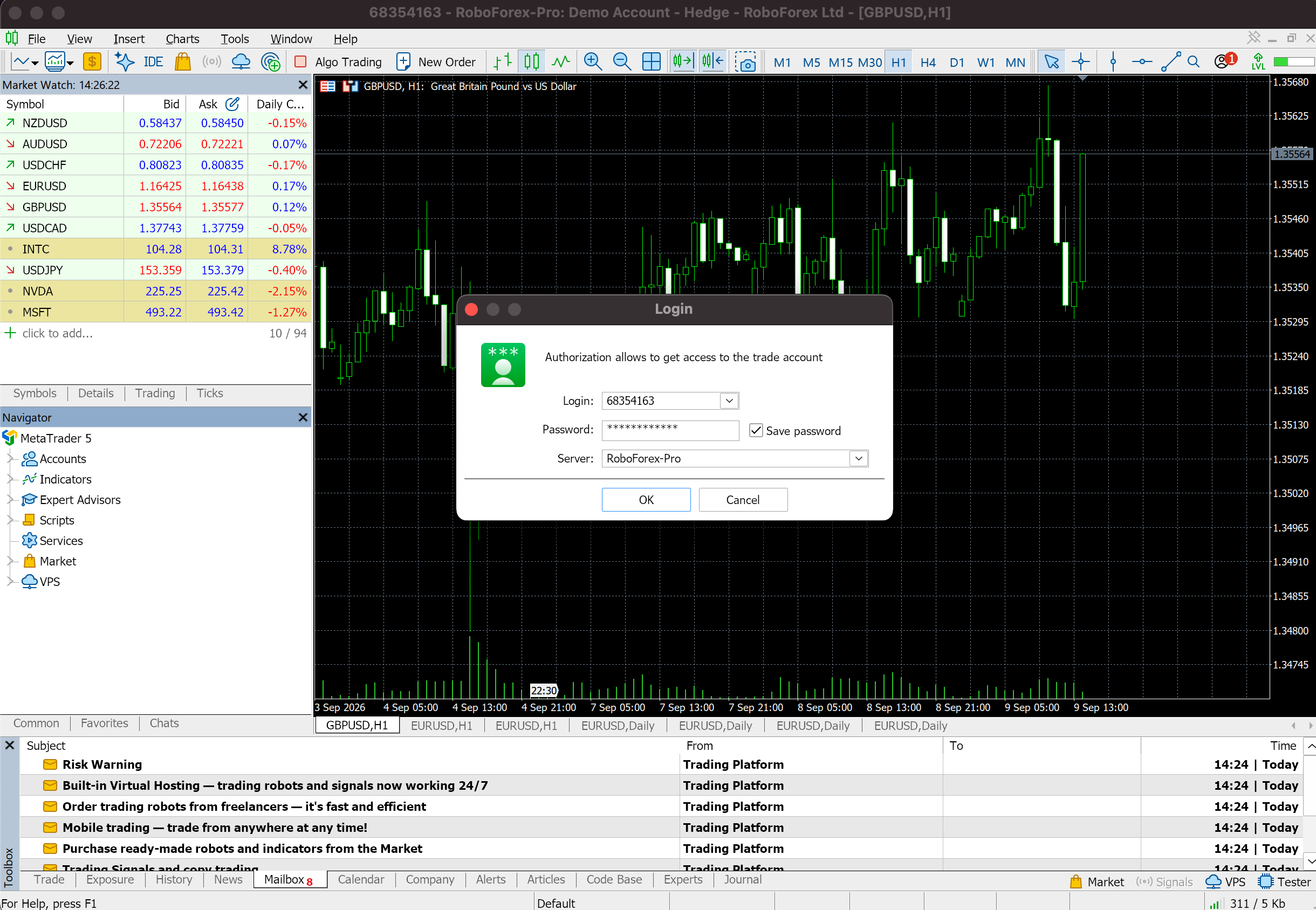
In the desktop version, the login takes eight steps:
- Launch MetaTrader 5.
- Open the Navigator window.
- Right-click Accounts and choose Login to Trade Account.
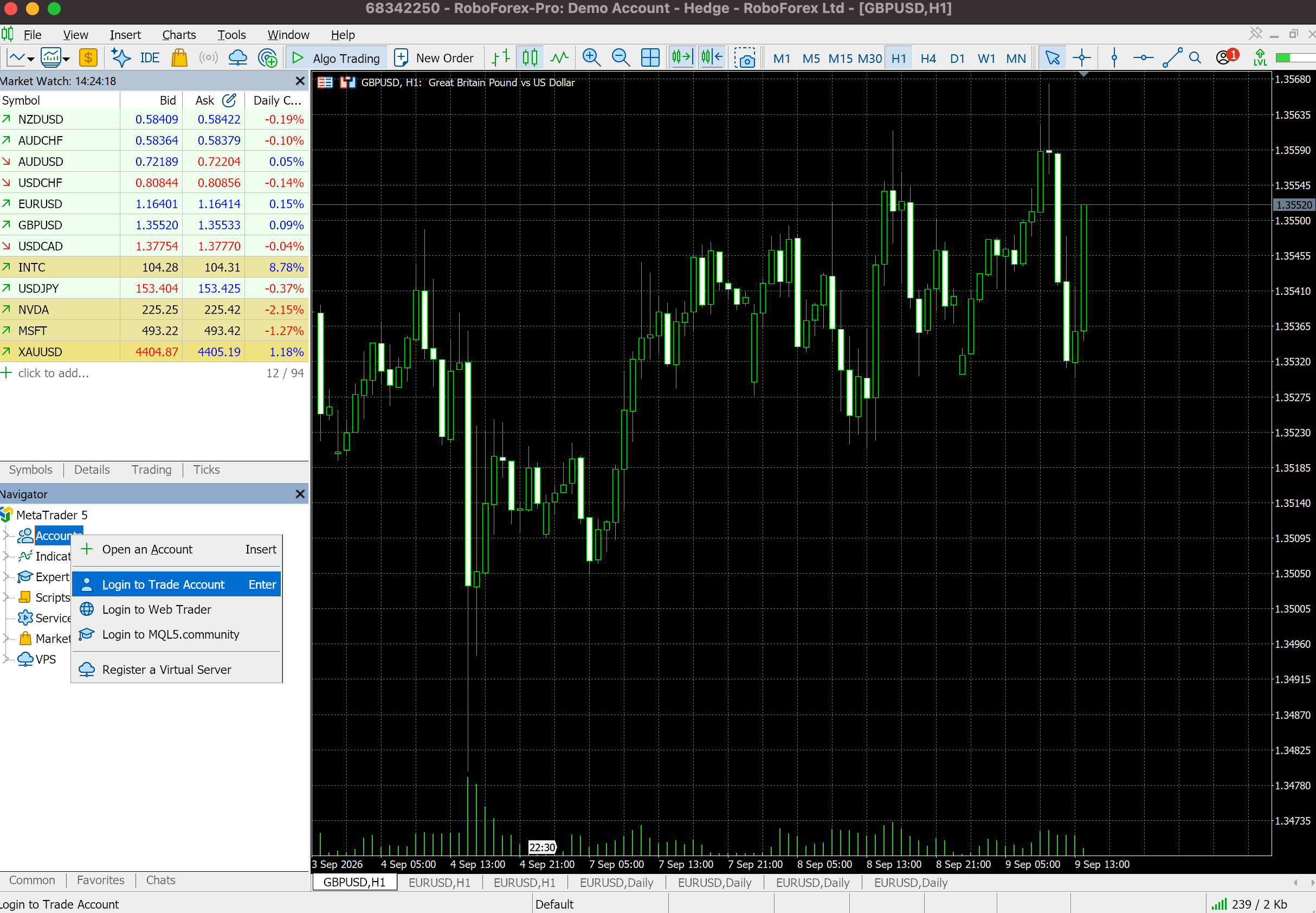
- Enter the account number in the Login field.
- Enter the trading password in the Password field.
- In the Server field, select the server that belongs to your account.
- Tick Save password if you want the terminal to remember it.
- Click OK.
How to Check the Connection
Once you are logged in, the terminal starts receiving data from the trading server. Three signs confirm it:
- Market Watch shows prices for the available instruments, and they keep changing.
- The time at the top of Market Watch keeps moving.
- The connection indicator in the bottom right corner of the terminal shows live traffic.
If quotes are not coming in, go through the checks in the next section.
Three Quick Checks That Get Your Account Connected
When the terminal does not connect after you enter your details, start with the login data itself. These three checks cover most cases.
Check the Login and Password
Make sure the account number has no extra characters or spaces. Confirm you entered the trading password for this account. The password for the RoboForex Members Area does not open the terminal.
Check the Server
A server that does not match the account is one of the most common reasons a login fails. Real account details, for example, will not authorise on a server meant for demo accounts. Look up the server name in the RoboForex Members Area and select exactly that one in MetaTrader 5.
Check the Network
If the terminal is still not receiving quotes, check:
- your internet connection
- your antivirus or firewall software
- that the selected server is the right one
If local security software is blocking the connection, allow MetaTrader 5 network access in its settings.
After Installation: Your First Setup Checklist
With the account connected, a few basic settings make the terminal easier to work with and help you keep track of positions, orders and instruments.
Open the Toolbox
Press Ctrl+T to open the Toolbox panel at the bottom of the terminal. It shows open positions and orders, trade history, your financial result, news and other account information. For manual trading, keep it open: it is where you see the current state of every position and pending order.
Set Up Market Watch
Press Ctrl+M to open Market Watch, which lists available instruments with their current Bid and Ask prices. If the instrument you need is missing, right-click inside the window and choose Symbols to add it. Build your list in advance: the currency pairs, metals, indices, cryptocurrencies or other instruments you plan to trade.
Turn On Trade Levels
Make sure trade levels are shown on your charts: Tools → Options → Charts → Show trade levels. With the option on, the chart displays the levels of open positions and pending orders, including Stop Loss and Take Profit, so you can see where your protective and target levels sit without leaving the chart.
Before Your First Trade
Run through this list before you open a position:
0 of 5 checked
✓ All five checked. You are set for the trade, and the Toolbox will show the position once it opens.
If you plan to use trading robots, also make sure the Algo Trading button on the toolbar is switched on. Before you start an Expert Advisor, check its input parameters, its permission to trade automatically and the settings of the strategy it runs.
Conclusion
A working MetaTrader 5 terminal takes four actions: an MT5 download from an official source, installation, a login with account number, trading password and server, and a few workspace settings. Before trading on a real account, confirm that you are on the right account and server and that your position size matches the risk you accept.
A good next step is to learn what the terminal can do in our guide to MetaTrader 5 features. If automated trading is your goal, build your first MQL5 expert advisor and put it through a 15-minute backtest on a demo account.
FAQ
Where is the safest place to get the MT5 download?
From the MetaQuotes website, metatrader5.com, or from the RoboForex MT5 page and Members Area. Check the domain before downloading, and skip installer links from unexpected emails, messages or ads.
Can I install MetaTrader 5 on a Mac?
Yes. MetaQuotes offers a macOS installer that sets up the Wine components automatically. It supports macOS Catalina 10.15.7 and later, including Macs with Apple Silicon from M1 onwards.
What is the difference between the trading password and the investor password?
The trading password gives full access, including placing trades. The investor password opens the account in view-only mode: you see the balance and history and cannot trade.
Why are there no quotes after I log in?
Check three things in order: the account number and trading password, the server selected for that account, and your internet connection together with any antivirus or firewall that may block MetaTrader 5.
Can I run trading robots in the mobile app or the Web Terminal?
No. Expert Advisors, MetaEditor, the Strategy Tester and custom indicators work only in the desktop version for Windows, macOS or Linux.
Should I connect a demo or a real account first?
A demo account runs on virtual funds, which makes it the place to learn the interface, set up indicators and test strategies. Move to a real account once you know the platform, and weigh the deposit and the risk before you do.
Any information provided in articles on this website is based solely on the personal opinions of the authors. These articles should not be construed as trading recommendations or a call to action. The authors and RoboForex accept no responsibility for the results of any trades made on the basis of these recommendations and reviews. Past performance is not indicative of future results. Trading stocks and CFDs involves a high risk of capital loss.