MT5 VPS for a Trading Robot: What It Is, Why You Need It and How to Connect
An MT5 VPS is a remote computer running Windows, where you install MetaTrader 5 (MT5), the MetaQuotes trading platform, and start your trading robot, an Expert Advisor (EA). The platform and the robot keep working around the clock, even when your own computer is switched off or offline. RoboForex clients can get a VPS at no charge when their account meets two conditions.
TL;DR
- A VPS keeps MetaTrader 5 and your Expert Advisor running whatever happens to your own computer.
- RoboForex conditions: equity above 300 USD and at least 3 standard lots traded in a calendar month.
- Four steps: connect to the VPS over Remote Desktop, install MetaTrader 5, start the robot, check that it keeps working.
What Is an MT5 VPS?
A VPS, or Virtual Private Server, is a virtual computer that sits in a data centre and runs 24 hours a day. For automated trading, RoboForex provides a server with Windows Server 2019. You install MetaTrader 5 on it, log in to your trading account and start an Expert Advisor (EA), the program that trades by its own rules.
Traders also call it a forex VPS or a trading VPS. You control it through the Remote Desktop Protocol (RDP). An RDP app shows the server's desktop on your screen, and you work with it the way you work with your own computer.
Two separate connections are involved:
| Connection | From and to | What it does |
|---|---|---|
| Remote control | Your computer to the VPS, over RDP | Lets you set up the server and the platform |
| Automated trading | MetaTrader 5 on the VPS to the broker's trade server | Carries quotes and the robot's orders |
Once the terminal and the robot are running, the first connection can close. The second one stays on the server, so trading continues while your computer is off.
Do You Need a VPS for Your Trading Robot?
You need one if the terminal has to stay on around the clock for the robot to trade. A VPS takes that job off your computer and your home internet.
| A VPS makes sense | You can do without one |
|---|---|
| The robot trades around the clock. It watches the market and opens or manages trades at any hour. | You trade by hand. You open and close every trade yourself, so the terminal does not have to stay on. |
| You run several terminals. One server can hold several copies of MetaTrader 5 with different robots or accounts. | You trade from your phone. Managing positions by hand in MobileTrader needs no server. |
| Your home internet drops. The robot misses signals while the terminal is offline. | Your robot trades only during your working hours and you keep the computer on for that time. |
A server can fail too, so a VPS lowers your dependence on your own computer and connection and still needs regular checks. The three that matter most are listed further down.
Instant Access to Global Markets with RoboForex MobileTrader
Why Does Latency Matter for Automated Trading?
Latency is the time data takes to travel between devices, for example from your terminal to the broker's trade server. It is measured by ping: the time in milliseconds a signal needs to reach the server and come back. The higher the latency, the longer an order takes to arrive. If the price moves during that time, the trade can fill at a different price from the one the robot saw. That difference is called slippage, and fast strategies such as scalping feel it most.
| Connection type | Typical ping |
|---|---|
| Home internet | 40 to 120 ms |
| VPS in a data centre | 1 to 5 ms |
These values are typical figures quoted by VPS providers. To see your own ping, click the connection indicator in the bottom right corner of MetaTrader 5: the list that opens shows the ping to each server. Latency stays low when the VPS sits in a data centre close to the broker's trade server, so check the ping in MetaTrader 5 after the first login. A low ping still does not guarantee a fill at the expected price, because market conditions move the price as well.
Which VPS Should You Choose for MT5?
The RoboForex VPS suits clients who meet its conditions and want full Windows access. MetaQuotes hosting suits traders who want no server to look after. A rented VPS suits those who need their own configuration. MetaTrader 5 robots can run in three places: a broker's VPS, the virtual hosting built into MetaTrader 5 by MetaQuotes, or a server you rent yourself.
| What to compare | RoboForex VPS | MetaQuotes virtual hosting | Rented VPS |
|---|---|---|---|
| Cost | No charge when the equity and volume conditions are met | Paid at MetaQuotes rates, with a 24-hour trial. RoboForex Ltd clients can get it at the broker's expense under the Sponsored VPS offer | Monthly rent that depends on the configuration |
| Setup | Connect over RDP and install MetaTrader 5 | Simple: the terminal moves your setup to the server | Depends on the provider, Windows and the terminal may need setting up |
| Desktop access | Full access over RDP | None, you manage it from MetaTrader 5 | Usually full access over RDP or VNC |
| What runs on it | MetaTrader 5, robots and trading software; the server reaches RoboForex servers and sites only | Expert Advisors, indicators and signal subscriptions | MetaTrader 5 and other programs the configuration supports |
MetaQuotes hosting suits traders who want the robots to run around the clock without looking after a server. You move your setup to it from inside MetaTrader 5, and there is no Windows desktop to install other programs on.
The RoboForex VPS and a rented server give you a full Windows system. You set up the terminal yourself, run several robots and copy over the programs and scripts you need. A rented server also lets you pick its configuration.
How Do You Get a VPS at RoboForex?
There are two routes to a forex VPS at RoboForex: a full Windows VPS ordered in the Members Area, or the Sponsored VPS offer for MetaQuotes hosting.
Option 1. A Windows VPS From RoboForex
The server costs nothing while your account meets these conditions:
| Condition | Requirement |
|---|---|
| Equity on the trading account | Above 300 USD, active bonuses excluded, or the same in another currency |
| Trading volume | At least 3 standard lots per calendar month |
| CFD trades | Not counted, CFDs on US stocks included |
| VPS received after the 15th | Volume counts from the 1st of the next month |
| Volume falls short | The VPS costs 5 USD a month, charged from the USD Wallet when Renew automatically is on |
Conditions checked on the RoboForex VPS page on 6 November 2026.
To order it:
- Register at RoboForex.
- Verify your account.
- Make sure the equity on your trading account is above 300 USD, bonuses excluded.
- Open the Your VPS 2.0 server section in the Members Area and submit a request.
- Wait for the email with the server's IP address, user name and password.
The full terms are on the RoboForex VPS page.
Option 2. Sponsored VPS From MetaQuotes
RoboForex Ltd clients can use MetaQuotes hosting at the broker's expense under the Sponsored VPS offer, which runs until the date shown on the VPS page. To join, deposit at least 500 USD to an MT5 account, or have at least 500 USD on it at 00:00 server time on the first day of the month.
The service runs to the end of the month. It renews when the account has at least 500 USD on the balance and at least one closed position at the end of the month. To activate it, open the VPS tab in MetaTrader 5, choose Free, for 1 month, complimentary of your broker, and order the server.
Once the email with the server's login arrives, setup takes four steps.
- Connect over RDPIP address, user name, password
- Install MetaTrader 5Log in to your trading account
- Start the robotChart, Allow Algo Trading, Algo Trading button
- Check it keeps workingExperts and Journal tabs
Open a RoboForex Account and Request Your VPS
Register, verify your account and order the server in the Members Area.
Step 1. Connect to the VPS With Remote Desktop
Setting up starts with a Remote Desktop connection to the server. Windows has a built-in app for this, Remote Desktop Connection, and once you are in, the server works like a second computer on your screen.
- Press Win + R to open the Run window, type mstsc and press Enter.
- In the Computer field, enter the VPS IP address from the email and click Connect.
- Enter the user name and password from the same email.
- Wait for the server's Windows desktop to appear on your screen.
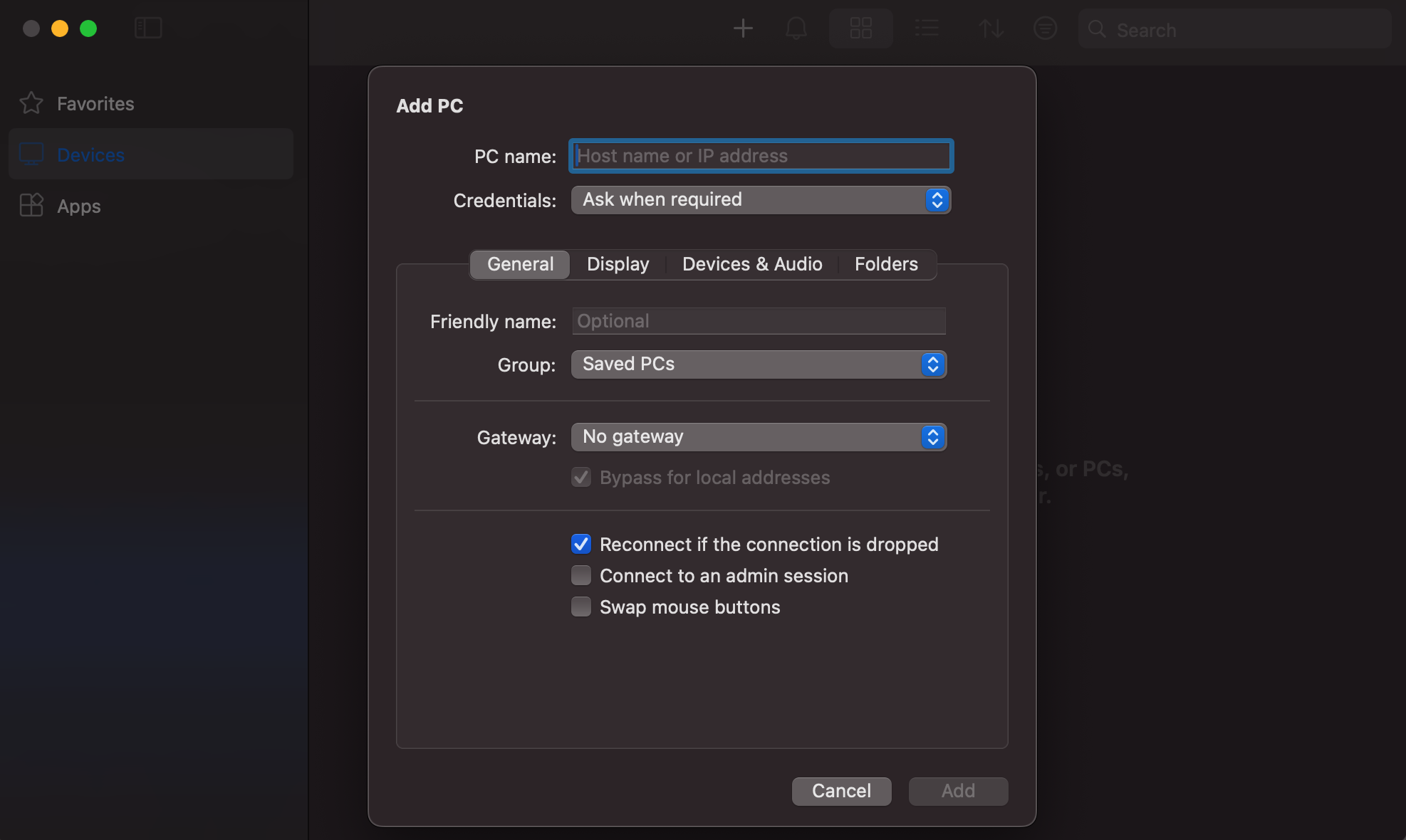
macOS, Android and iPhone
On macOS, Android and iPhone you connect with a remote desktop app that supports RDP, available for each system. Add the server by its IP address, then sign in with the user name and password from the email. RoboForex also offers a VNC connection from the Members Area through a compatible client.
Step 2. Install MetaTrader 5 on the VPS
With the server's desktop open, install the platform and connect your trading account.
- Open a browser on the server and download the MetaTrader 5 installer from the RoboForex website.
- Run the installer and finish the installation.
- Start MetaTrader 5 and log in with your account number, trading password and the broker's server.
- Check the connection: the status in the bottom right corner shows that the terminal is online, and quotes update in Market Watch.
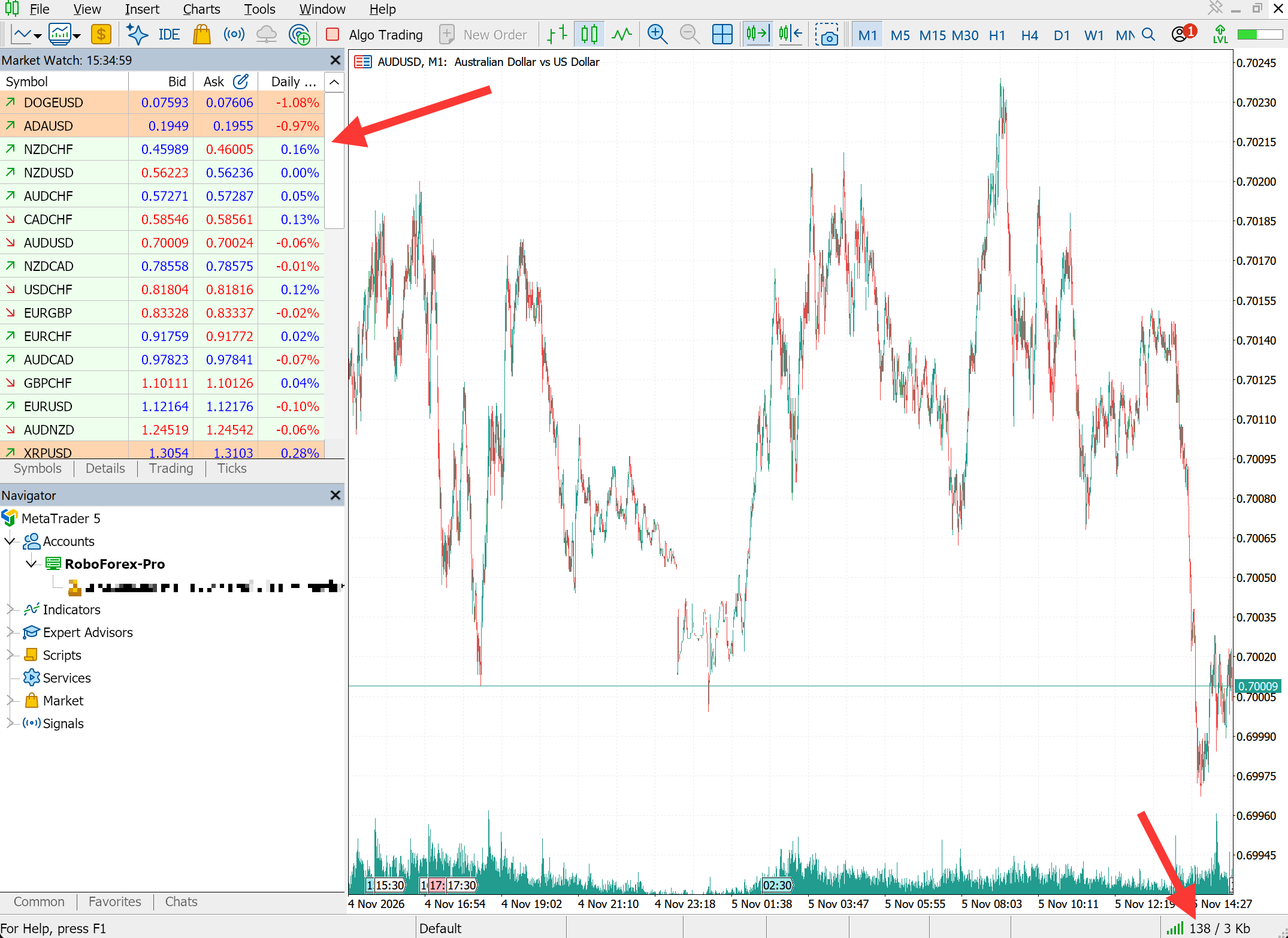
The full download and login walkthrough is in MT5 Download and Setup: How to Install MetaTrader 5 and Connect Your Account.
Step 3. Install and Start the Trading Robot
Adding a robot on the VPS works the same way as on your own computer. The one difference is getting the file there: the RoboForex VPS reaches RoboForex servers and sites only, so copy the robot from your computer through the Remote Desktop window.
- Copy the robot file into the MQL5, Experts folder of MetaTrader 5 on the VPS. In the terminal, File, Open Data Folder opens it.
- Refresh the Expert Advisors list in Navigator and drag the robot onto the chart of the symbol it trades.
- In the robot's properties, tick Allow Algo Trading on the Common tab, then switch on the Algo Trading button on the toolbar.
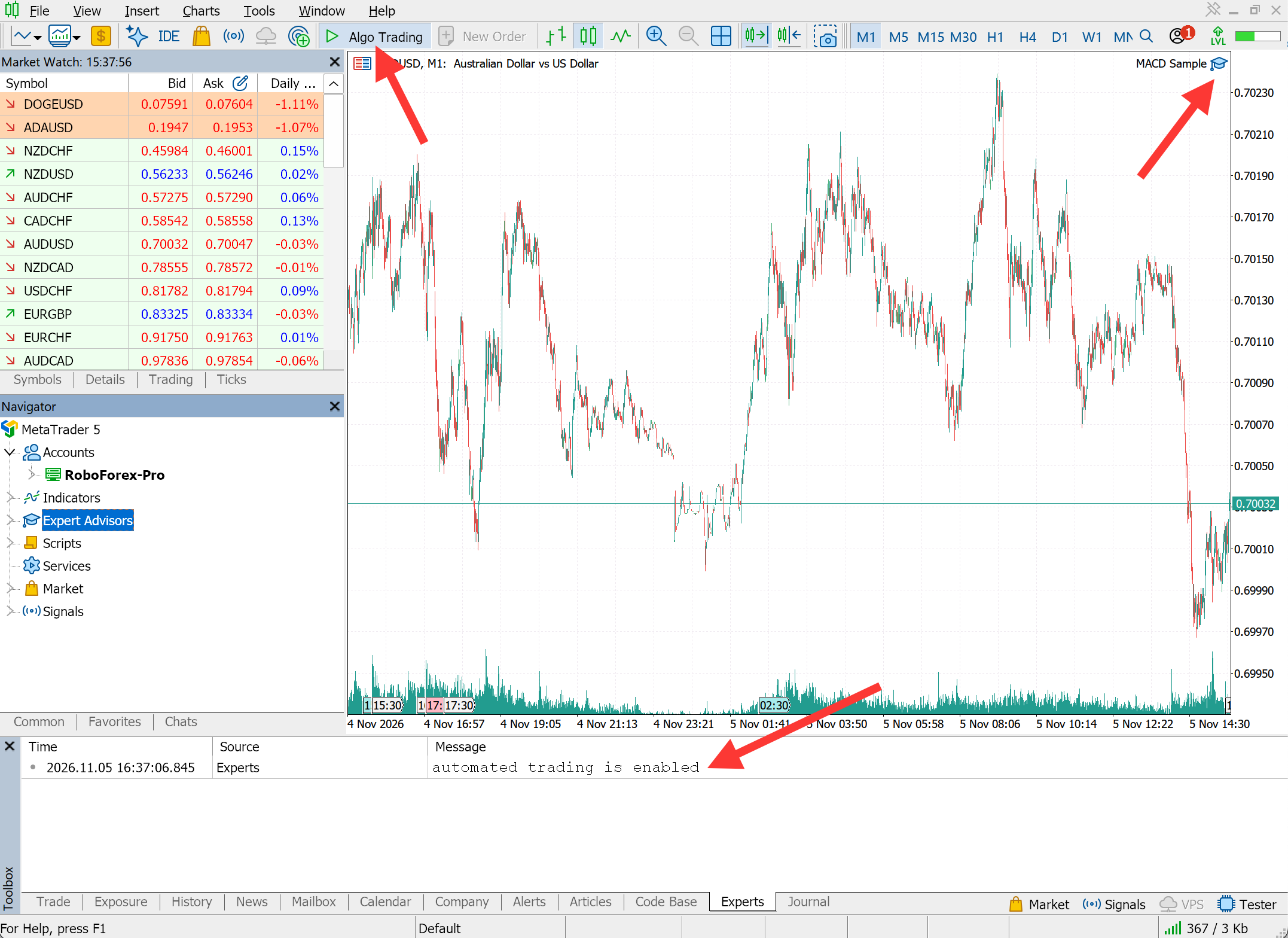
Every step with screenshots is in How to Install an EA in MT5 and Place Your First Automated Trade.
Step 4. Check That the Robot Keeps Working
After the start, make sure the robot loaded and runs without errors. Two tabs of the Toolbox window at the bottom of MetaTrader 5 show it.
- Experts. Messages from the robot itself: that it started, its trade signals and any errors.
- Journal. Messages from the terminal: the connection to the trade server and the platform's own events.
No critical errors and a steady connection to the trade server mean the terminal and the robot are working.
When you leave the VPS
Close the Remote Desktop window, or choose Disconnect. The Windows session on the server stays open, and MetaTrader 5 and the robot keep working. Sign out closes every running program, and Shut down turns the server off. Both stop the robot.
Three Checks That Keep Your Robot Running on the VPS
According to the RoboForex VPS page, the server has 1 CPU core, 1 GB of RAM and 30 GB of HDD space. On a server this size, three things decide whether the robot keeps trading.
- MetaTrader 5 after a restart. If the server restarts, connect and check that the terminal is open, connected to the trade server, the robot is on its chart and Algo Trading is on.
- The way you leave the session. Close the Remote Desktop window or choose Disconnect. Sign out ends the session and closes MetaTrader 5.
- Memory. One gigabyte of RAM limits how many terminals and robots can run at once. Check the load in Windows Task Manager. When memory runs short, close programs and charts you do not need and remove unused indicators.
How to Keep Your Trading VPS Secure
The server holds your trading platform and your account login, so protect both the VPS and your access to the Members Area.
- Set your own password. After the first connection, change the administrator password to a long, unique one. Use it nowhere else and share it with no one.
- Keep the server clean. Install MetaTrader 5 and the programs you need for trading and server upkeep. Unknown programs and files from unreliable sources put the server at risk.
- Turn on two-factor authentication. A second login factor for the RoboForex Members Area protects your account and the services you manage there.
Run Expert Advisors in RoboForex MetaTrader 5
Desktop MT5 with algo trading and the Strategy Tester built in, ready to install on your VPS.
Conclusion
An MT5 VPS keeps MetaTrader 5 and your robot running whatever happens to your own computer and home internet, which matters most for strategies that trade around the clock. Connect over Remote Desktop, install the terminal, start the robot and leave the session with Disconnect. Run the whole setup on a demo account first, and move to a live account once the robot has worked on the server without errors.
Ready to set it up? Request your server in the Your VPS 2.0 server section of the Members Area. Conditions are on the RoboForex VPS page.
FAQ
What is a VPS in forex?
A forex VPS is a remote Windows computer in a data centre that runs a trading platform 24 hours a day. Traders use it to keep MetaTrader 5 and their Expert Advisors working while their own computer is off.
Can I get a free forex VPS?
RoboForex provides a Windows VPS at no charge when the equity on your trading account is above 300 USD, bonuses excluded, and you trade at least 3 standard lots a month, CFD volume not counted. If the volume falls short, the server costs 5 USD a month. RoboForex Ltd clients with at least 500 USD on an MT5 account can also use MetaQuotes hosting at the broker's expense under the Sponsored VPS offer.
Is a forex VPS safe?
Security depends on how you protect access. Change the administrator password after the first connection, install only the software you need for trading and turn on two-factor authentication for the Members Area.
How do I run MT5 on a VPS?
Connect to the server over Remote Desktop, download and install MetaTrader 5 there, log in to your trading account, attach the robot to a chart and switch on Algo Trading. When you leave, close the Remote Desktop window without signing out.
What happens to my trades if the VPS goes down?
Open positions stay on the broker's trade server with their stop-loss and take-profit orders, and those orders keep working. A trailing stop set in the terminal and any stop the robot keeps only in its own code stop working, because they run inside MetaTrader 5. The robot stops managing the positions until the server and the terminal are running again, so connect and check MetaTrader 5 after any outage.
Can I run several MT5 terminals on one VPS?
Yes, with each terminal installed in its own folder. On the RoboForex VPS, with 1 GB of RAM, the number depends on how many charts and robots each terminal runs, so watch memory use in Windows Task Manager as you add them.
- How to Install an EA in MT5 and Place Your First Automated Trade: the full install path that Step 3 sums up.
- Trading Robot Settings Explained: Lot Size, Stops and Magic Number: what to set before the robot runs unattended.
- A 15-Minute Backtest: How to Test a Trading Robot in MetaTrader 5: test the robot before it moves to the server.
- Trading Robot Checklist: 15 Checks From Installed to First Trade: one list from the platform to the robot's first trade.
Any information provided in articles on this website is based solely on the personal opinions of the authors. These articles should not be construed as trading recommendations or a call to action. The authors and RoboForex accept no responsibility for the results of any trades made on the basis of these recommendations and reviews. Past performance is not indicative of future results. Trading stocks and CFDs involves a high risk of capital loss.