How to Install an EA in MT5 and Place Your First Automated Trade
How to install an EA in MT5: put the robot into the Navigator window, attach it to a chart, tick Allow Algo Trading in its settings and switch on the Algo Trading button. This guide walks through all six steps on a RoboForex demo account with MACD Sample, the robot that ships with MetaTrader 5, and ends with its first trade.
TL;DR
- Get the robot into Navigator: MACD Sample is already there, a downloaded .ex5 file goes into MQL5, Experts.
- Drag it onto a chart, tick Allow Algo Trading on the Common tab and press the Algo Trading button on the toolbar.
- Check the Journal for the load message and wait for the first position in the Trade tab, on a demo account first.
An Expert Advisor (EA) is a program that opens and closes trades in MetaTrader 5 by its own rules. Each step below has the screenshot from our demo terminal, so you can compare it with your own screen as you go.
How to Install an EA in MT5: Six Steps From File to First Trade
The whole path takes six steps. The first three put the robot on a chart, the next two give it permission to trade, and the last one shows where its trades appear.
- Put the robot into MT5Navigator, Expert Advisors
- Open a chartSymbol and timeframe
- Attach the robotDrag it onto the chart
- Set permissions and inputsCommon and Inputs tabs
- Turn on Algo TradingToolbar button and icon
- Find the first tradeToolbox tabs
What you need before you start:
- Desktop MetaTrader 5 on Windows or macOS. Our screenshots come from the macOS version, the menus are the same on Windows.
- A trading account connected to the terminal. Use a demo account for the first runs: the robot trades with virtual money at real market prices.
- A robot. The examples use MACD Sample, which is included in every MetaTrader 5 installation.
Run Your First Robot on a Free Demo Account
Open a RoboForex demo account and follow this guide in your own MetaTrader 5.
Step 1: Put the Robot Into MetaTrader 5
A robot can run only once it appears in the Navigator window under Expert Advisors. Open Navigator from View, Navigator, or with Ctrl+N on Windows. How the robot gets there depends on where it came from.
| Where the robot comes from | How to install it | File | Where it appears in Navigator |
|---|---|---|---|
| Built-in example (MACD Sample) | Nothing to install, it ships with MT5 | .ex5 | Expert Advisors, Examples, MACD |
| MQL5 Market | Download or buy it in the built-in Market | .ex5 | Expert Advisors, Market |
| Another website or a developer | Copy the file into MQL5, Experts | .ex5 or .mq5 | Expert Advisors |
To install a robot from a file, open File, Open Data Folder. In the folder that opens, go to MQL5, then Experts, and copy the file there. Return to MetaTrader 5, right-click Expert Advisors in Navigator and choose Refresh. The robot appears in the list.
An .ex5 file is ready to run. An .mq5 file is source code: open it in MetaEditor (the IDE button on the toolbar) and press Compile, and the terminal creates the .ex5 next to it.
For robots from the MQL5 Market, including free ones, see Expert Advisor Download for MT5. This guide continues with MACD Sample, so there is nothing to install yet.
Step 2: Open a Chart for the Robot’s Symbol and Timeframe
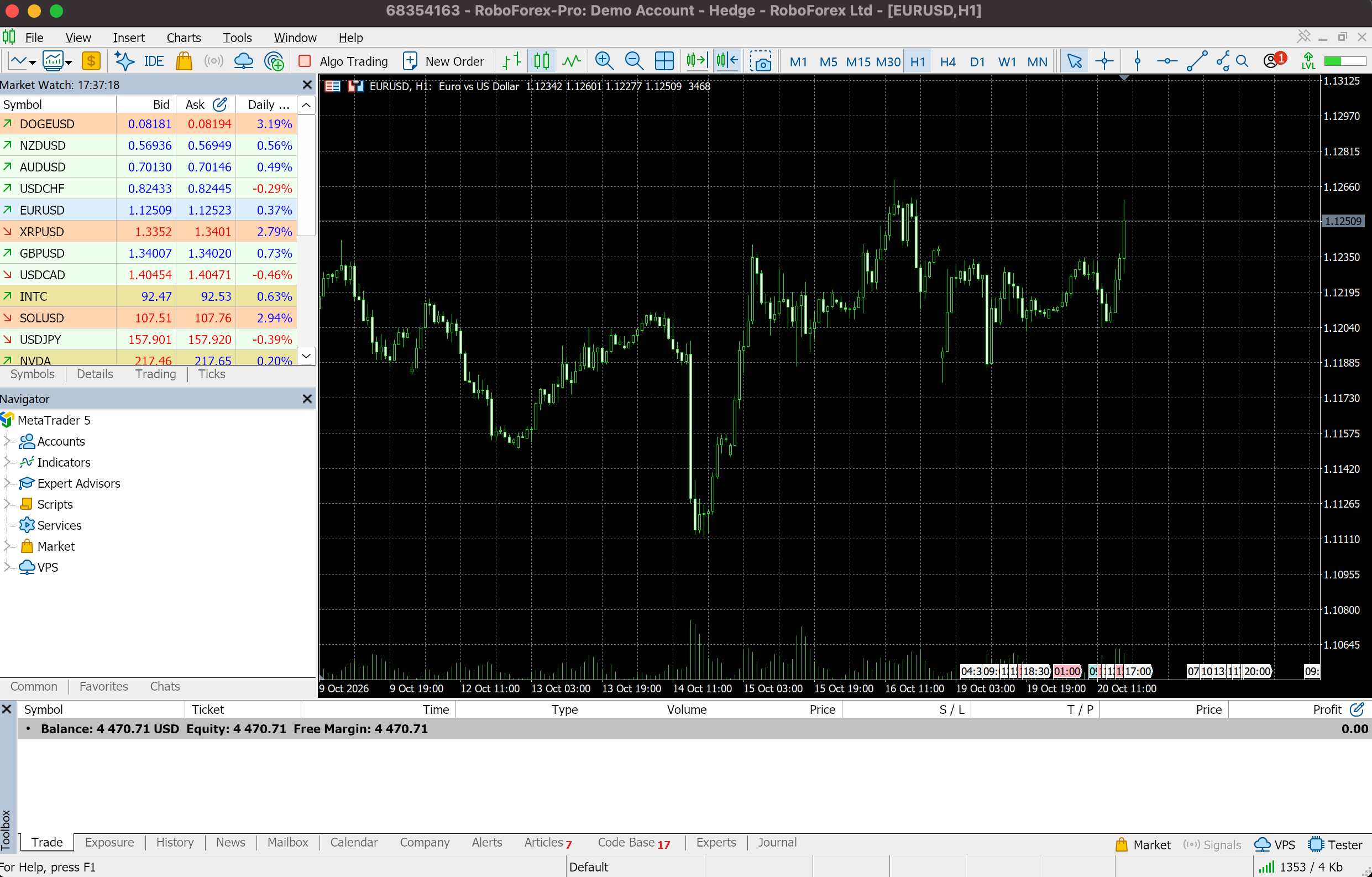
A robot trades the symbol and timeframe of the chart it is attached to. Its description usually names the ones it was built and tested on. Running it on other settings without a test changes its results. MACD Sample is demonstrated here on EURUSD, one-hour chart (H1).
- Start MetaTrader 5 and check that it is connected to your account. The account number and server appear in the window title.
- Open Market Watch from View, Market Watch.
- Find EURUSD. If the symbol is missing, right-click inside Market Watch, choose Symbols and switch it on.
- Double-click the symbol, or right-click it and choose Chart Window.
- Click H1 on the timeframe bar at the top of the terminal.
Step 3: Attach the Robot to the Chart
With the chart open, the robot goes onto it straight from Navigator.
- In Navigator, expand Expert Advisors, then Examples, then MACD, and find MACD Sample.
- Drag MACD Sample onto the chart and release the mouse button. Double-clicking the robot's name does the same and attaches it to the active chart.
- The robot's properties window opens with two tabs, Common and Inputs. Step 4 covers both.
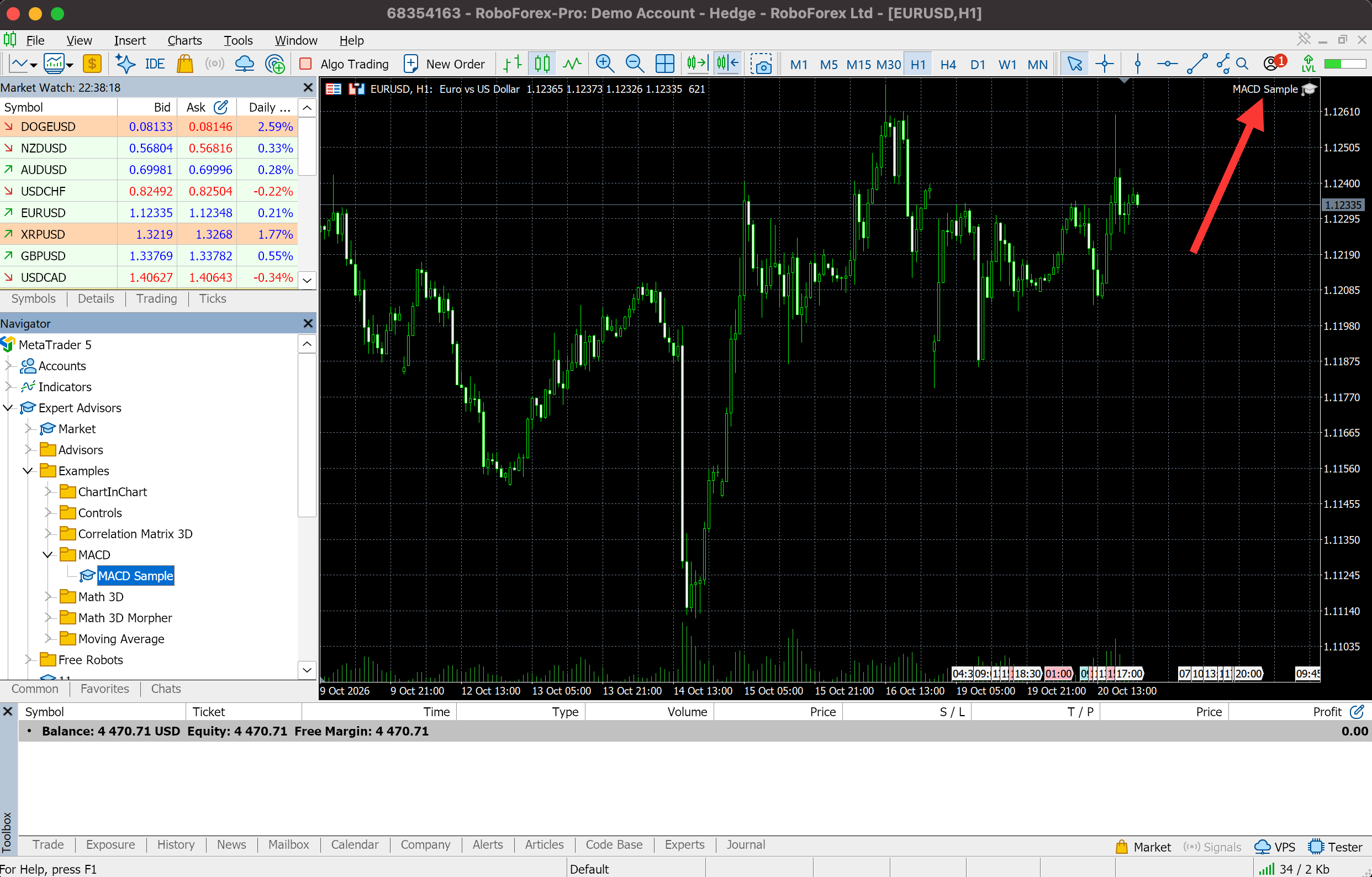
One chart holds one robot. If you drag a second robot onto the same chart, it replaces the first. To run two robots, open a second chart and attach the second robot there. Two copies of one robot on the same symbol need separate magic numbers.
Step 4: Allow Algo Trading and Keep the Default Inputs
The properties window decides whether this robot may trade and with what settings. For the first demo run, tick one box and leave the inputs as they are, after one look at the trade size.
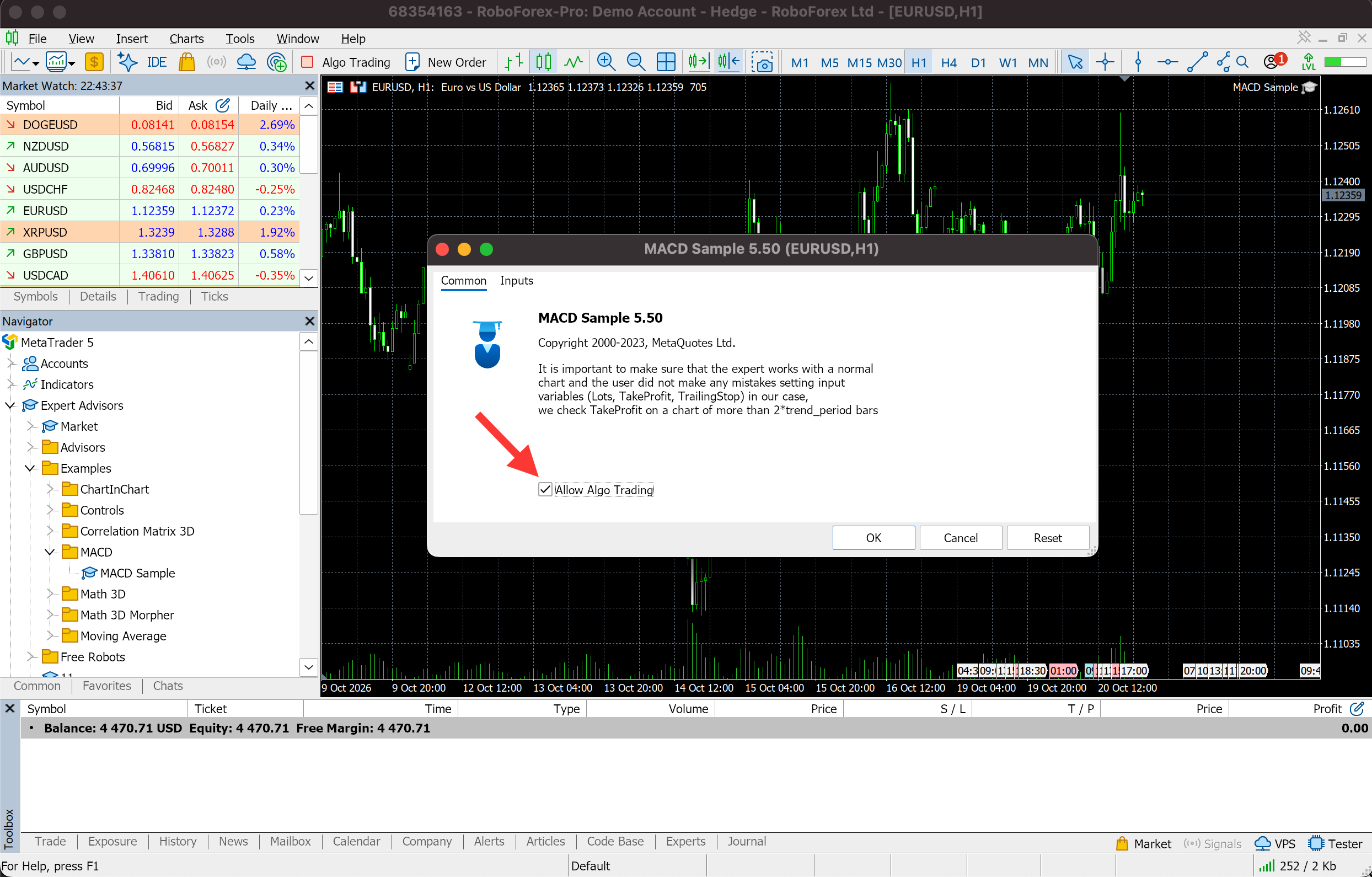
Common Tab
Tick Allow Algo Trading. Without this tick the robot stays on the chart but cannot send orders, even when algo trading is switched on for the whole terminal.
Inputs Tab
The Inputs tab lists the settings that control the robot: how it finds a signal, when it opens and closes a position and how large the trade is.
- Keep the defaults on the first run. Change an input only when you know what it does and after checking the change in the Strategy Tester.
- Check Lots. This input sets the trade size. MACD Sample opens 0.1 lot by default. Make sure that size fits your demo balance before you press OK.
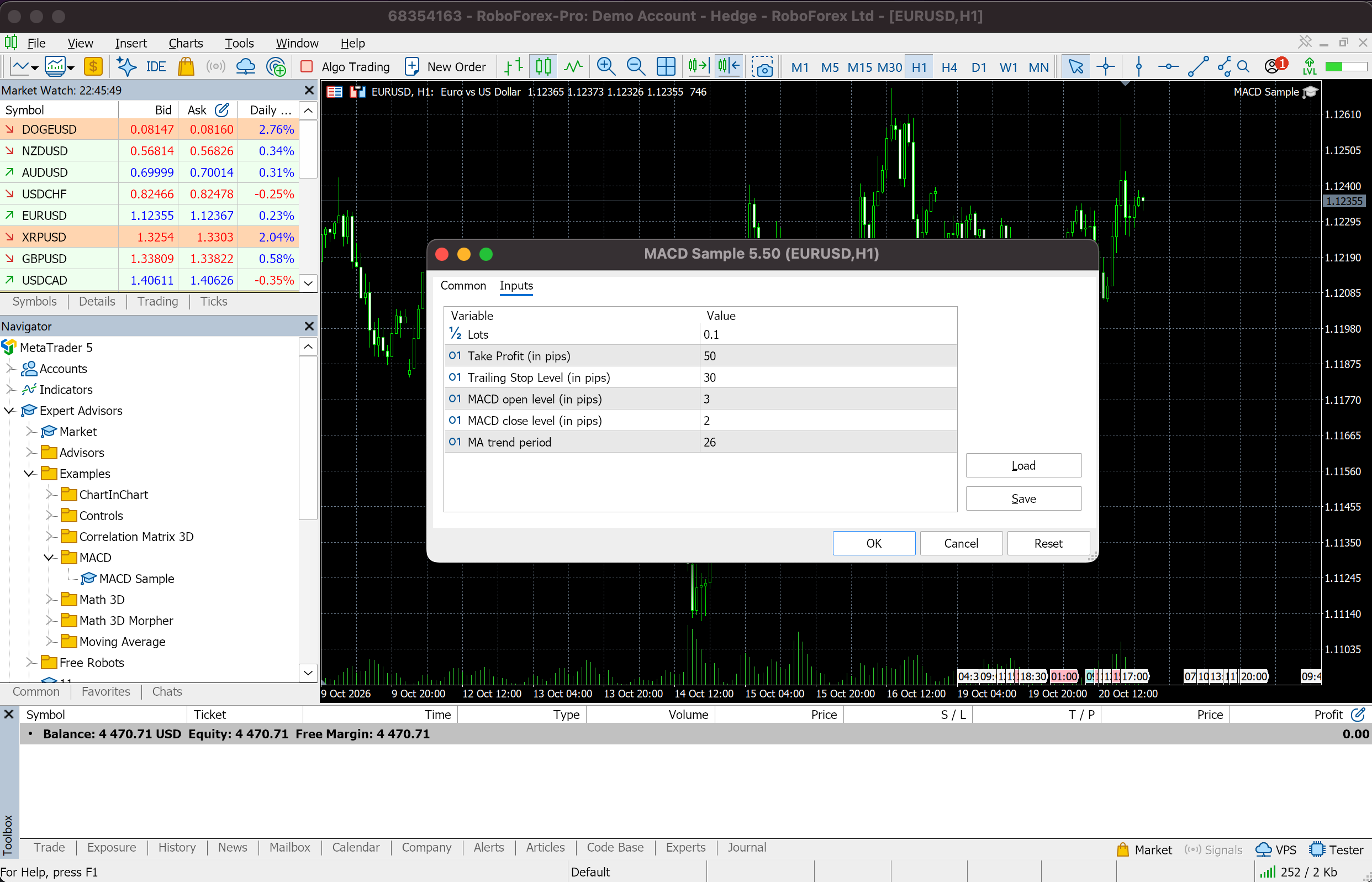
Press OK. The window closes and the robot stays on the chart, waiting for the terminal-wide switch in Step 5.
Step 5: Turn On Algo Trading and Check the Robot’s Icon
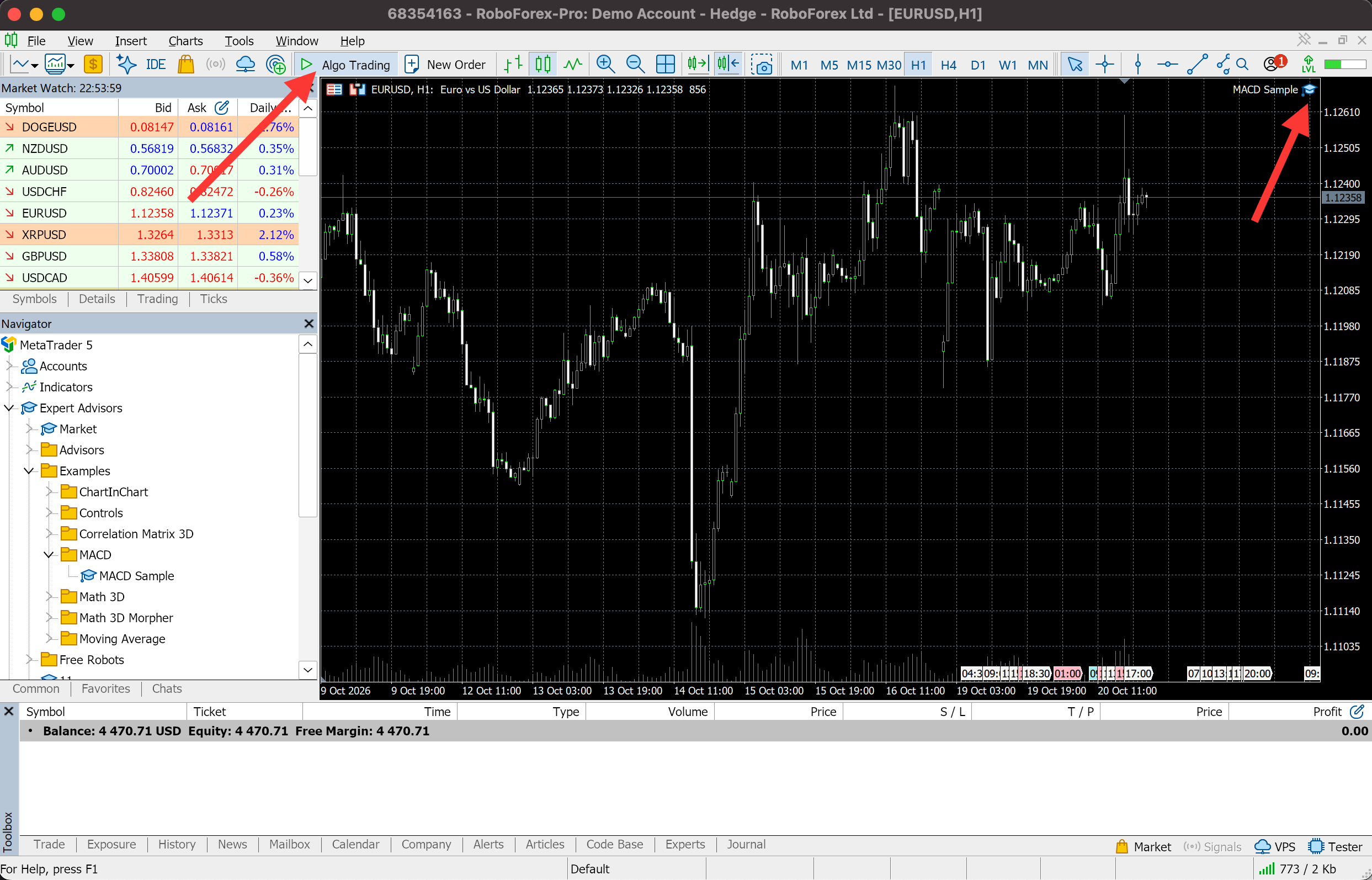
Press the Algo Trading button on the toolbar at the top of MetaTrader 5, or Ctrl+E on Windows. This button allows automated trading for the whole terminal. A robot trades only when both switches are on: the button and the Allow Algo Trading box from Step 4.
Then look at the top right corner of the chart, where the robot's name and a small cap icon sit. In our terminal the two states look like this:
- Trading allowed. The Algo Trading button shows a green triangle and the cap next to MACD Sample turns blue. The robot is running and will act on its next signal, which does not mean an instant trade.
- Trading not allowed. The button shows a red square and the cap is grey. Check the button, the Common tab and the messages in the Journal.
The Options window holds more permission settings, and some robots also need WebRequest or DLL access. Both are covered in MetaTrader 5 Automated Trading: How to Enable Algo Trading and Expert Advisor Permissions in MT5.
Step 6: Find Your Robot’s First Trade
The Toolbox panel at the bottom of MetaTrader 5 shows everything the robot does. Open it from View, Toolbox, or with Ctrl+T on Windows. Each tab answers a different question.
| Where to look | What you see there |
|---|---|
| Journal | Terminal messages: the robot loaded, automated trading switched on or off, connection to the server, orders sent and executed |
| Experts | Messages written by the robot itself, including warnings and errors |
| Trade | Open positions and pending orders: volume, open price, stop-loss and take-profit |
| Chart | Entry arrows and stop-loss and take-profit lines, if trade levels are switched on in the chart settings |
| History | Closed trades and their result for the period you select |
Start with the Journal. In our terminal the line "expert MACD Sample (EURUSD,H1) loaded successfully" appeared with Experts in the Source column, followed by "automated trading is enabled" once the button was pressed.
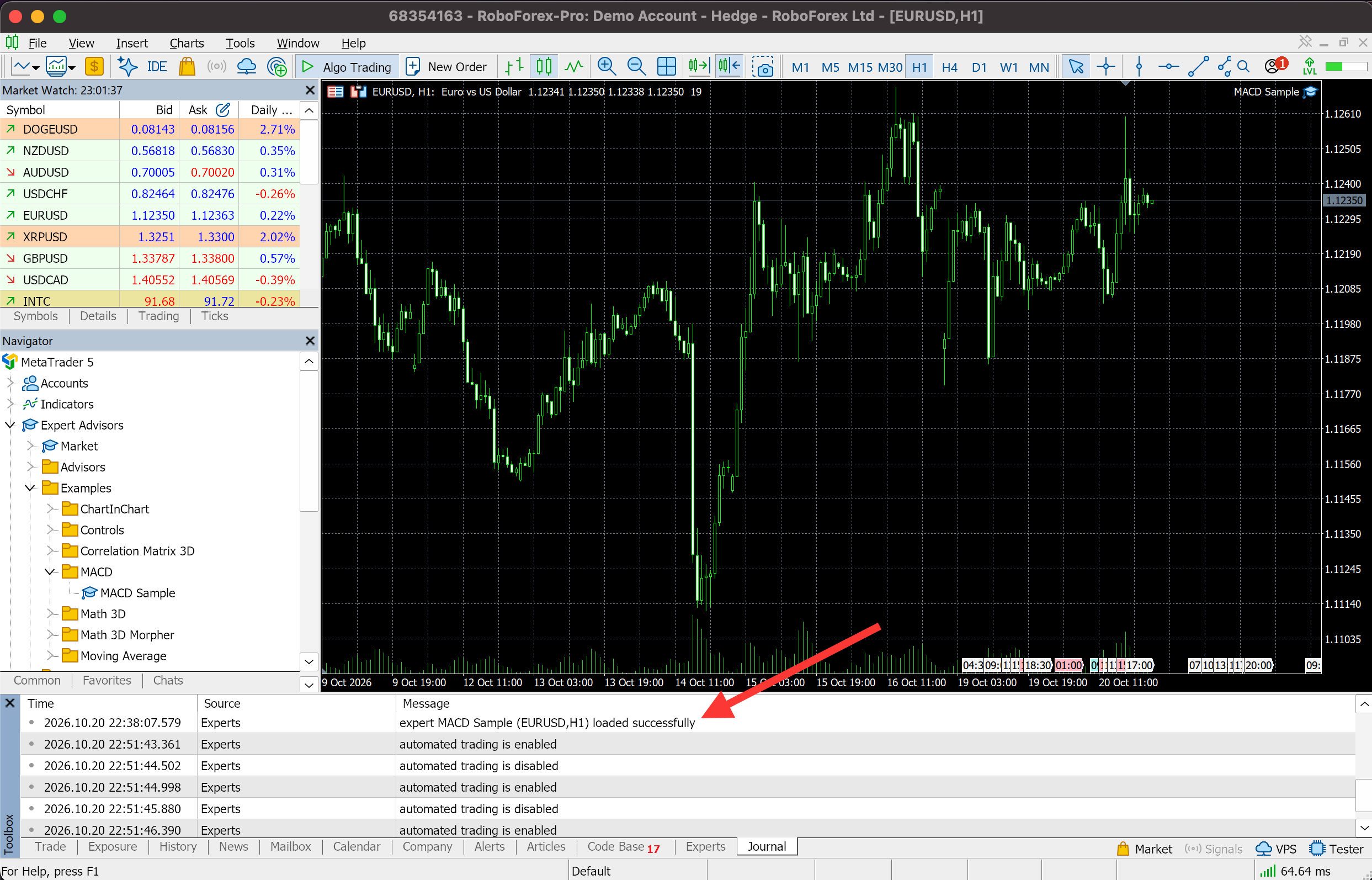
With a clean log, the robot waits for its signal. When the conditions of MACD Sample are met, it sends an order, the Journal records it, and the position appears in the Trade tab. After the position closes, its result moves to History.
The wait depends on the strategy. MACD Sample on H1 checks its conditions on each new price and can go hours or days without a signal. An empty Trade tab with no errors in the Journal and Experts tabs means the robot is waiting. If a trade does not appear after the strategy should have triggered, go to the five checks below.
What the Robot’s Inputs Mean: Lot Size, Stops and Magic Number
Once the first demo trade has run, the next question is which inputs to change. Most robots share the same three groups of settings, and MACD Sample shows them clearly.
Lot Size
Lots is the size of every trade. On EURUSD, 0.1 lot is 10,000 euros, and each pip of price movement is worth about 1 USD. A 30-pip move against the position at 0.1 lot costs about 30 USD, at 1 lot about 300 USD. Choose the lot from the loss you accept on one trade. On a 4,470 USD demo balance, as in our screenshots, 0.1 lot is a moderate size for a first test.
Stops: Take Profit and Trailing Stop
Take Profit (in pips), 50 by default, closes the position once it gains 50 pips. Trailing Stop Level (in pips), 30 by default, moves a stop-loss behind the price once the position is 30 pips in profit, and the stop then follows the price at that distance. MACD Sample sets no fixed stop-loss at entry. Until the trailing stop starts, the robot closes a losing position only on its own MACD exit signal, so the lot size from the previous paragraph is your main risk control. Robots that have a Stop Loss input usually set it in pips or points in the same way.
Signal Settings
MACD open level and MACD close level set how far the MACD line must be from zero before the robot opens or closes a position. Higher values mean fewer, stronger signals. MA trend period, 26 by default, sets the moving average that the robot uses to confirm the trend direction before it opens a trade.
Magic Number
A magic number is an ID that a robot writes on every order it opens. It lets the robot manage only its own positions when several robots or a manual trader use the same account. If you run two copies of one robot on two charts, give each copy its own magic number. MACD Sample sets its number inside its code, so the Inputs tab has no field for it.
Change one input at a time and test each change in the Strategy Tester before you run it on the demo account. Save a working set with the Save button on the Inputs tab, and Load returns to it later.
Five Checks That Get an Attached Robot Trading
A robot that sits on the chart and does not trade usually has one of five attachment issues. Go through them in this order before you change its inputs or reinstall the terminal.
| Cause | What you see | What to do |
|---|---|---|
| 1. Trading is not allowed | Grey cap next to the robot's name, red square on the Algo Trading button | Press Algo Trading on the toolbar, then double-click the robot's name on the chart and tick Allow Algo Trading on the Common tab |
| 2. The robot is missing from Navigator | The file is copied, but Expert Advisors does not list it | Right-click Expert Advisors and choose Refresh. If it is still missing, check that the file sits in MQL5, Experts of the same data folder and is an .ex5 file, or an .mq5 file compiled in MetaEditor |
| 3. The robot left the chart | No name and no cap in the top right corner of the chart | Attach it again from Navigator. Check whether another robot was dropped on the same chart and replaced it |
| 4. Algo trading switched off after a change | The robot stopped after you changed the account, profile, symbol or timeframe | Check the Algo Trading button and the robot's Common tab, then the boxes in Tools, Options, Expert Advisors |
| 5. The terminal is closed or the computer sleeps | No new lines in the Journal for the hours the computer was off or asleep | Keep MetaTrader 5 open and turn off sleep mode, or run the terminal on a VPS |
If all five pass and the Journal or Experts tab shows an error such as no money, invalid volume or market closed, the cause sits with the account, the server or the instrument. Those cases are in the Seven Checks section of the automated trading guide.
How to Keep Your Robot’s First Trades Small and Under Control
A robot that runs without errors still has to prove its strategy. Move it through four stages and go to the next one only after you have read the results of the previous one.
- Strategy TesterTest on history. Read the maximum drawdown, the number of trades and the ratio of profit to loss next to the final result.
- Demo accountRun it at live prices with virtual money. Check that signals and orders work the way the test showed.
- Cent accountReal execution with small amounts on a RoboForex cent account. Check the minimum lot and contract size first.
- Live accountStart with the smallest lot and a loss limit you set before the first trade.
At every stage, judge the robot by its largest drawdown, the longest run of losing trades, how often it trades and how it behaves in strong trends and in a sideways market. A high share of winning trades says little on its own. Past results do not guarantee future returns.
The robot trades only while MetaTrader 5 is running and connected. For round-the-clock work, the terminal can run on a RoboForex VPS, a remote server that stays on when your computer is off.
How to Pause or Remove the Robot
- Pause all robots. Press the Algo Trading button again. Every robot in the terminal stops sending orders. Positions they opened stay open until you close them.
- Remove one robot. Right-click its chart, choose Expert List, select the robot and press Remove. The other robots keep working, and its open positions stay open.
Run Expert Advisors in RoboForex MetaTrader 5
Desktop MT5 for Windows and macOS, with algo trading and the Strategy Tester built in.
Conclusion
Six steps take a robot from a file to a live order: Navigator, chart, attach, Allow Algo Trading, the Algo Trading button and the Toolbox tabs where its trades appear. Two switches decide whether it may trade, and the cap icon on the chart shows their state at a glance. Open a RoboForex demo account, attach MACD Sample to a EURUSD H1 chart in MetaTrader 5 and watch the Journal and Trade tabs for its first trade.
FAQ
Can I run an EA in the MT5 mobile app or web terminal?
No. Expert Advisors run only in desktop MetaTrader 5 on a computer or on a VPS. The mobile app and the web terminal can show your positions, but they do not run robots.
Can an MT4 EA run on MT5?
No. MT4 robots are written in MQL4 and MT5 robots in MQL5, and an .ex4 file does not open in MetaTrader 5. The robot's code has to be rewritten in MQL5 and compiled, or you need the MT5 version from its developer.
How long does it take for the robot to open its first trade?
It depends on the robot's entry rules and the market. MACD Sample on an H1 chart can wait hours or days for a signal. An empty Trade tab with no errors in the Journal and Experts tabs means the robot is waiting.
Can I run two robots at the same time?
Yes, one robot per chart. Open a separate chart for each robot and check that each has Allow Algo Trading ticked. Two copies of one robot on the same symbol need separate magic numbers, which MACD Sample does not offer. Several robots on one account add up to one total risk, so size each of them with that in mind.
Does the robot keep trading after I close MetaTrader 5?
No. The robot runs inside the terminal, so it stops when you close MetaTrader 5 or the computer goes to sleep. Positions it opened stay open and are still exposed to the market. A VPS keeps the terminal running around the clock.
Why is my expert advisor not working?
Most often one of the two switches is off: the Algo Trading button on the toolbar or Allow Algo Trading on the robot's Common tab. A grey cap next to the robot's name shows this. If both are on, go through the five checks in this article and read the Journal and Experts tabs for errors.
- MetaTrader 5 Automated Trading: How to Enable Algo Trading and Expert Advisor Permissions in MT5: every permission a robot needs, WebRequest and DLL included.
- Expert Advisor Download for MT5: Free, Paid and Rented Robots From the MQL5 Market: where to find the next robot to install.
- A 15-Minute Backtest: How to Test a Trading Robot in MetaTrader 5: check a robot on history before it trades on demo.
- What Is a Trading Robot and How Does It Work?: what happens inside an Expert Advisor between signal and order.
Any information provided in articles on this website is based solely on the personal opinions of the authors. These articles should not be construed as trading recommendations or a call to action. The authors and RoboForex accept no responsibility for the results of any trades made on the basis of these recommendations and reviews. Past performance is not indicative of future results. Trading stocks and CFDs involves a high risk of capital loss.