How to Use MetaTrader 4 (MT4): Complete Guide for Beginners
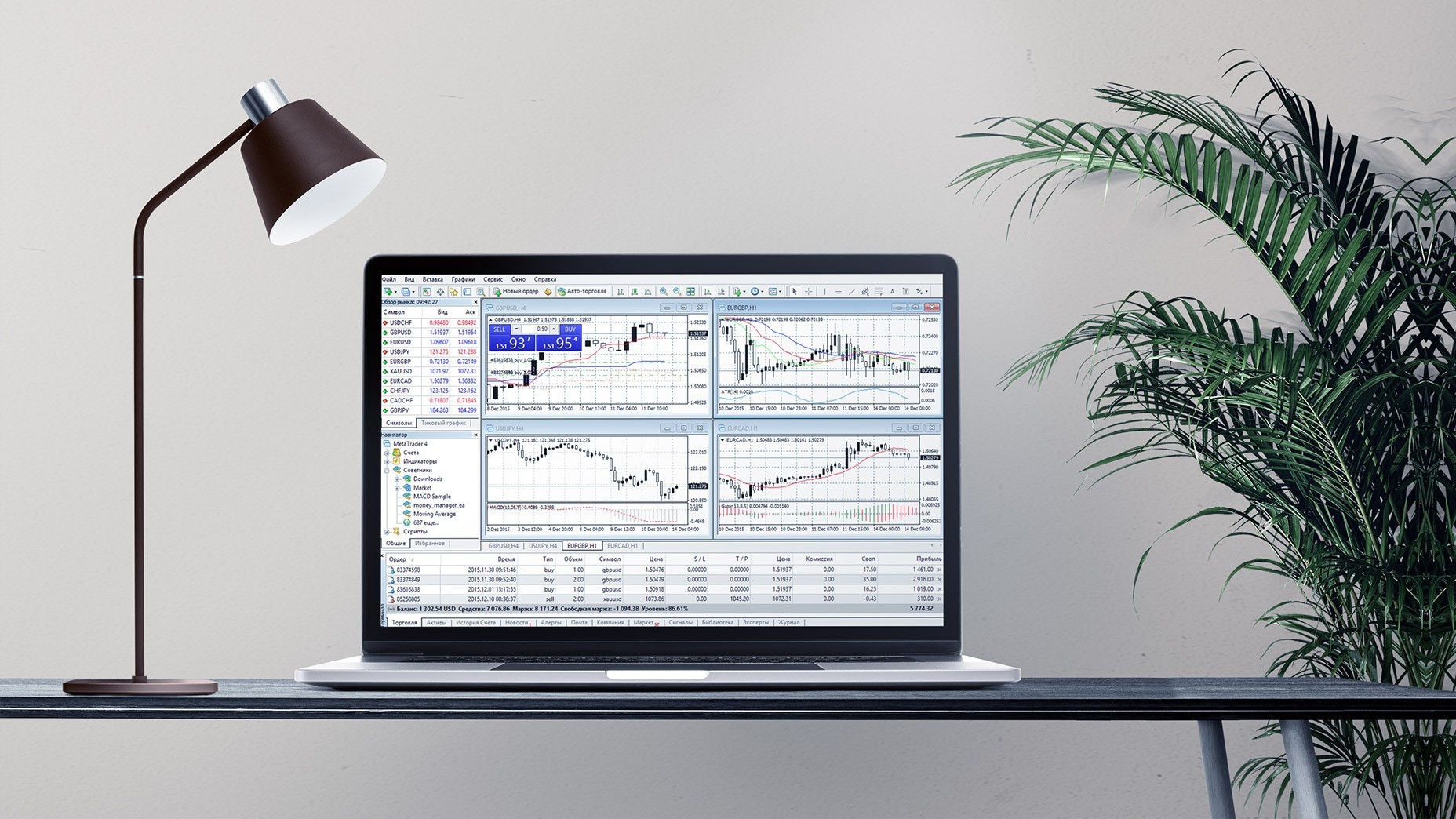
How to use MetaTrader 4: install the terminal, log in with a demo or live trading account, open a chart from Market Watch and place orders with the New Order button. MT4 is a free trading platform by MetaQuotes Software, released in 2005, for manual trading and Expert Advisors on currency pairs, metals, indices and stock CFDs. This guide shows how to use MT4 step by step, from installation to automated trading.
TL;DR
- Install MetaTrader 4, open a demo account and log in through File -> Login to Trade Account.
- Open a chart from Market Watch, set it up in Properties (F8) and pick a timeframe on the toolbar.
- Place a market or pending order in the New Order window and set Stop Loss and Take Profit there.
- Copy Expert Advisors to MQL4 -> Experts, allow automated trading and keep them running on a VPS.
What Is MetaTrader 4
An application for trading on financial markets, MetaTrader 4 was developed and is supported by MetaQuotes Software. Despite its quite deep history (released in 2005), MetaTrader 4 has been one of the most popular and actual software for traders ever since. Its recipe for success can be explained by three words, availability, simplicity, and effectiveness.
MT4 terminal is free and multilingual (supports about 40 languages), has a user-friendly interface and all necessary features for manual and automated trading. Initially, the application was intended for trading on the Forex market, but later traders started using the terminals for other assets as well, such as CFDs on stocks, indices, metals, commodities, etc. Result: an intuitive and user-friendly multi-purpose terminal, which allows to trade a wide range of instruments.
Trade on the Go With RoboForex MobileTrader
A portable trading workstation on your phone, on Android and iOS.
How to Install MetaTrader 4
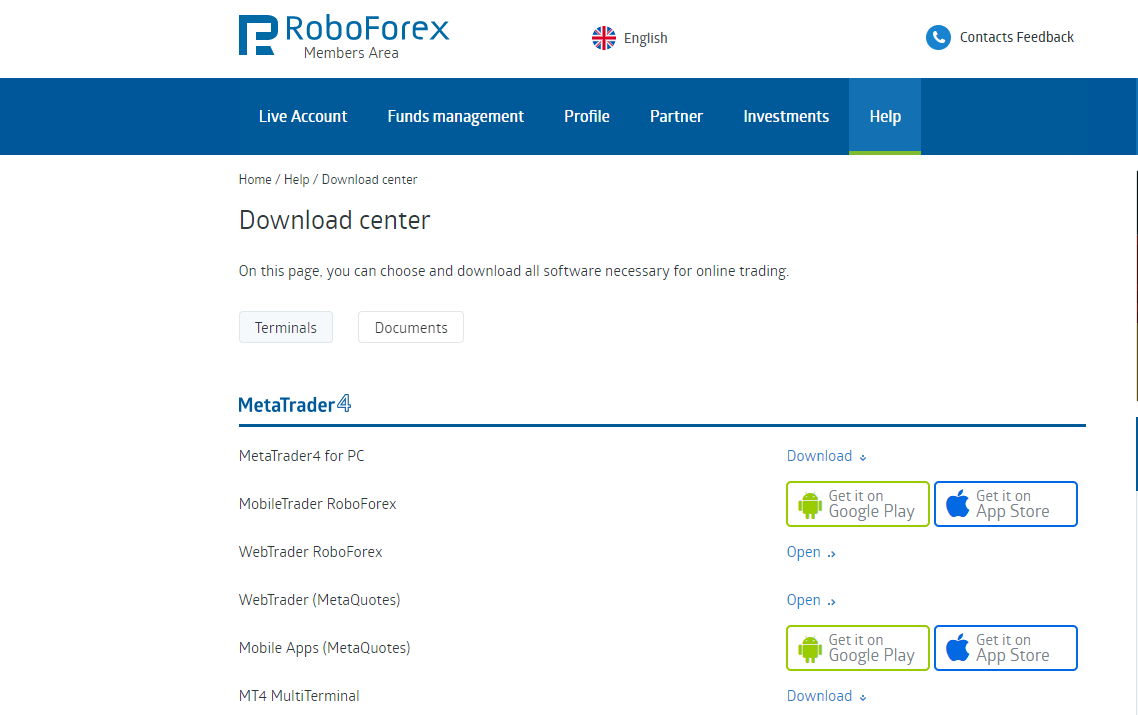
MetaTrader 4 can be easily installed both on a desktop computer and mobile devices, such as tablets and smartphones. The easiest way to do it is to login to your Members Area at Roboforex.com, download MetaTrader 4 setup file for free, and install it on your mobile device or PC. The setup file is also available on the MetaTrader 4 platform page.
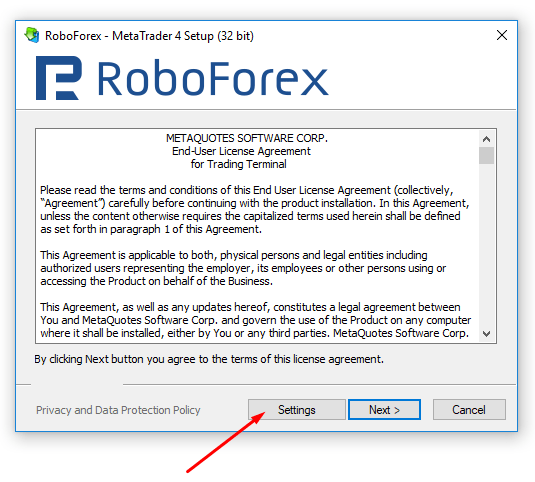
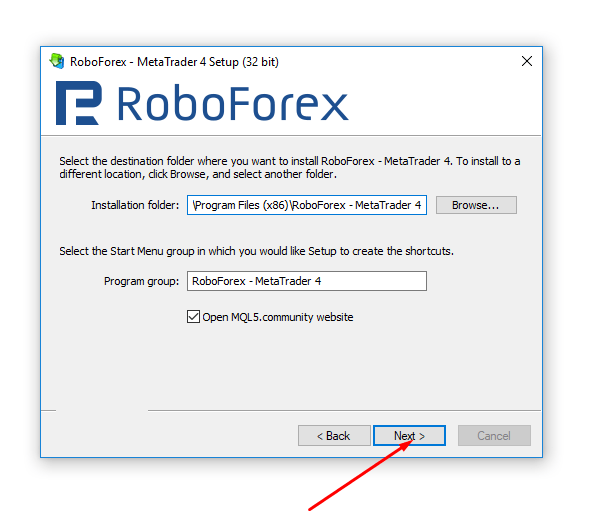
After downloading the file, run it and you will see the installation wizard. First of all, click “Settings”.
Here we specify an installation folder (by default it’s C:\Program Files\RoboForex - MetaTrader 4). By clicking “Browse”, you can change it, for example choose some other partition or a hard disk drive.
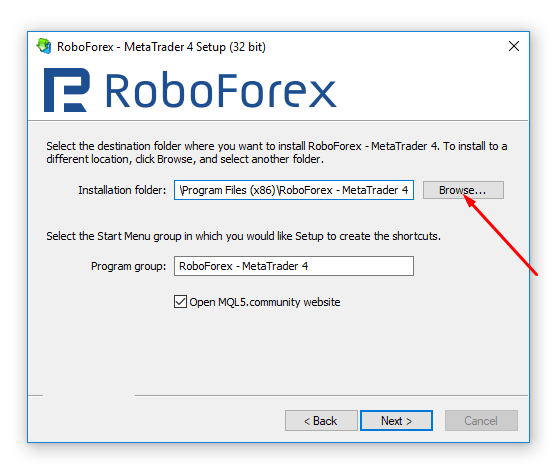
After completing the previous step, click “Next” to install MetaTrader 4.
To start working in the application, you have to connect your real trading account or create a demo one (a virtual account intended for developing your trading skills). Demo accounts provide an opportunity to learn how to work with the terminal and check how efficient your approach to trading is without risks of losing your own money.
To open a demo account, go to your PMA Main Menu and proceed to Accounts -> Open a new account -> Demo account. A window for opening a new demo account will appear. Choose the MT4 trading platform, account type, leverage, deposit size; invent a password, and click Confirm.
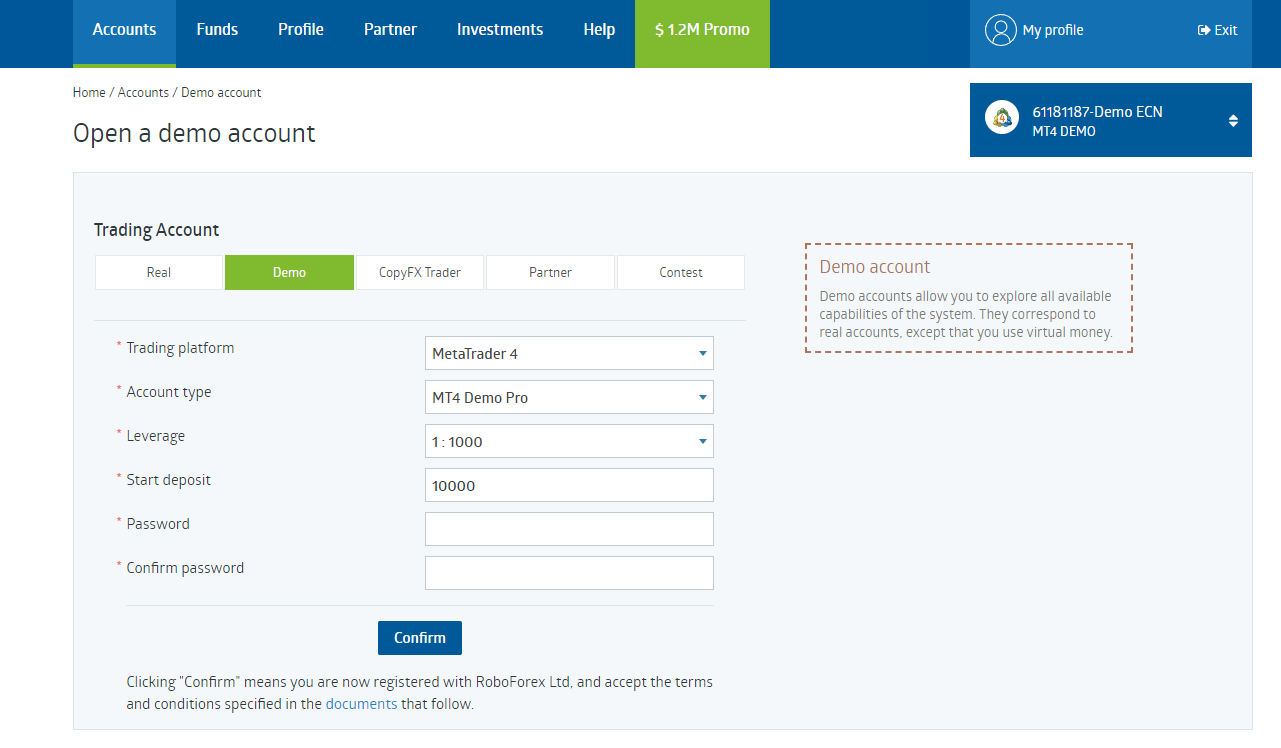
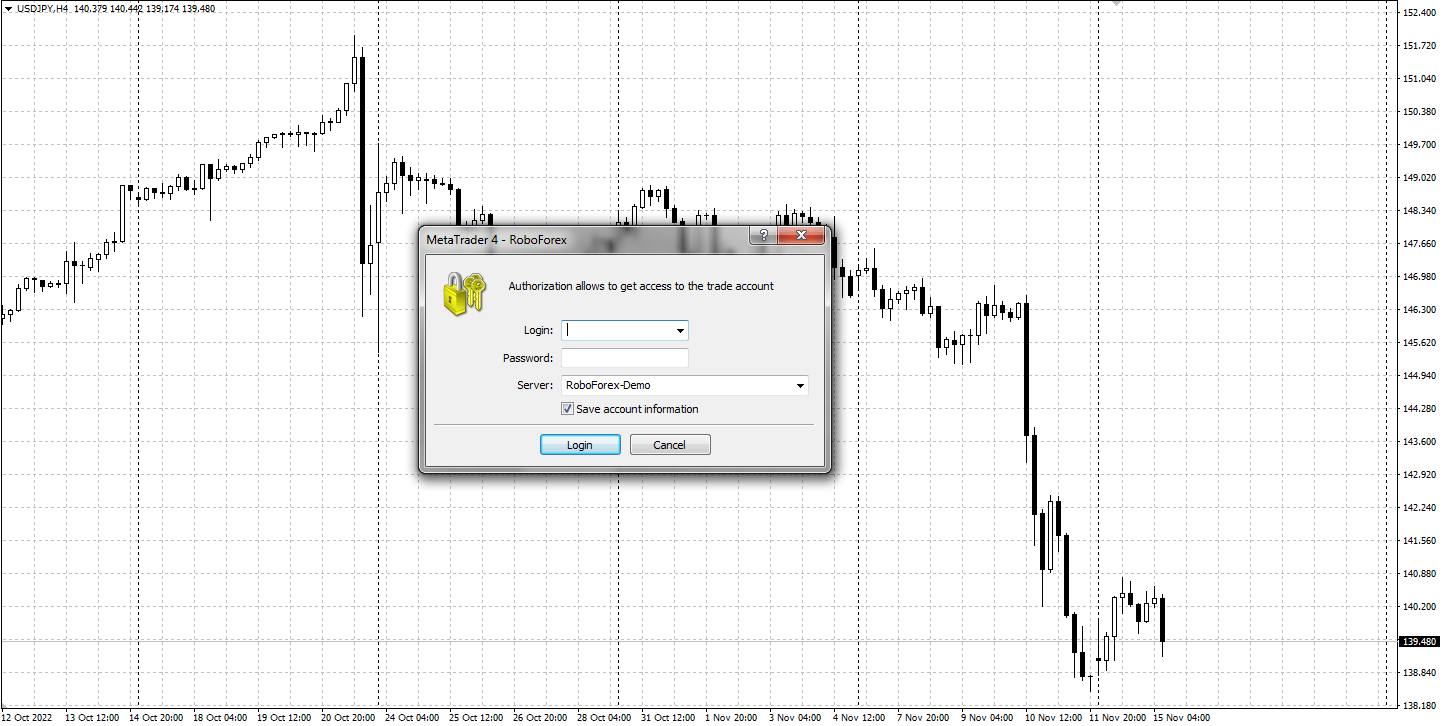
As a result, a new demo account will be opened. In the window, you will see your account number (login) and password. Save them for further use. Then enter them in the MT4 terminal: File -> Login to Trade Account. For ECN demo accounts, choose the RoboForex-Demo server, and for Pro demo accounts, choose RoboForex-DemoPro. Upon logging in, you can start trading.
Start Trading Now
Forex, stocks, indices and gold on MetaTrader 4 and MetaTrader 5, from a free demo account to a live one.
MetaTrader 4 Basic Functions
The terminal has the following basic functions located in its main menu:
- File. Here you can create new profiles and charts, and connect to trading accounts.
- View. An opportunity to customize toolbars and windows, and choose a language.
- Insert. Addition of indicators, graphics, texts.
- Charts. Customize chart parameters, manage objects, change zoom, and choose timeframes.
- Tools. New orders, quotes archive, general settings.
- Window. New windows, position of already open windows, switching between them.
- Help. User’s manual on the application and reference tools.
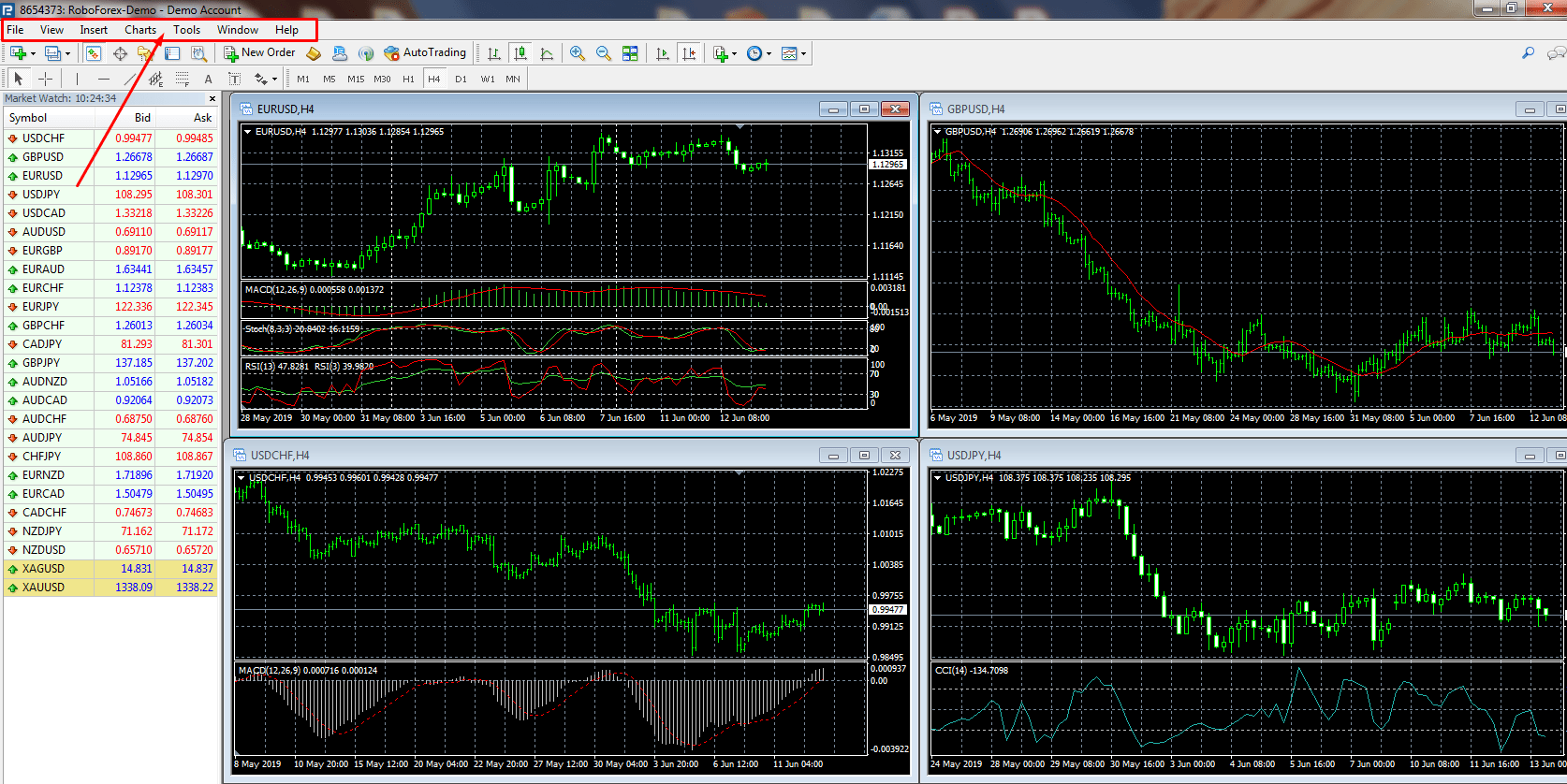
- Toolbar shows basic functions of the main menu displayed as default buttons.
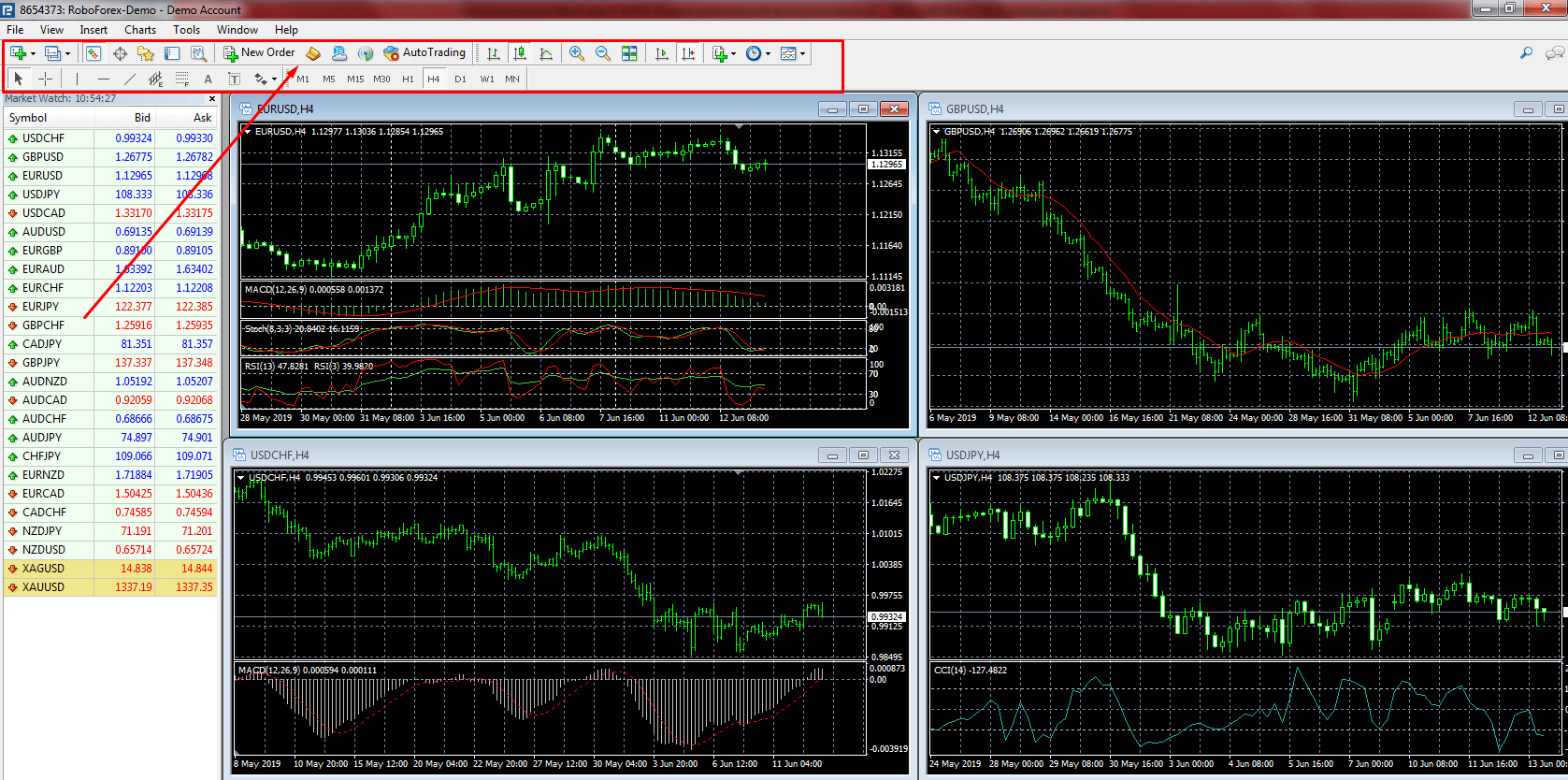
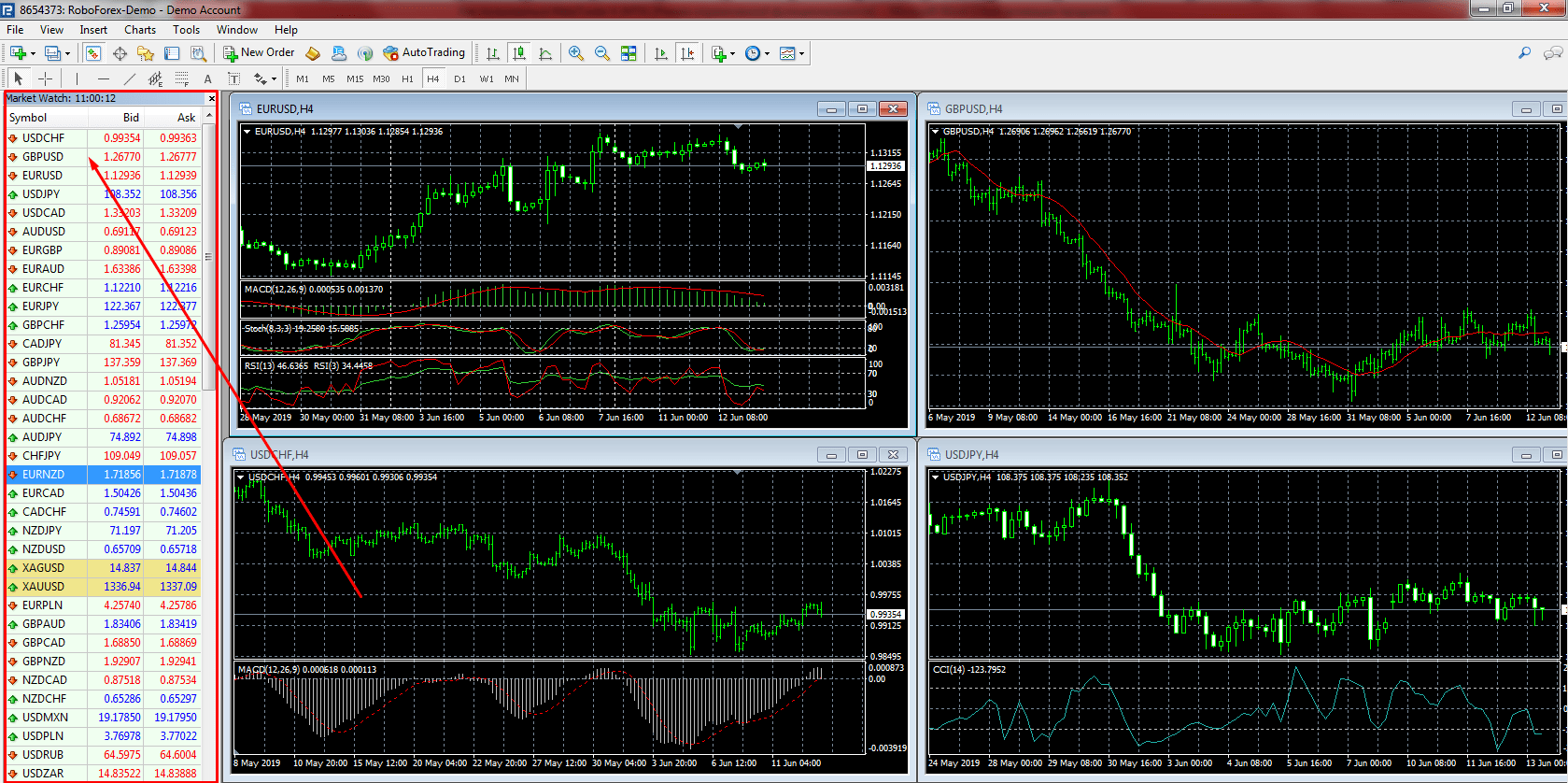
- Market Watch contains the list of financial instruments available for trading (gold and silver, CFD, currency pairs). The default view may show not all of them. To see the complete list, right-click inside the window and choose “Show all symbols” from the dropdown menu or add the required instruments manually in “Symbols” menu.
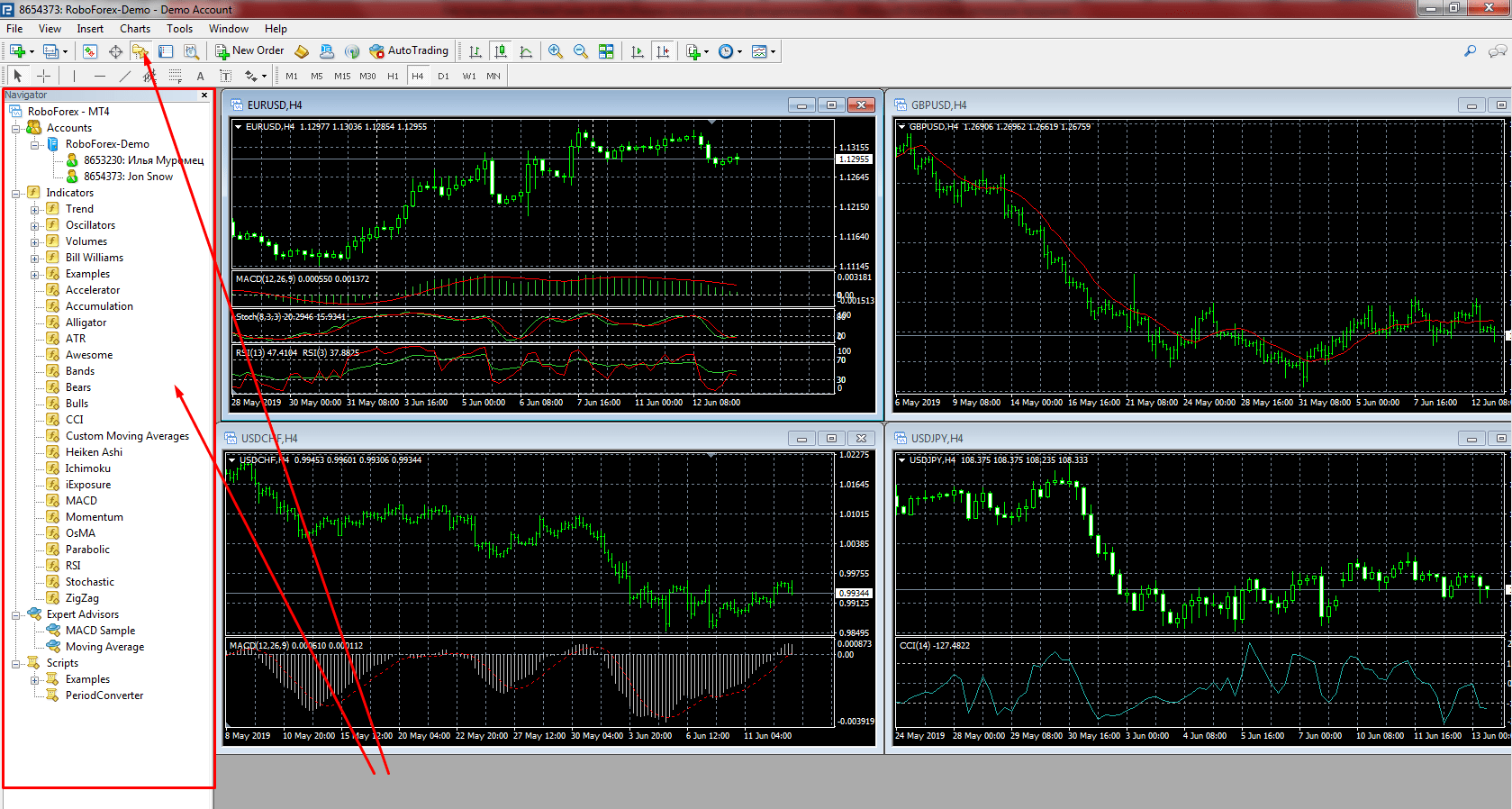
- Navigator window shows all trading accounts connected to the terminal and allows to quickly switch between them with left double-click. In addition to that, here one can drag different indicators, EAs, and scripts onto charts.
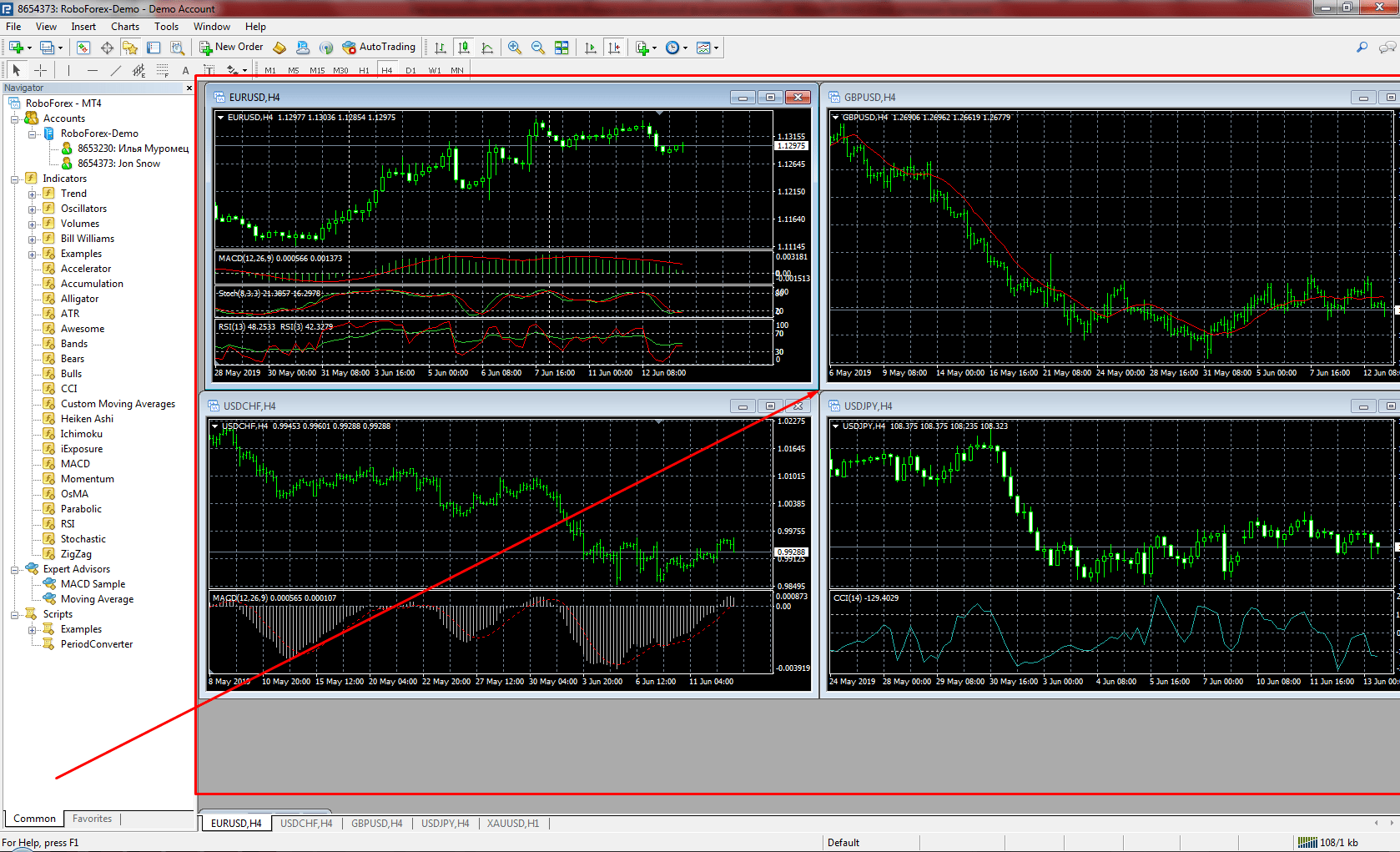
- Working area occupies the most of the screen and is intended for working with charts of financial instruments. Charts show the price dynamics online.
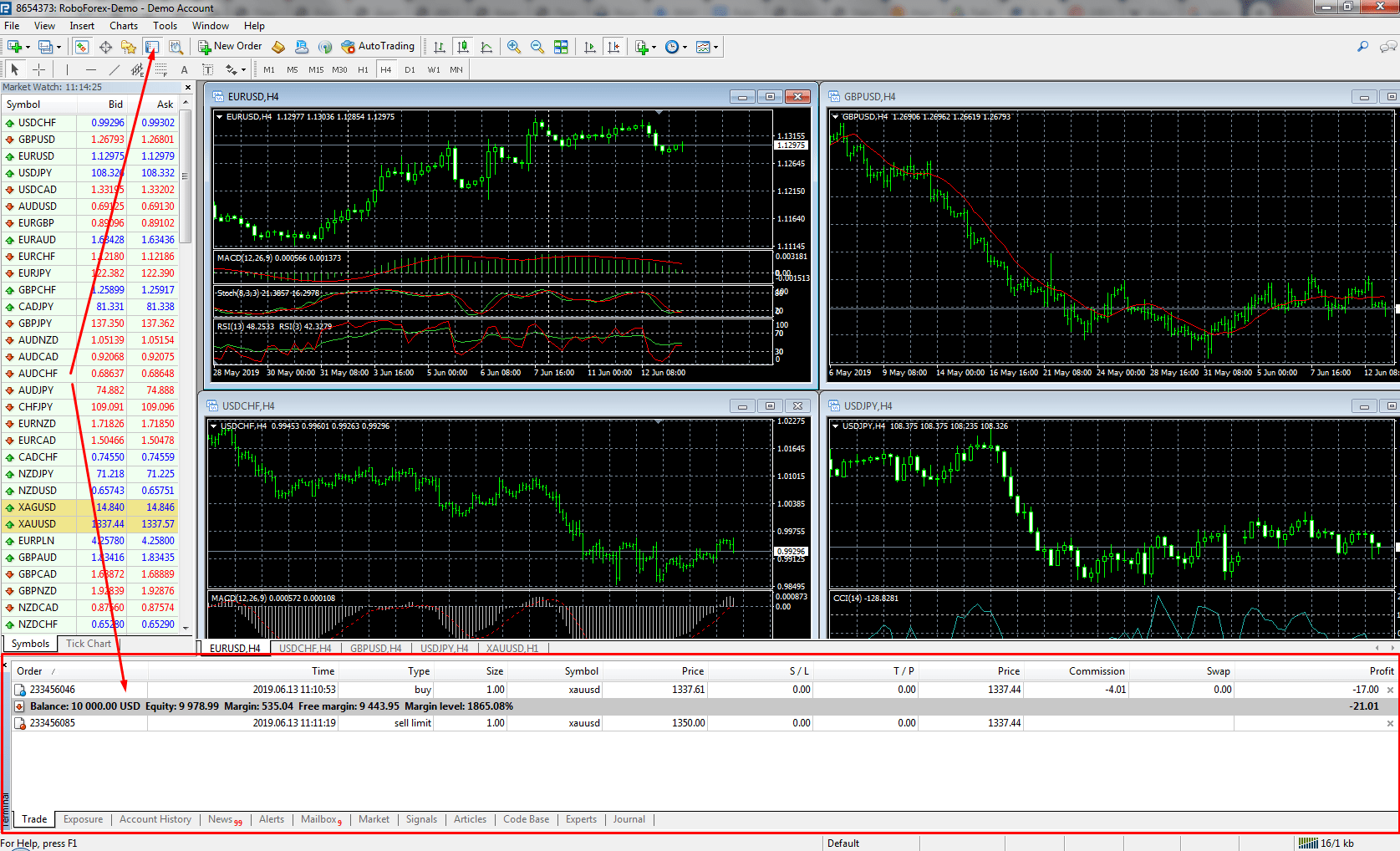
- Terminal (Trading window) is located at the bottom of the screen. “Trade” tab shows all information on the current trading account: balance, equity, and margin along with all open positions and pending orders, which may be closed, removed, or modified at any moment. Other tabs show account history, news, trading signals, etc.
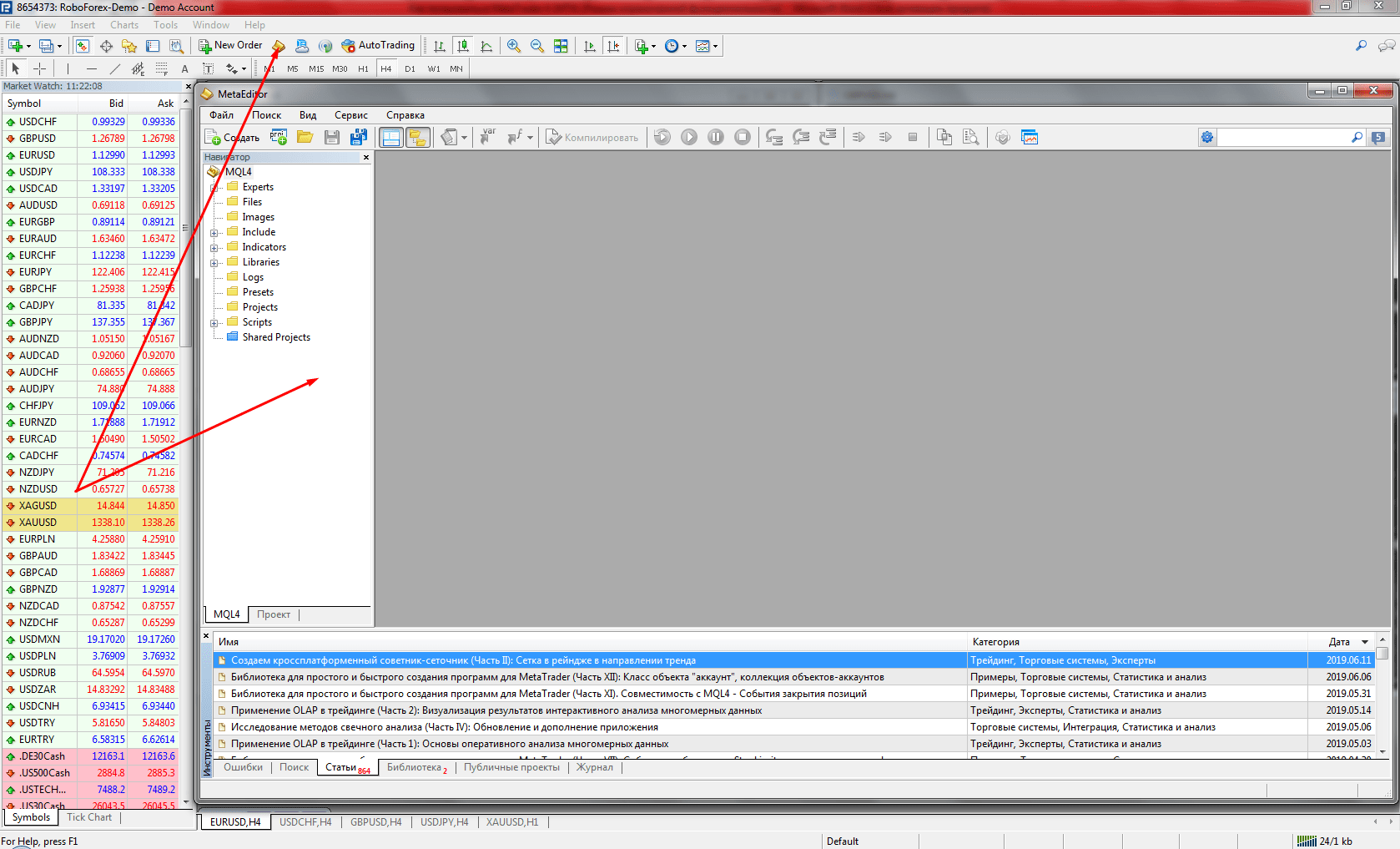
- MetaQuotes Language (MetaEditor) is a built-in programming editor for MQL4 language. It allows to create and use Expert Advisors (Robots), special software with algorithms for automated trading.
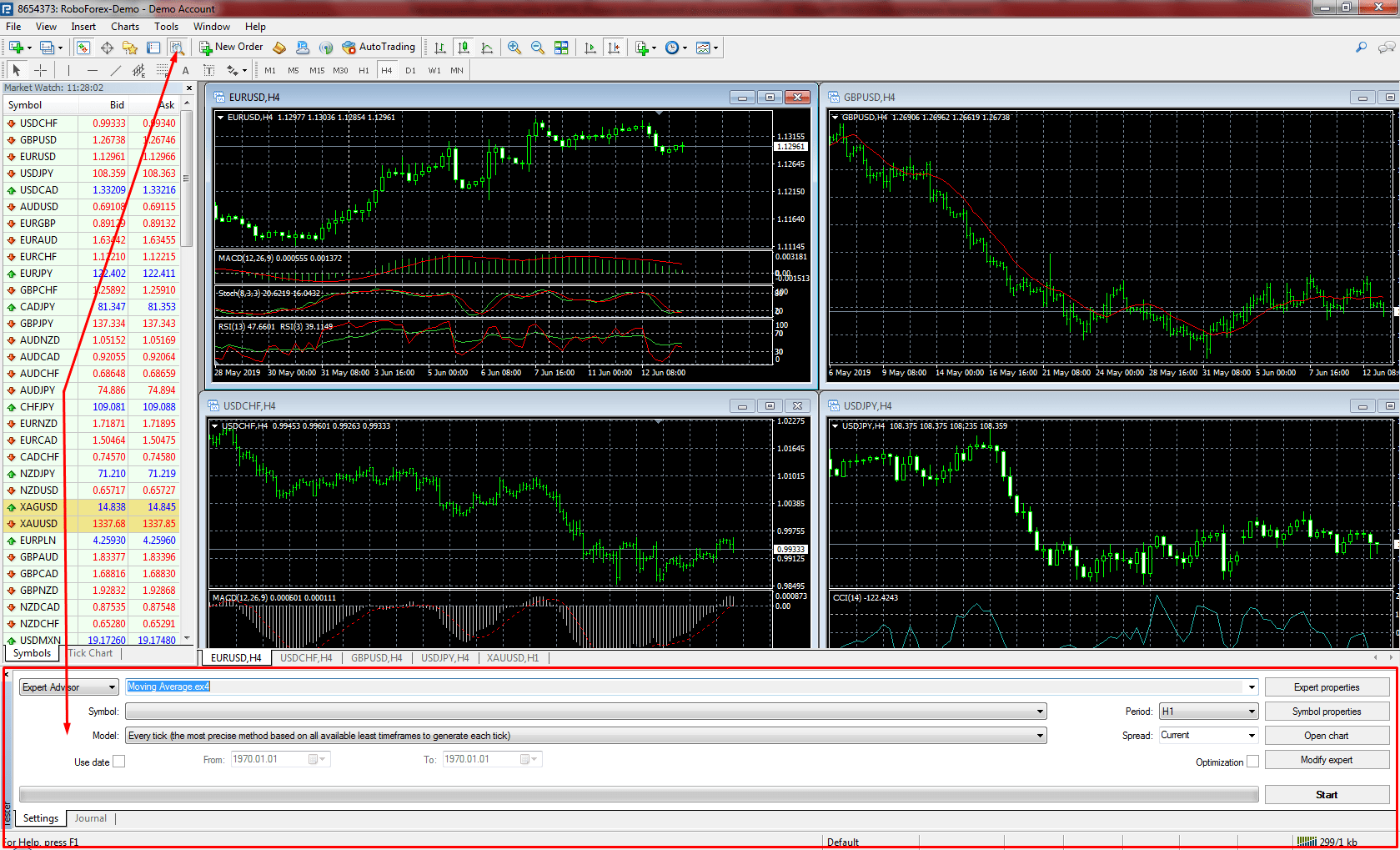
- Tester is an option for testing EAs in MetaTrader 4. It provides an opportunity to test performance and adjust EAs parameters using historic data.
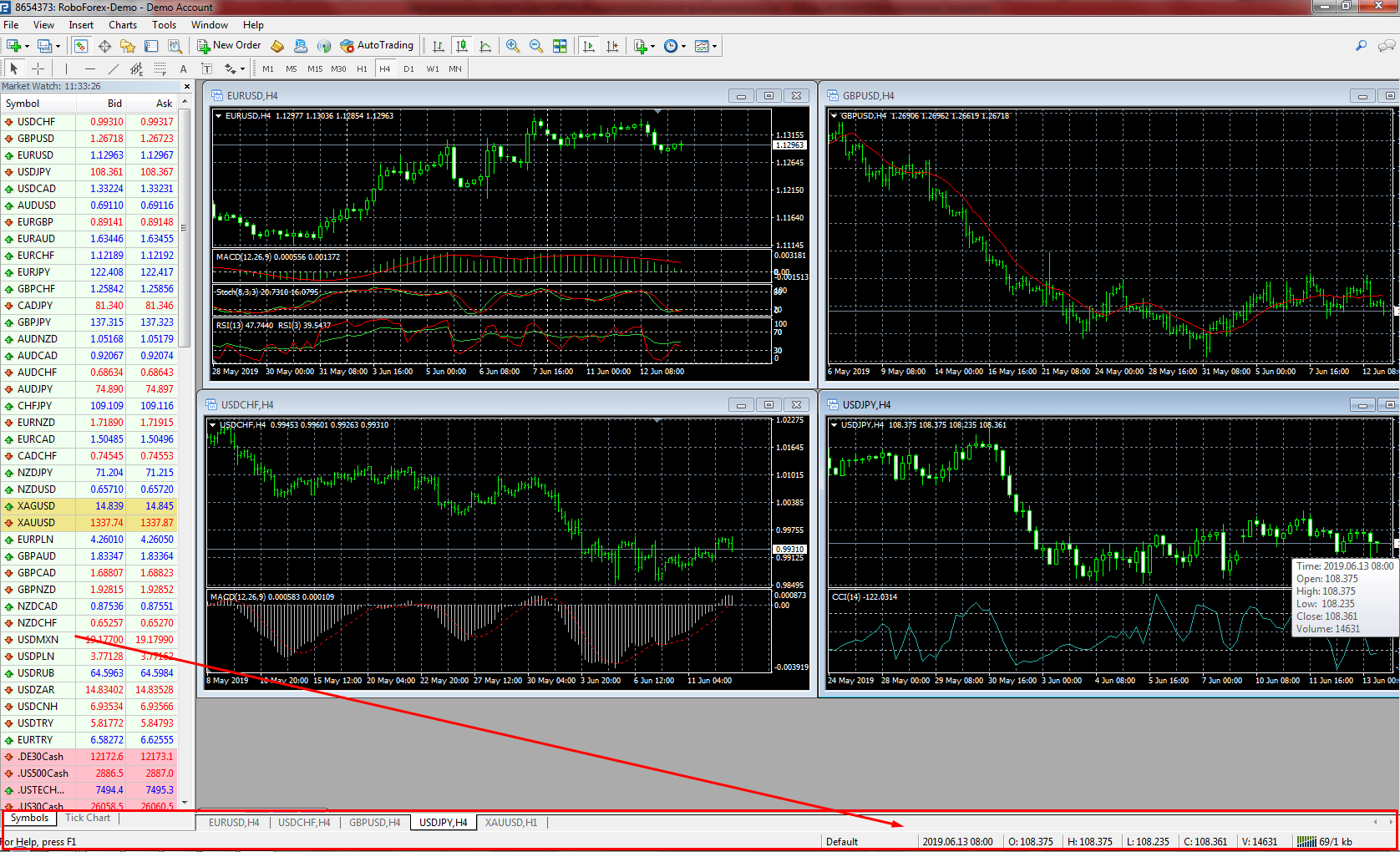
- Status bar shows the server connectivity icon, incoming and outgoing traffic, the current profile, and prices from the chart.
Charts in MetaTrader 4
Charts in MT4 show changes in prices of different financial instruments. Using the charts, one has an opportunity to analyze movements of currency pairs and other instruments, make forecasts of price behavior. The terminal allows to open hundreds of charts at the same time, customize them, use indicators for MetaTrader 4, enable EAs, save and print charts.
How to Open a Chart
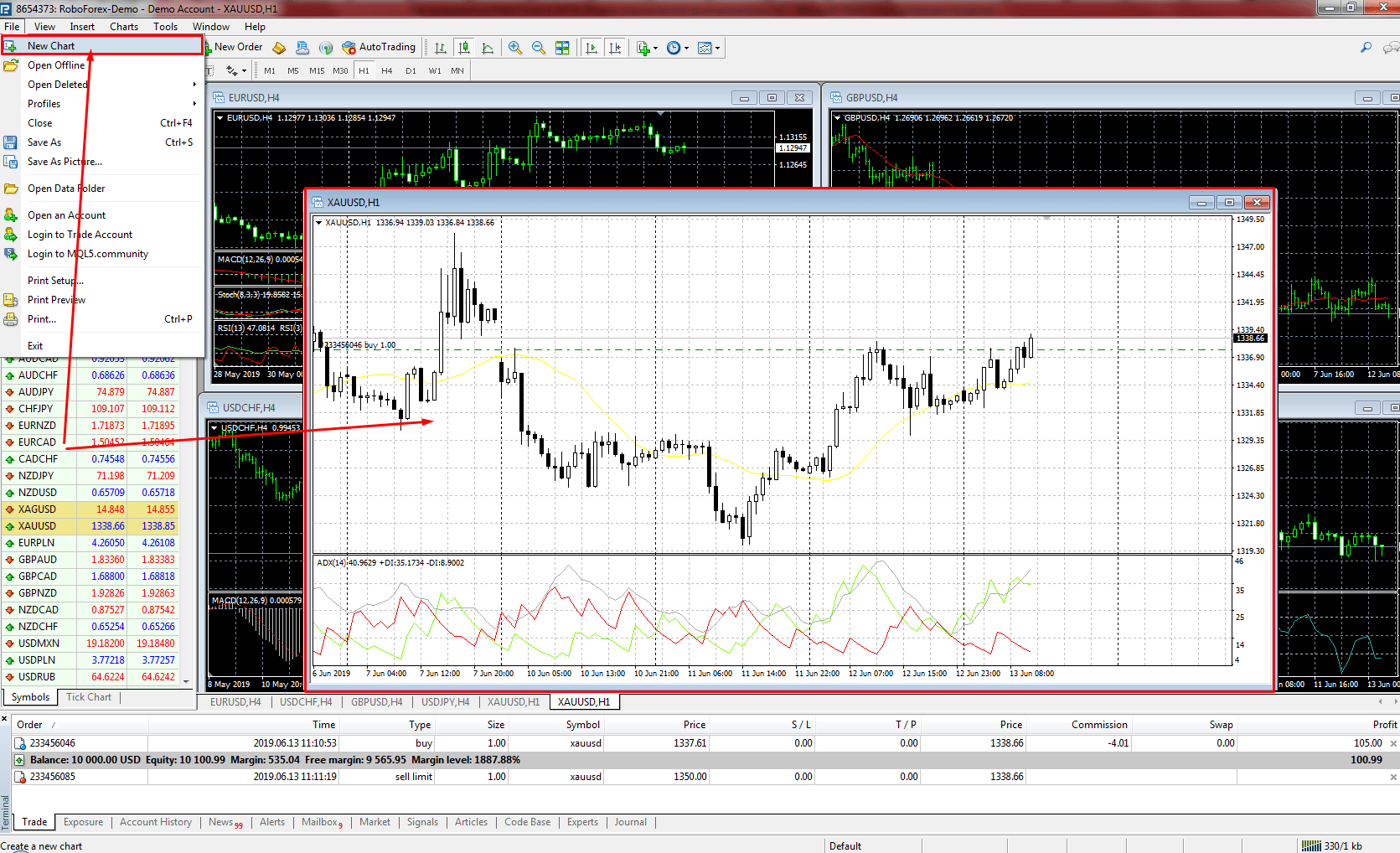
A new chart can be opened in “File” -> “New Chart”, where later a required instrument is chosen. Another way is to use “Market Watch” window, where one drags the required symbol onto the terminal’s working area. Also, one can right-click on the required instrument and then choose “Chart window” in the appeared menu.
How to Customize a Chart
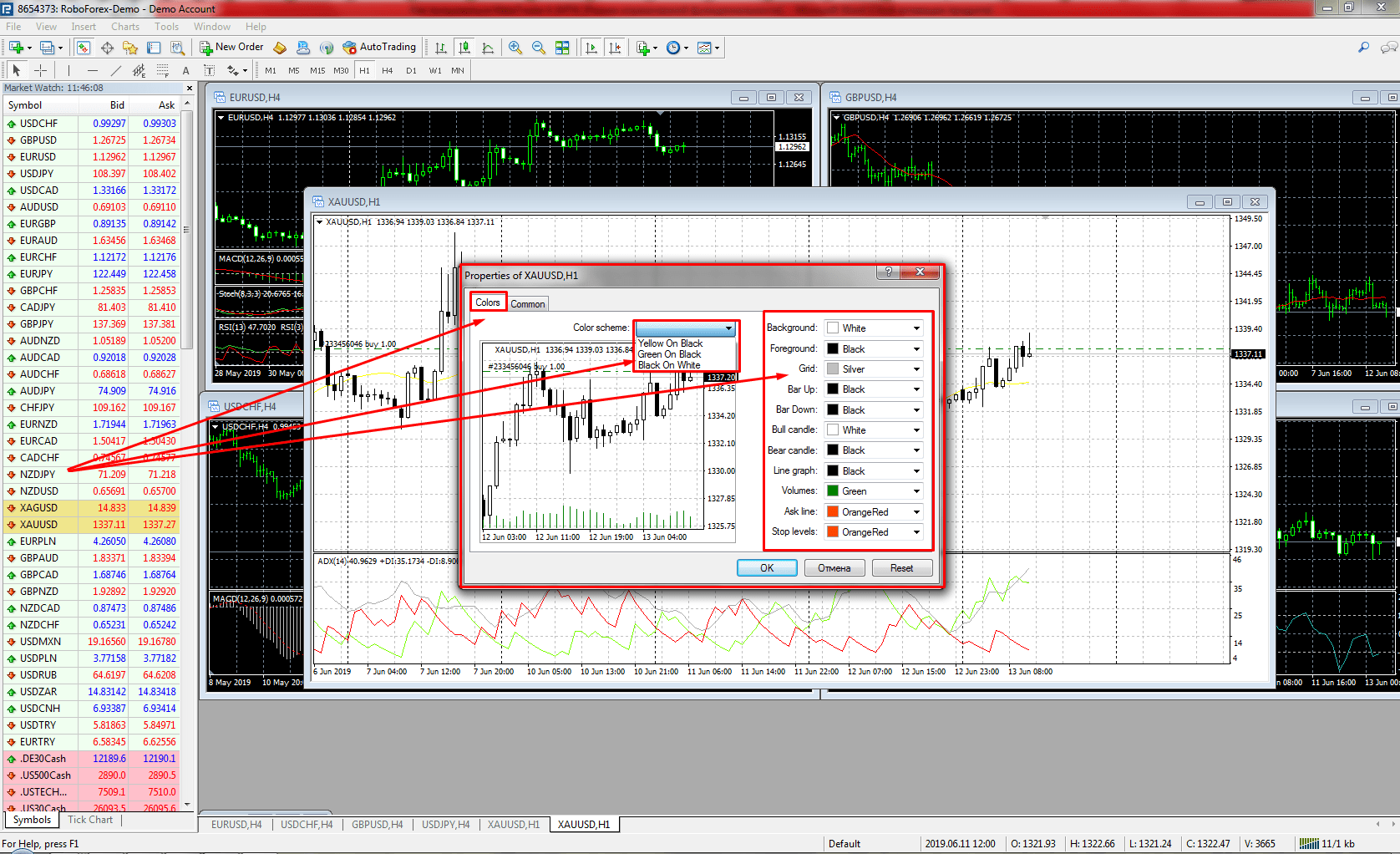
To customize the chart, one has to either go to “Charts” menu or right-click on the chart and choose “Properties” (F8).
- “Colors” tab. Due to one’s personal preferences, one of the three available color schemes may be chosen: “Yellow on Black”, “Green on Black”, or “Black on White”. There is an option for creating one’s own color scheme by choosing colors for all elements of the chart, such as background, text, lines, candlesticks, bars, etc. All changes in colors are displayed in a small window on the left.
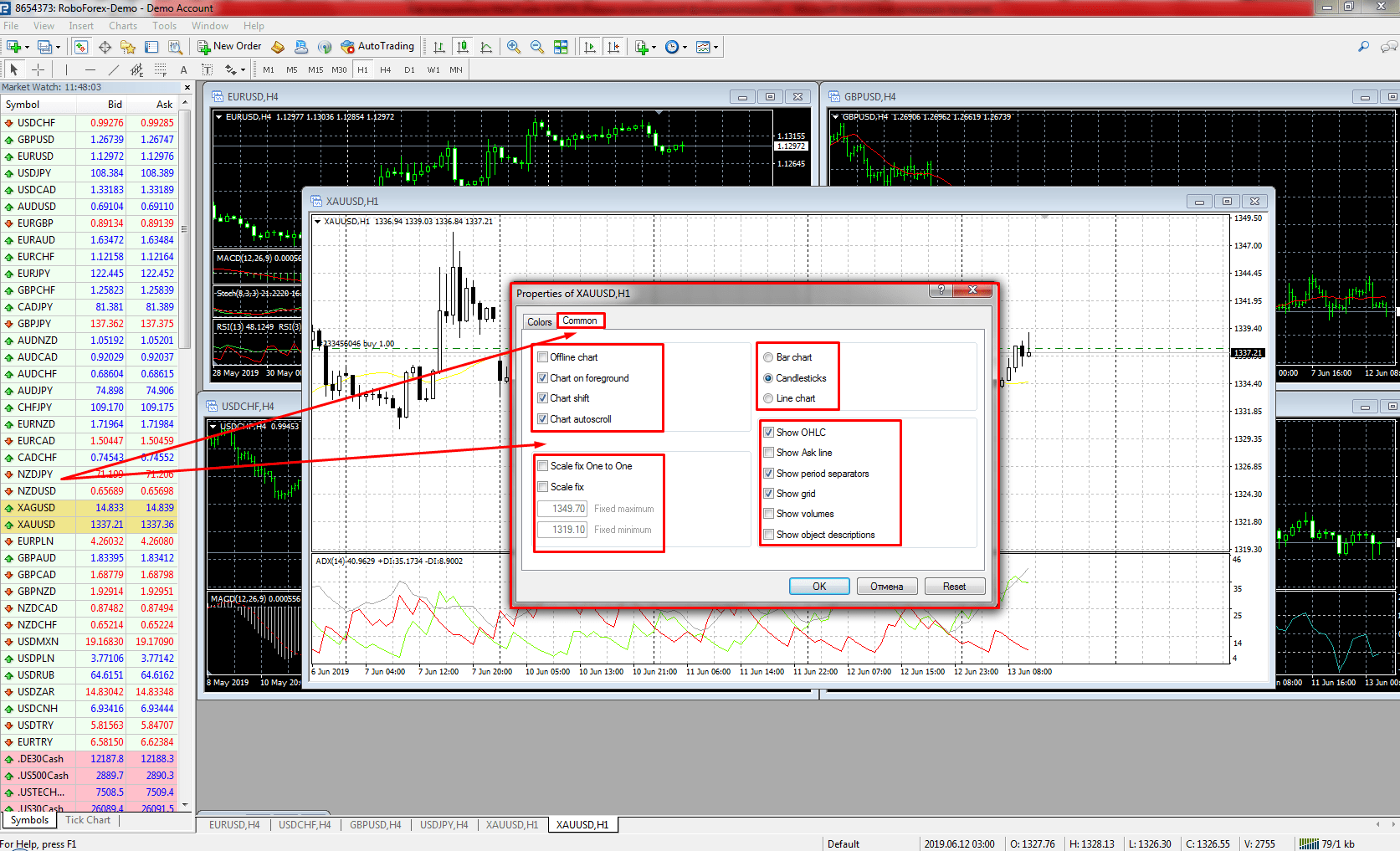
- “Common” tab helps to customize key parameters of the chart. Choose the way to display changes in the price: Japanese candlesticks, bars, or lines. Tick the parameters to be displayed on the chart: “OHLC” (Open High Low Close), “Ask line” (charts are built on Bid prices, that’s why tick this box if you need to see Ask prices), “Period separators” (vertical lines to show timeframes), “Grid” (cells with specific price values), “Volumes” (a tick volume indicator at the bottom of the chart), “Object descriptions” (describes objects on the chart), “Offline chart” (charts are opened on basis of data saved on the hard disk), “Chart on foreground” (charts are always on top of other objects), “Chart shift” (shifts the latest bar from the right screen border to the chart shift mark), “Chart autoscroll” (the current candlestick (bar) is always on the same visible place), “Scale fix” (disables automatic scaling).
After customizing all basic parameters, one has to choose a timeframe. Using the main menu or “Toolbar”/”Navigator” menus, one can add MetaTrader 4 indicators required for analysis, such as lines, channels, Fibonacci retracements, graphic objects.
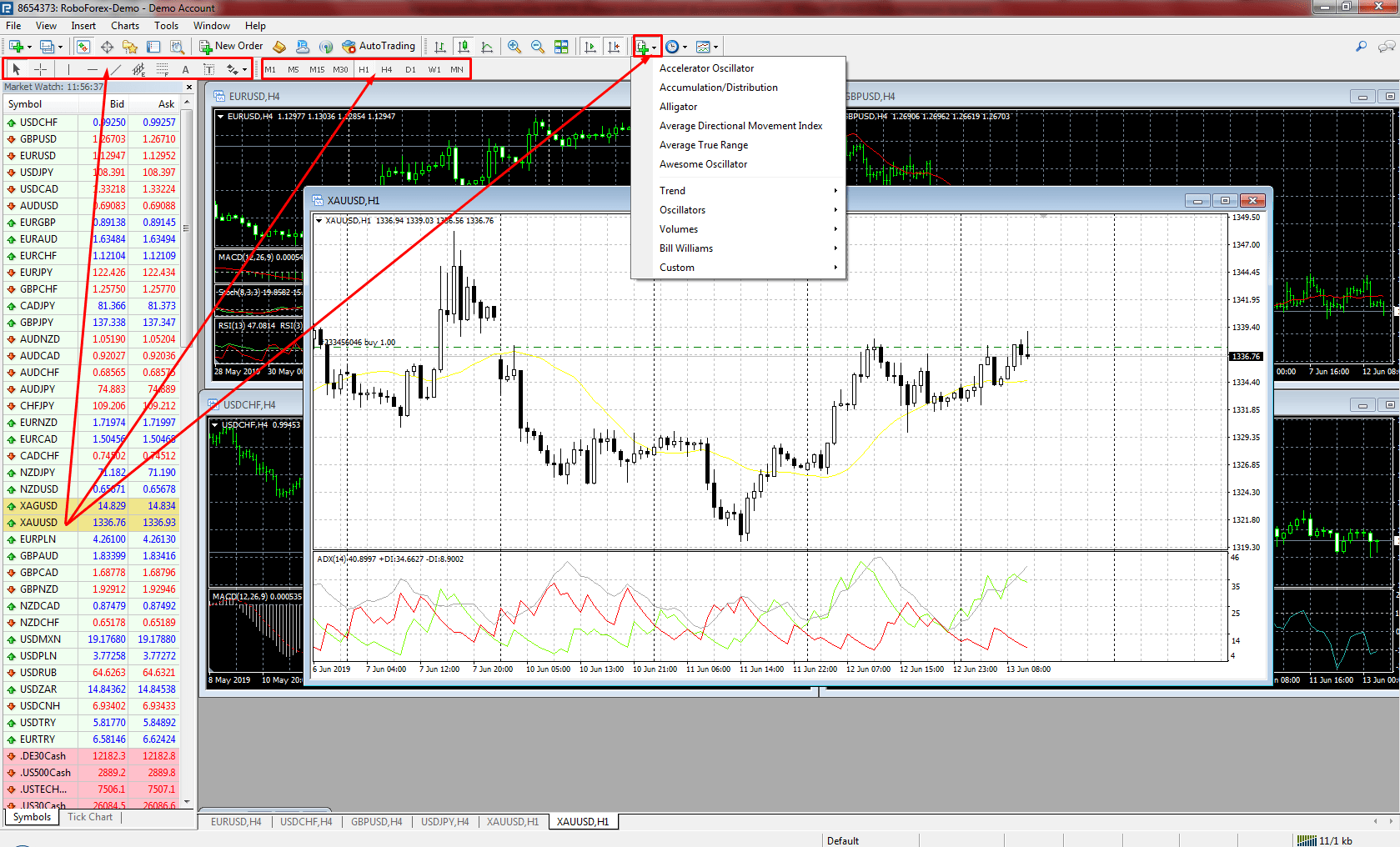
MetaTrader 4 has nine standard timeframes, each with its own button on the toolbar. The timeframe guide explains which of them suit which trading style.
| Button | One candle covers |
|---|---|
| M1 | 1 minute |
| M5 | 5 minutes |
| M15 | 15 minutes |
| M30 | 30 minutes |
| H1 | 1 hour |
| H4 | 4 hours |
| D1 | 1 day |
| W1 | 1 week |
| MN | 1 month |
How to Save Charts and Templates
After customizing the chart, all changes can be saved as a template in order to apply it to all newly-opened charts. To do this, go to “Charts” -> “Template” -> “Save template”.
The chart can also be saved in an image format. It can be done in “File” -> “Save as image”.
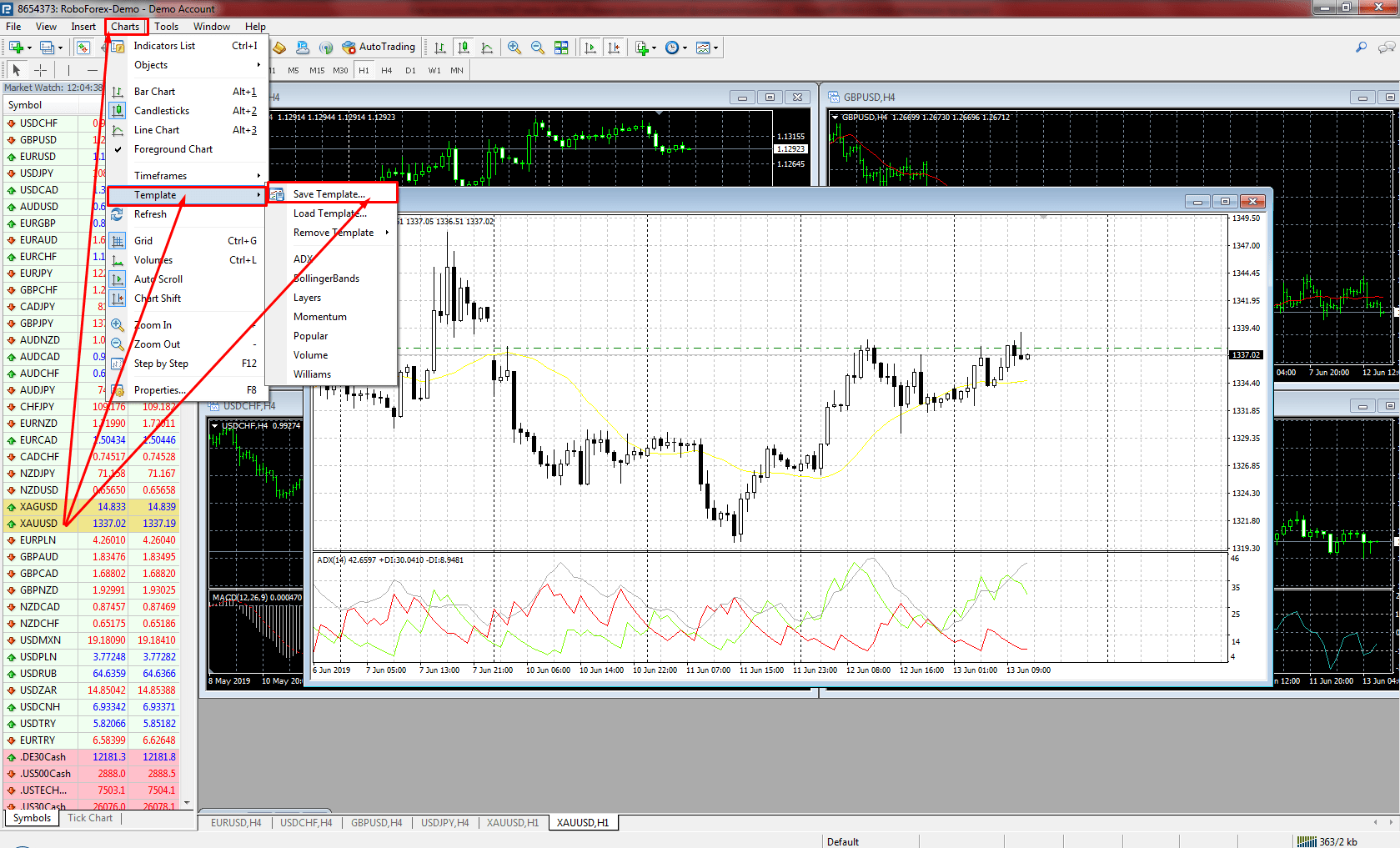
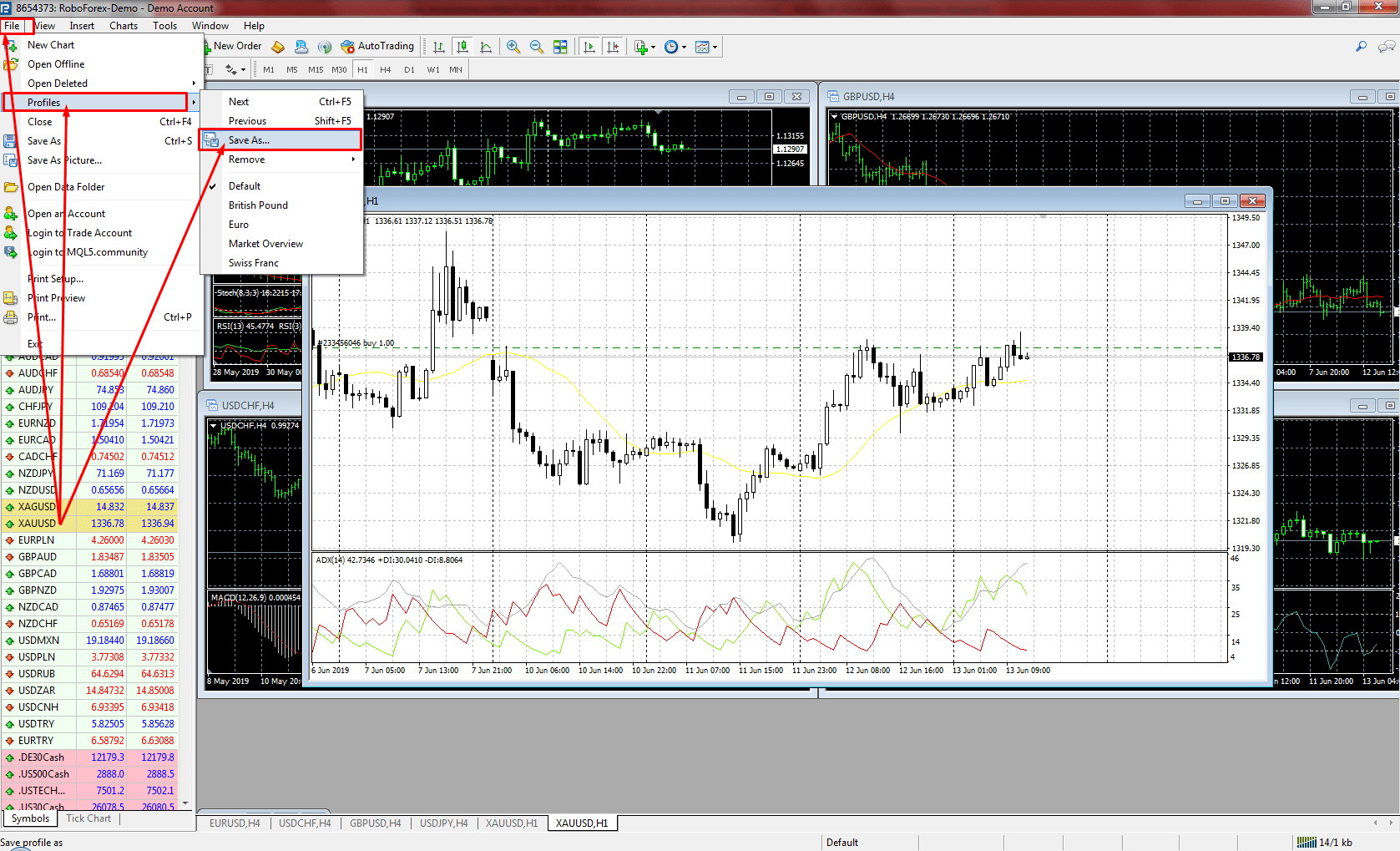
One has an opportunity to create several templates with different settings for different financial instruments. All open chart windows with your settings can be saved in “File” -> “Profiles” -> “Save as..”.
MetaTrader 4 Keyboard Shortcuts
Keyboard shortcuts save time once you know how to use MT4 day to day. These are the ones used most often.
| Action | Shortcut |
|---|---|
| One Click Trading panel on and off | Alt+T |
| Options | Ctrl+O |
| Chart properties | F8 |
| Zoom in and out | + and - |
| Indicators on the chart | Ctrl+I |
| Grid and volumes on and off | Ctrl+G, Ctrl+L |
| Depth of Market | Alt+B |
| Auto arrange chart windows | Ctrl+A |
| Print the chart | Ctrl+P |
How to Open an Order in MetaTrader 4
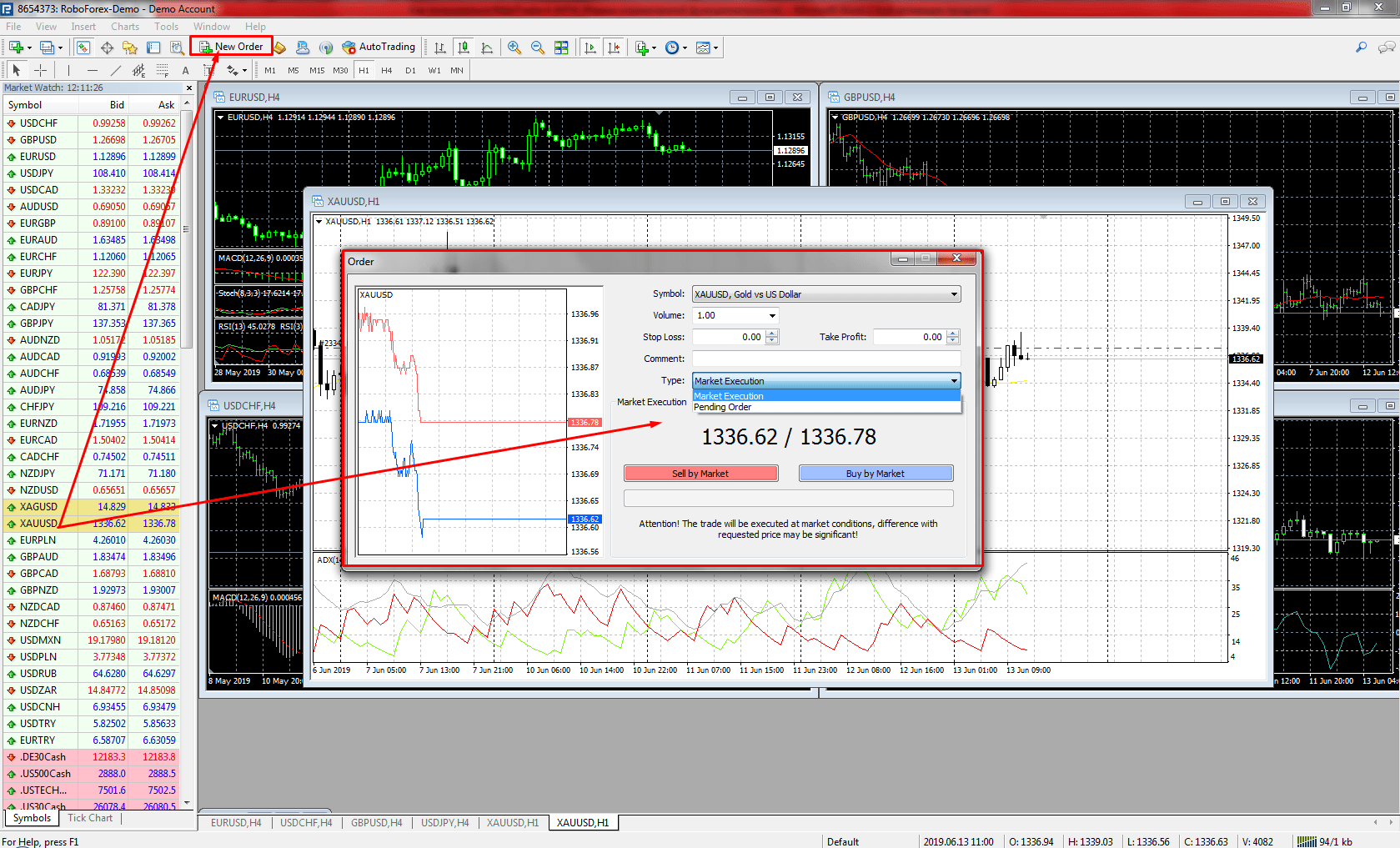
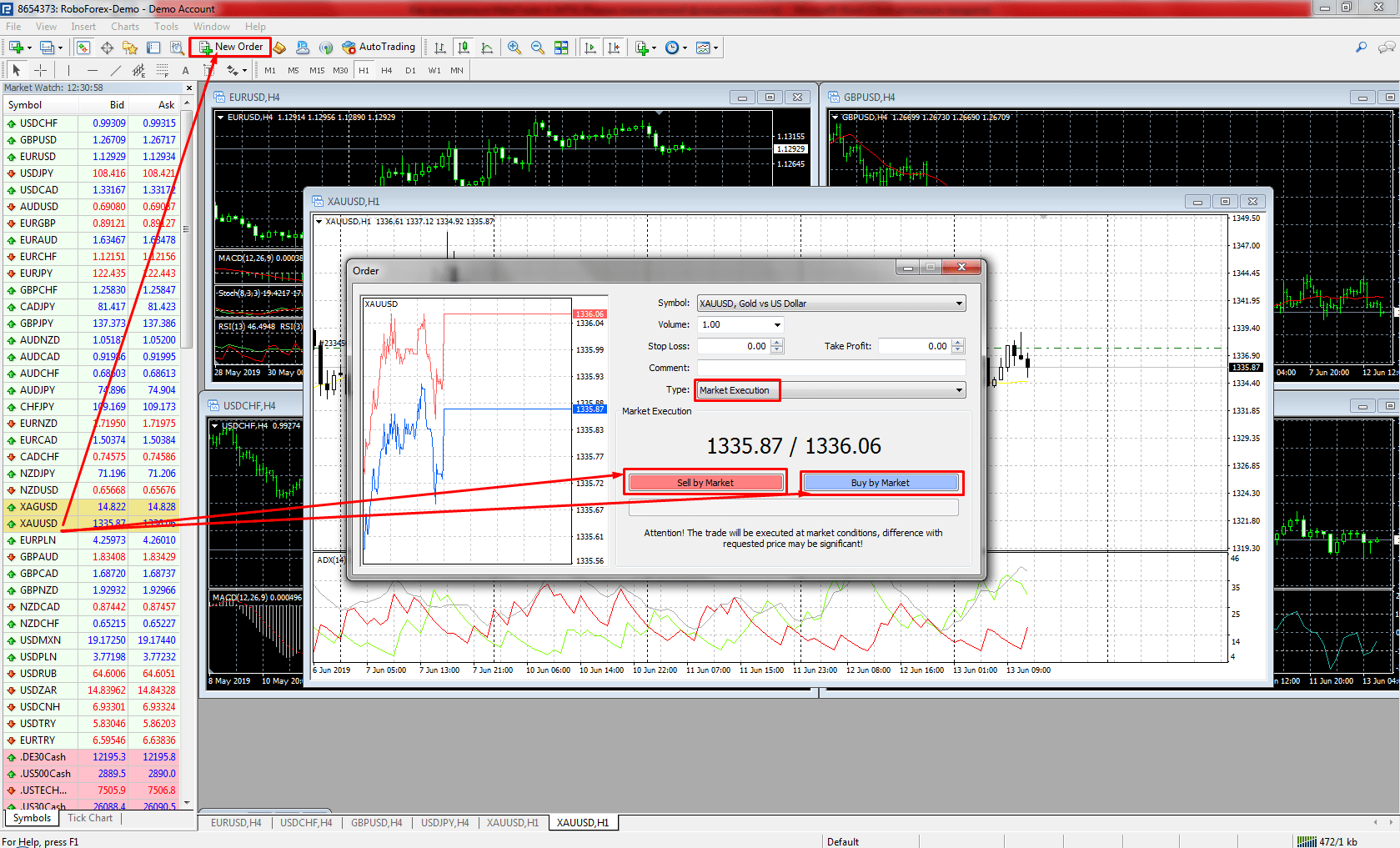
To open a position in MetaTrader 4, go to the main menu or click “New Order” icon on the toolbar. In the newly opened window, choose the trading instrument symbol and specify the position volume. Right here, one can set Stop Loss (for limiting possible losses) and Take Profit (for taking profit) levels. By default, “Type” field offers “Market Execution” and then there are two buttons, “Sell by Market” and “Buy by Market”.
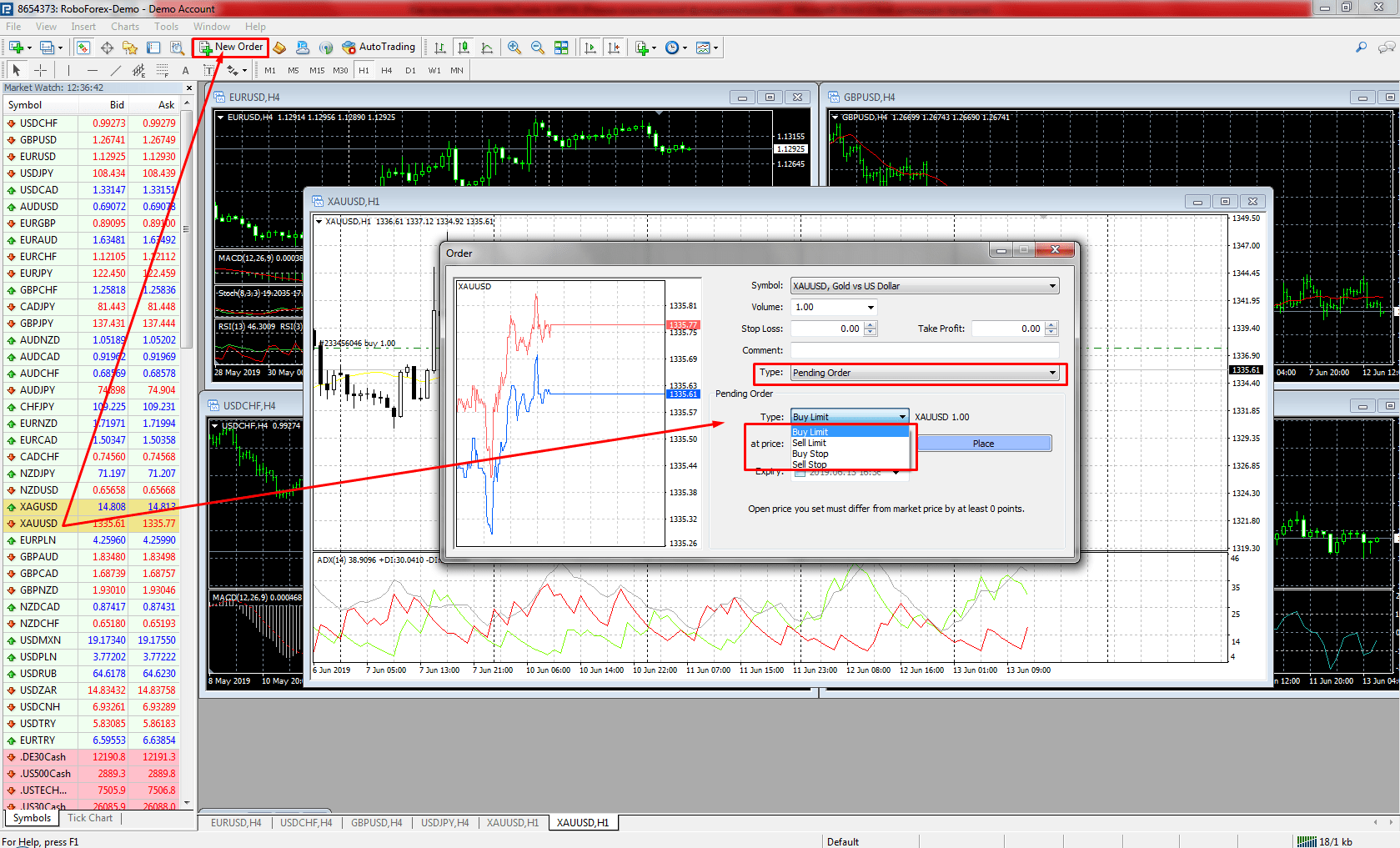
Clicking the red button (Sell by Market) opens a short position at the specified price, while clicking the blue one (Buy by Market) does the opposite and opens a long position. To place a pending order, one has to choose “Pending Order” from “Type” drop-down list.
Also, it is necessary to choose the type (Buy Limit, Buy Stop, Sell Limit, Sell Stop), specify the opening price, and, if necessary, the order expiration date. After that, click “Place order”. Your Pending order is now created and will be activated as soon as the price reaches the specified price.
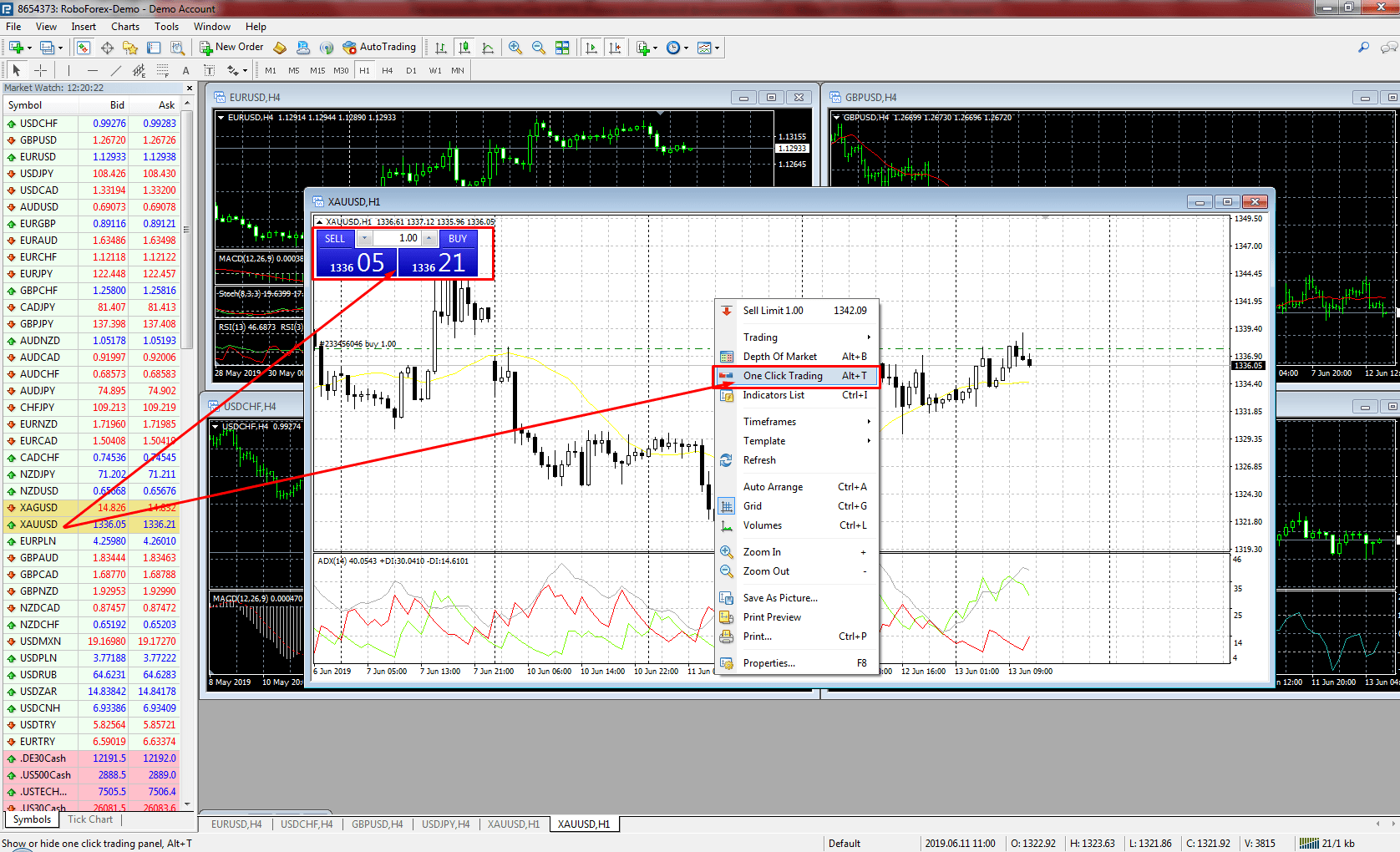
Another way to open a new order is using “One click trading” function. To do this, right-click on the chart and choose “One click trading” (Alt+T). In this window, one can quickly specify the order volume and open a buy or sell order at the current market price. “Sell” button and the current Bid price are on the left, while “Buy” button and the current Ask price are on the right. Clicking one of them will open an order in the direction chosen by a trader.
Order Types in MetaTrader 4
Orders in MT4 can be of two types, market and pending.
A market order is filled at once at the current price: a buy at the Ask, a sell at the Bid, so every new position starts slightly negative by the size of the spread. A pending order waits for a price you choose in advance and turns into a position only when the market reaches it. MT4 has four pending order types, two for buying and two for selling. Stop Loss and Take Profit can be attached to both kinds of order, either in the New Order window or later from the Trade tab. Trailing Stop is different: it runs inside your terminal, so it keeps working only while MetaTrader 4 is open and connected. The sections below go through each type with an example on gold.
Market Orders
Market orders are orders to buy or sell a financial instrument at the current market price.
- Buy is an order to buy at the current market price executed at the Ask price (demand).
- Sell is an order to sell at the current market price executed at the Bid price (supply).
Pending Orders
Pending orders are orders to buy or sell a financial instrument at the price specified in the order in advance. Such orders are activated as soon as the price of the chosen financial instrument reaches the level specified in the order:
- Buy Limit is an order to buy at the price that is below the current market price. For example, if XAU/USD is trading at 1350.00 and you want to buy it at 1300.00, place a Buy Limit order at 1300.00.
- Sell Limit is an order to sell at the price that is above the current market price. For example, if XAU/USD is trading at 1350.00 and you want to sell it at 1400.00, place a Sell Limit order at 1400.00.
- Buy Stop is an order to buy at the price that is above the current market price. For example, if XAU/USD is trading at 1350.00 and you want to buy it at 1400.00 expecting further growth, place a Buy Stop order at 1400.00.
- Sell Stop is an order to sell at the price that is below the current market price. For example, if XAU/USD is trading at 1350.00 and you want to sell it at 1300.00 expecting further decline, place a Sell Stop order at 1300.00.
Orders to take profit and limit possible losses are in a separate group:
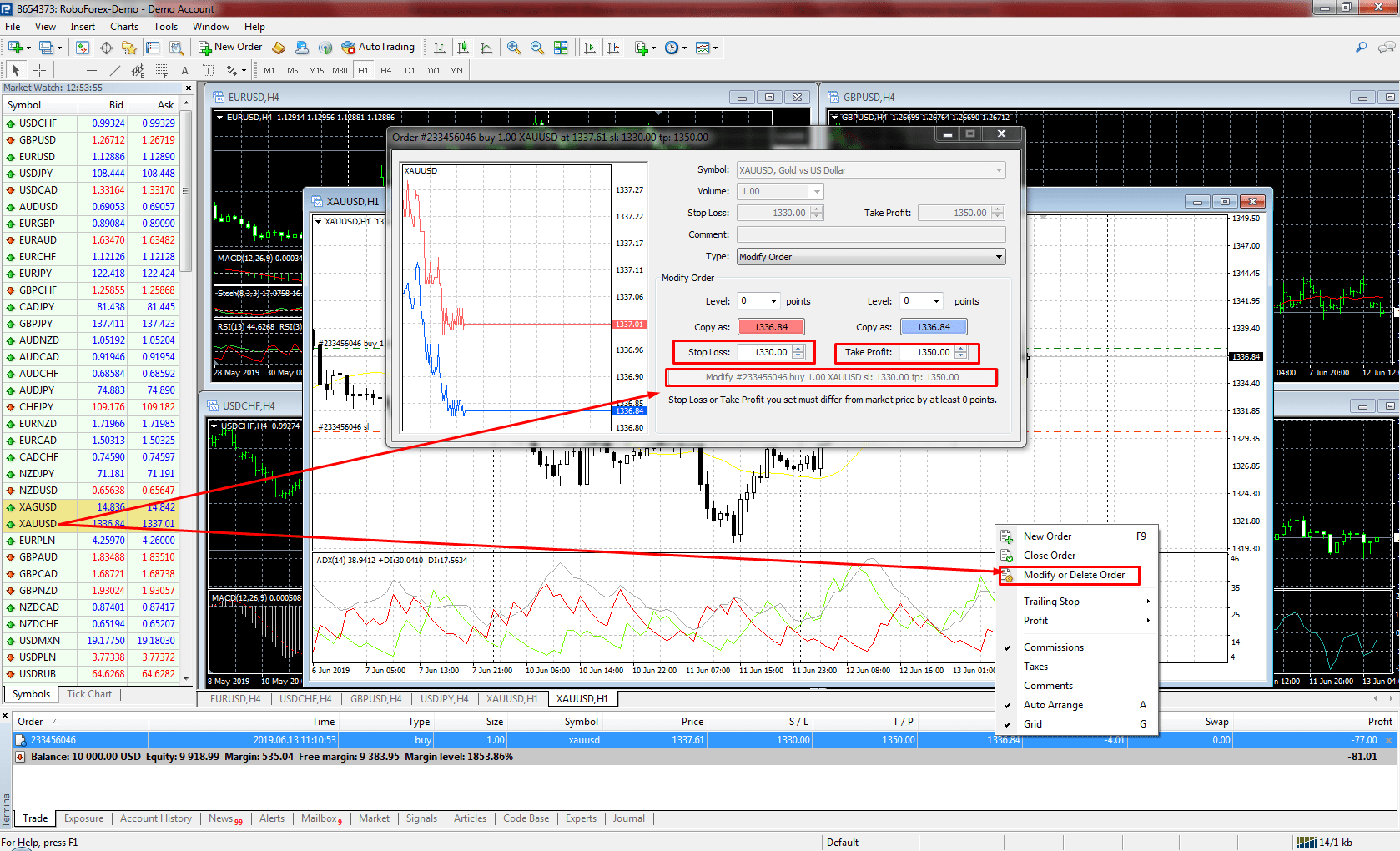
- Take Profit is an order to close a profitable position when the chosen financial instrument reaches the price specified in the order. In case of buying, Take Profit is placed above the current market price, and in case of selling, below it. It can be specified in market and pending orders when they are created. Take Profit orders can be created or modified by right-clicking the open order in “Trade” tab -> “Modify or delete order”.
- Stop Loss is an order to close a loss-making position when the chosen financial instrument reaches the price specified in the order. In case of buying, Stop Loss is placed below the current market price, and in case of selling, above it. It can be specified in market and pending orders when they are created. Stop Loss orders can be created or modified by right-clicking the open order in “Trade” tab -> “Modify or delete order”.
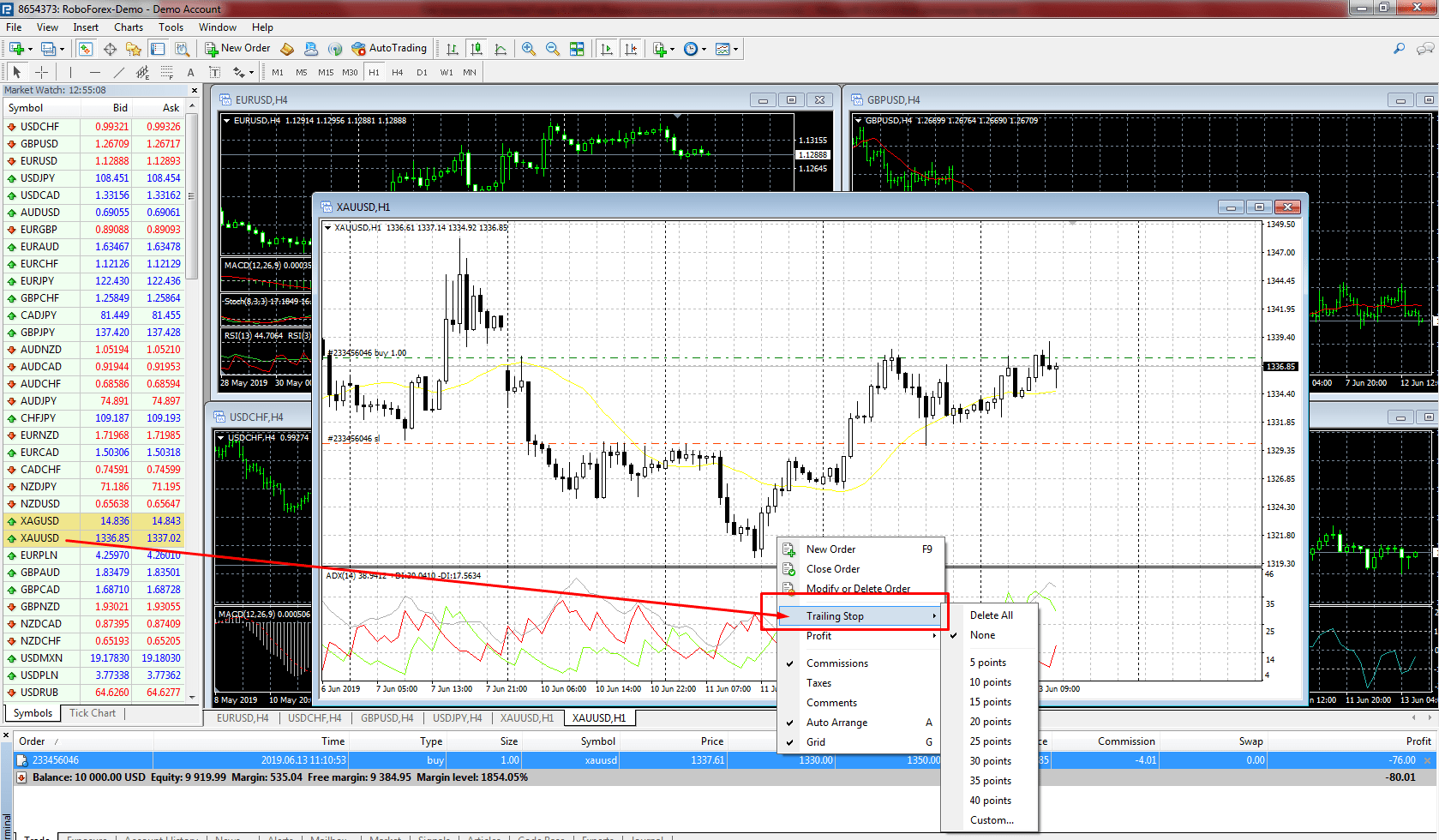
- Trailing Stop is a dynamic function similar to Stop Loss. In case of this order, the price specified in it follows the current market price in a profitable direction on the interval in points (point is the minimum unit of the price change). Trailing Stop helps to limit loss of profits in case of significant movements against an open position. It can be set by right-clicking an open order, choosing “Trailing stop”, and specifying the required interval in points.
Trade on MetaTrader 4 With RoboForex
Every chart, order type and Expert Advisor setting from this guide, on desktop and mobile.
How to Connect a VPS to MetaTrader 4
The terminal is designed with an opportunity to connect a virtual trading server, VPS, which helps to provide stable and uninterrupted operations on trading accounts. EAs (robots) in MetaTrader 4 may perform their functions only if a PC with the terminal is running and has an active internet connection. If your PC gets stuck suddenly or loses server connectivity, EAs will stop working at once. In the best case scenario, one may lose some profit, but in the worst case, incur significant losses of their own funds. Buying VPS, a remote virtual server may help to solve this problem. For a small fee, you will get access to a network server and copy your MetaTrader 4 with all customized EAs there. As a result, even in case of failures and malfunctions on your local PC, your EAs will continue operating steadily on this virtual resource.
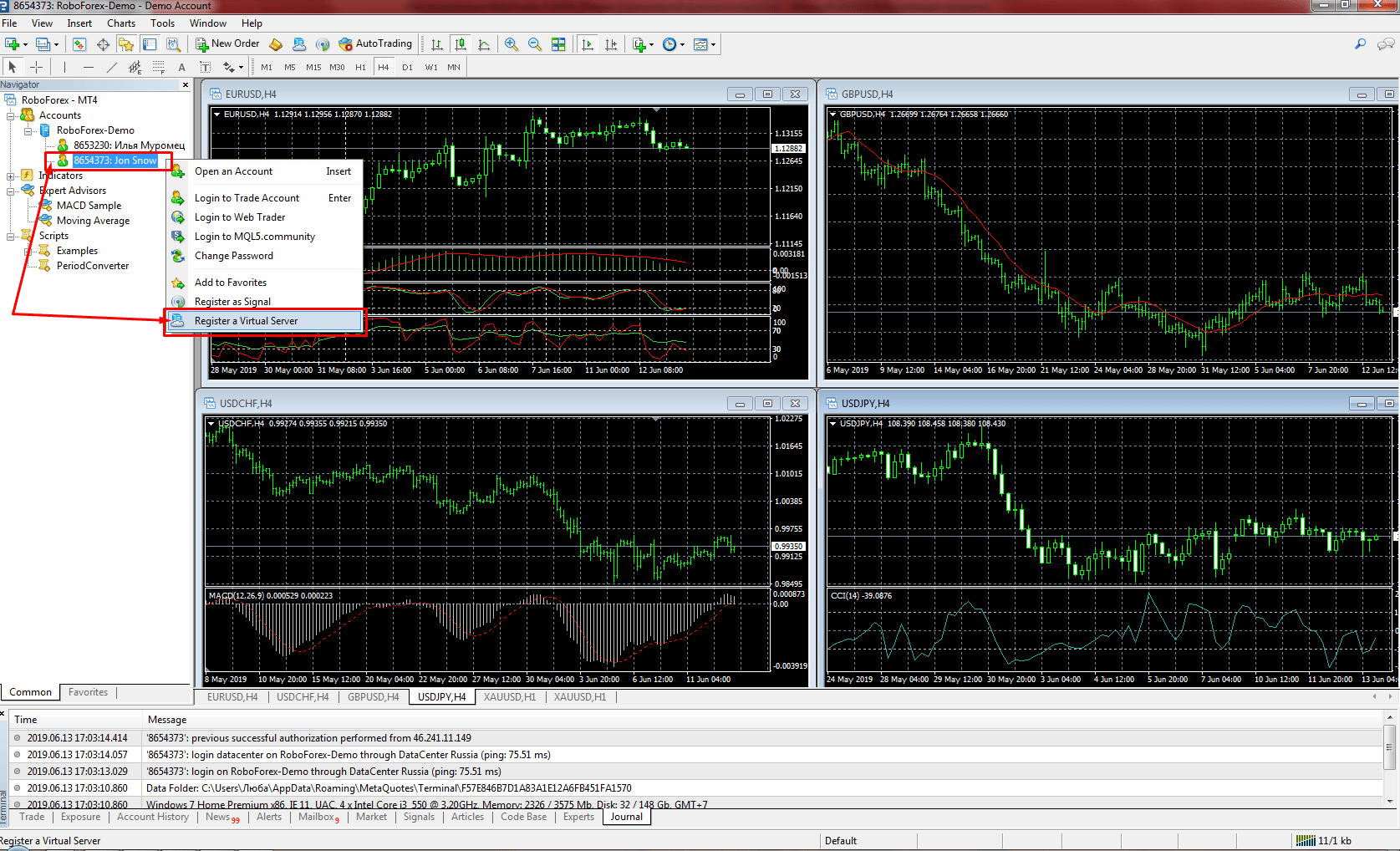
VPS is quite easy to install. Find the required account number in “Navigator” window, right-click it, and choose “Register a Virtual Server”. In the next window, you have to register and choose a fee. After connecting your trading account to a virtual server, your terminal data synchronization will be required. Upon the completion of this procedure, the copied terminal with all your settings will start operating on a remote VPS server. If necessary, a virtual hosting may be disabled at any moment.
How to Copy EAs to MetaTrader 4
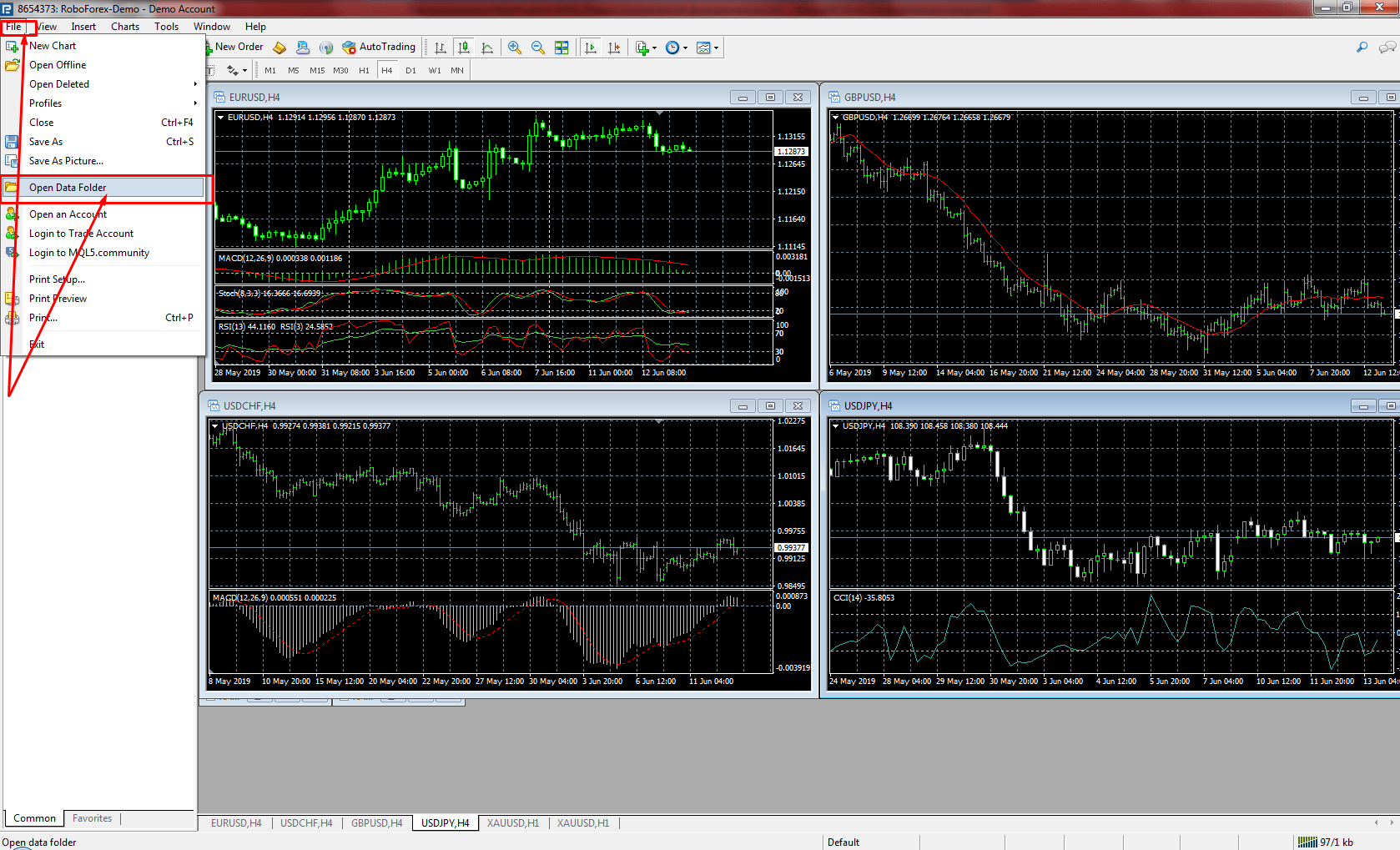
Availability of MetaEditor, a built-in editor, in MT4, which is intended for programming in MQL4, allows to create and use trading advisors (Expert Advisors, or EAs). These are special programs with set algorithms for automated trading. All trading advisors in MetaTrader 4 are available in “Experts” folder. To add a new advisor to the terminal, go to “File” -> “Open Data Folder”. Then go to “MQL4” -> “Experts” and copy a new advisor there. The terminal requires reboot so that an advisor could be found in “Navigator” window.
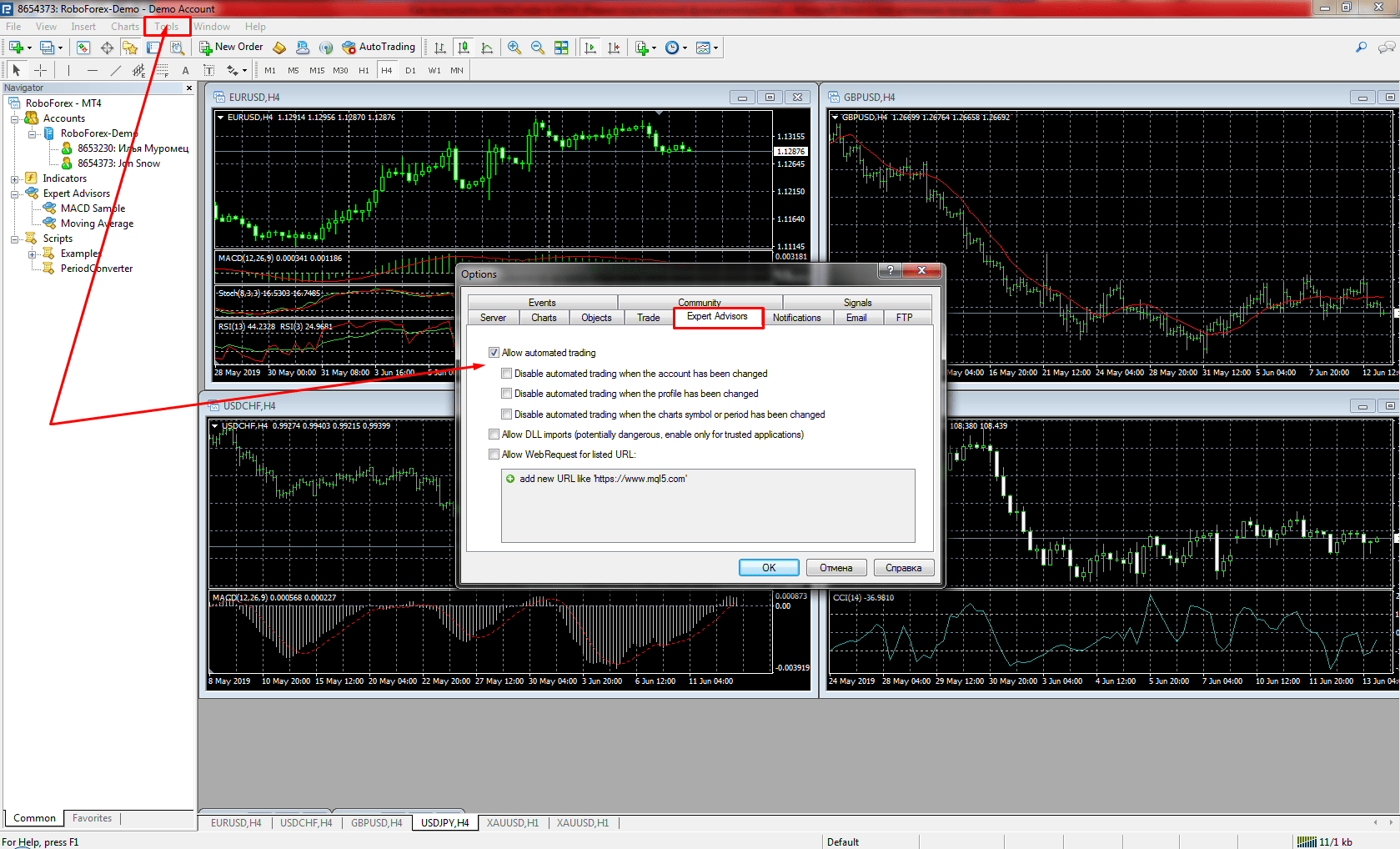
To run an advisor, you should check settings in “Tools” -> “Options” -> “Expert Advisors” (Ctrl+O):
- Allow automated trading. Tick this box to allow your advisors to operate. Here you can also find different options how to disable automated trading (in case of account, profile, chart symbol or period has been changed).
- Allow DLL imports allows EAs to use external DLLs in their operations.
- Allow WebRequest for listed URLs. This option allows EAs to exchange information only with resources listed below.
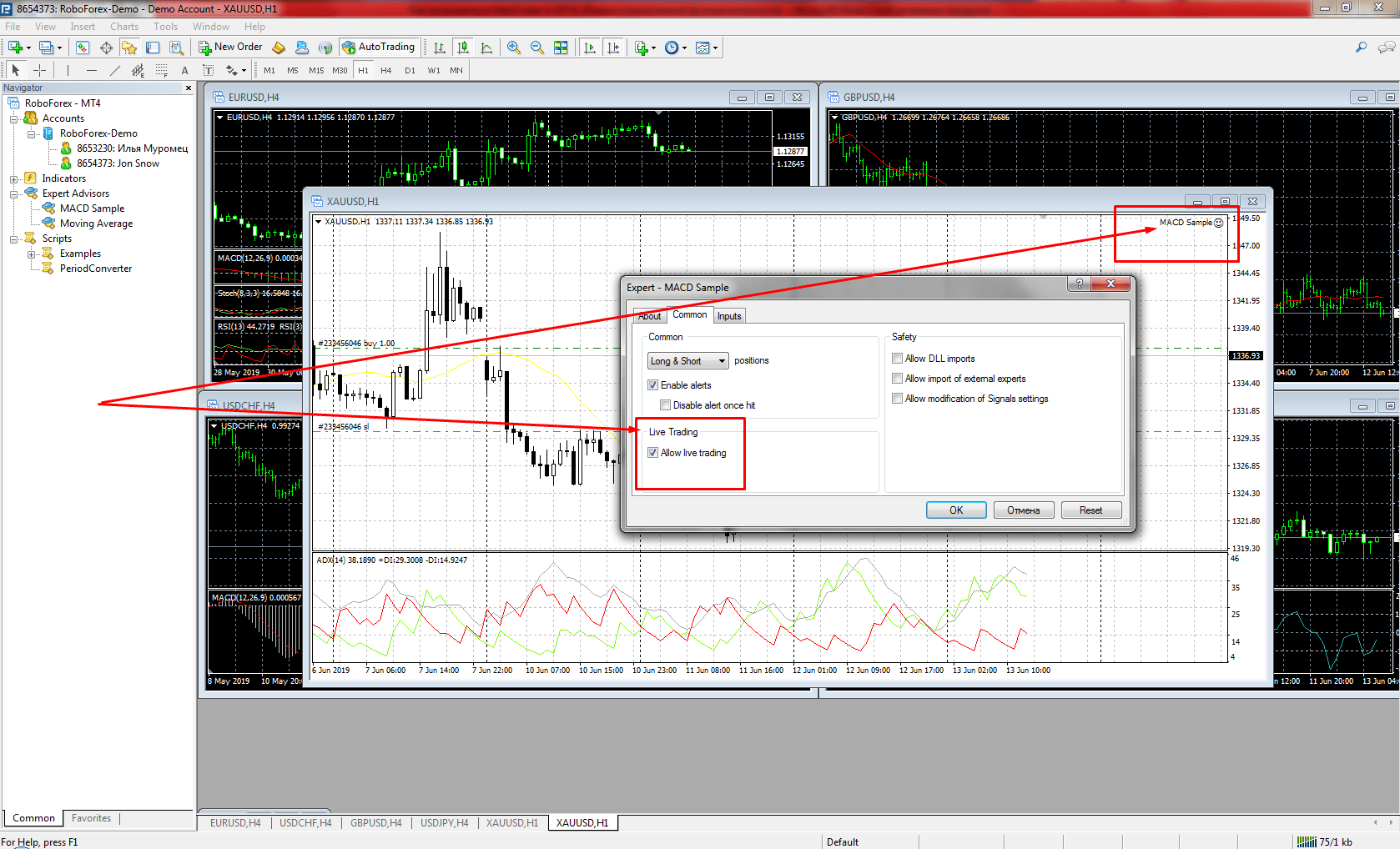
After customizing all basic parameters, an advisor has to be installed on the chart of the chosen financial instrument. To do this, drag an advisor by left-clicking it from “Navigator” window onto the chart. Then, you will see the window with this advisor’s settings. Specify all required parameters and click “OK”. Now, an advisor is ready for operation. A happy smile icon next to an advisor’s name in the top right corner of the chart indicates that an advisor is enabled and working. In case of an unhappy emoticon, trading for this advisor is not allowed. Left-click on this emoticon will open the menu with settings where you can check its status in “Common” tab.
Moving to the newer platform? Read How to Use MetaTrader 5 (MT5): A Trader’s Guide.
FAQ
Is MetaTrader 4 free?
Yes. The MT4 terminal is free to download and use. You need a trading account to log in: a demo account with virtual money, or a live account.
How do I start using MT4 as a beginner?
Install the terminal, open a demo account and log in through File -> Login to Trade Account. Then open a chart from Market Watch, choose a timeframe and practise placing orders with the New Order button before you trade with real money.
How do I place a pending order in MetaTrader 4?
Open the New Order window and choose Pending Order in the Type field. Select Buy Limit, Sell Limit, Buy Stop or Sell Stop, enter the price, add Stop Loss and Take Profit if you need them, and click Place order.
Why is my Expert Advisor not trading in MT4?
Check three things: the AutoTrading button on the toolbar is on, Allow automated trading is ticked in Tools -> Options -> Expert Advisors, and the icon next to the advisor's name on the chart is a smiling face. A sad face means trading is not allowed for this advisor.
What is the difference between MT4 and MT5?
MetaTrader 5 is the newer MetaQuotes platform. It has 21 timeframes against nine in MT4, six pending order types against four, the MQL5 language and a multi-threaded Strategy Tester. Expert Advisors written for MT4 do not run in MT5 without rewriting.
Any information provided in articles on this website is based solely on the personal opinions of the authors. These articles should not be construed as trading recommendations or a call to action. The authors and RoboForex accept no responsibility for the results of any trades made on the basis of these recommendations and reviews. Past performance is not indicative of future results. Trading stocks and CFDs involves a high risk of capital loss.