Expert Advisor Download for MT5: Free, Paid and Rented Robots From the MQL5 Market
The quickest expert advisor download for MetaTrader 5 happens inside the terminal. The MQL5 Market offers free, paid and rented robots, the MQL5 Code Base offers free source code, and every paid robot with a demo can be run in the Strategy Tester before you pay.
TL;DR
- Open Market from the Toolbox and sign in with an MQL5 account.
- Choose Free in the sort list and click Download, or click Download demo on a paid robot.
- Test the robot in the Strategy Tester, then on a demo account, before it trades real money.
This guide compares the places to get an Expert Advisor (EA), a program that trades on a chart by its own rules, and walks through the download in three steps. It also shows what to read on a product page, how to check that a robot fits your account, and how to install a file from another website. Screenshots taken in RoboForex MetaTrader 5 on a demo account in September 2026.
Try Your First Robot on a Free Demo Account
Virtual funds and live prices in MetaTrader 5, so you can watch an Expert Advisor trade before any real money is involved.
Expert Advisor Download: MQL5 Market, Code Base or Another Website
A robot for MetaTrader 5 comes from one of three places. They differ in the file you receive, the licence terms, whether the robot gets updates and how you can check it before it trades.
| Source | What you get | File | Updates | How to check it first |
|---|---|---|---|---|
| Market, free | A ready-made robot at no cost | .ex5 | Yes, when the author releases them | Download it and run it in the Strategy Tester |
| Market, paid | A commercial robot with a permanent licence | .ex5 | Yes, when the author releases them | Run the free demo in the Strategy Tester |
| Market, rent | A commercial robot for a set period | .ex5 | Yes, while the rental lasts | Run the free demo in the Strategy Tester |
| MQL5 Code Base | Free source code of robots, indicators and scripts | .mq5, compiled on download | No automatic updates | Read the code, then run it in the Strategy Tester |
| Another website | A robot or its code from an independent developer | .ex5 or .mq5 | Up to the developer | Check the source yourself, then run it in the Strategy Tester |
For most traders the MQL5 Market is the easiest start: products open straight in MetaTrader 5 and come with descriptions, reviews and a way to test them. The Code Base suits those who want to read the robot's code and change it before use. A file from another website needs extra checks, covered in a section of its own below.
Free, Paid and Rented Expert Advisors: What Each Option Gives You
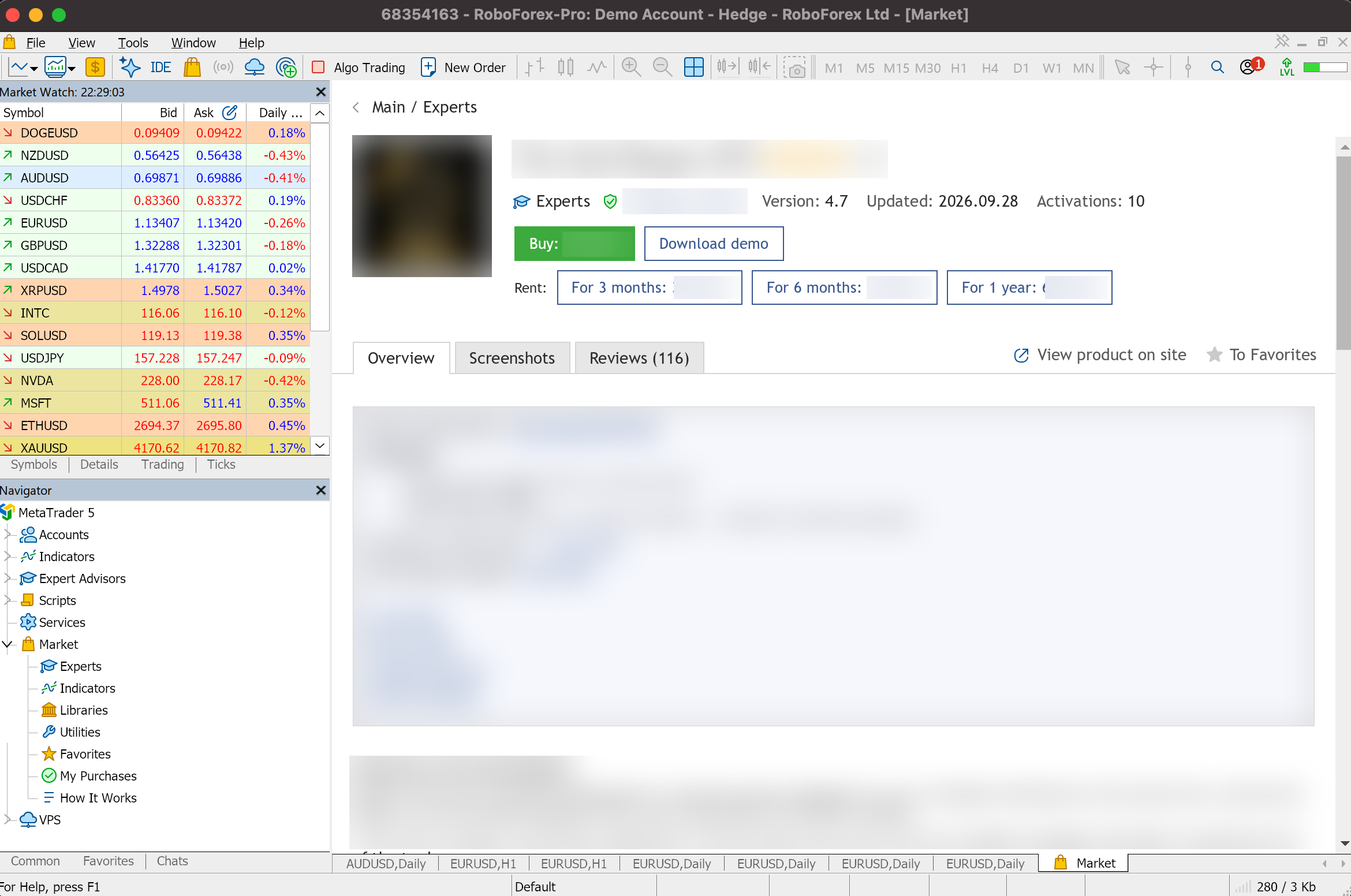
On a product page in the MQL5 Market you either download a free robot, buy a paid one or rent it for a period. The options differ in the licence term, the number of activations and how you try the robot before paying.
| Licence term | Free (Market) | Rent | Buy |
|---|---|---|---|
| Where it runs | On a chart and in the Strategy Tester | On a chart and in the Strategy Tester | On a chart and in the Strategy Tester |
| Trying it first | The download itself is free | Free demo in the Strategy Tester | Free demo in the Strategy Tester |
| Term | Unlimited | The rental period you choose | Unlimited |
| Activations | Not used for free products | Set by the seller | 5 to 20, set by the seller |
Demo. The demo of a paid robot runs only in the Strategy Tester: its trading part cannot be started on a live chart. That is enough to see how the robot handled past prices before you pay for the full version.
Rent. Renting gives you the full robot for a set period, if the seller offers it. The periods and prices are on the product page, for example three months, six months or a year.
Activations. A bought robot is tied to the hardware and the copy of the operating system it was activated on. Each buyer gets at least five activations, the one used at purchase included, and the seller can raise the number to 20 at most. Moving the robot to another computer, or changing the hardware or the operating system, uses a new activation.
Six Things to Check on an Expert Advisor’s Product Page
The product page is the seller's description of the robot. Read it before you download, then confirm what it says with your own test. The numbers on the layout below match the six checks.
Main / Experts
EA
OverviewScreenshotsReviews (86) 3
Live signal on a real account 1
Signal running for 14 months 2
Symbols: EURUSD, XAUUSD. Timeframe: H1 5
Recommended deposit: 1,000 USD, leverage 1:100 6
Illustration of a typical product page. The robot and its figures are invented.
- Live signal. A link to a signal on MQL5 Signals shows the robot's trades, balance curve and drawdown on a real account, updated as it trades. A page without a signal says nothing about quality either way, and it leaves the Strategy Tester as your only evidence.
- Length of the history. A longer live history covers more market conditions. A few months of trading shows little about how the robot copes when the market changes.
- Reviews. Reviews point to problems with setup, installation or support. Read individual reviews and the developer's replies along with the average rating.
- Last update. The version history shows how active the developer is. An old date is no proof that the robot fails, and regular updates tell you someone supports it.
- Symbols and timeframes. The page should name the instruments and timeframes the robot is built for. Run it only on those.
- Minimum deposit. If the seller gives a recommended starting balance, compare it with the robot's lot size, Stop Loss, margin requirements and possible drawdown.
Three signs that call for a longer test
- A live signal younger than three months.
- No Stop Loss in the description, together with words such as grid, averaging or martingale (doubling the lot after a loss).
- A fixed return or a win rate near 100% on the page. Those figures are the seller's words, and only your own test can confirm them.
Reference values for drawdown, profit factor and expected payoff, and how to tell whether a robot uses martingale, are in the guide What Is a Trading Robot and How Does It Work?
Check That the Robot Fits Your RoboForex Account
A robot is written for certain trading conditions. Before you download it, open its page next to your terminal and tick each point that matches:
0 of 5 checked
✓ All five match. The robot fits your account: download it and start with the Strategy Tester.
Step 1: Open the MQL5 Market in MetaTrader 5
The MQL5 Market is built into the desktop version of MetaTrader 5, so you can search for robots from the terminal itself. If MetaTrader 5 is not installed yet, start with MT5 Download and Setup: How to Install MetaTrader 5 and Connect Your Account.
- Start the desktop version of MetaTrader 5.
- Open the Toolbox at the bottom of the window: View → Toolbox, or Ctrl+T.
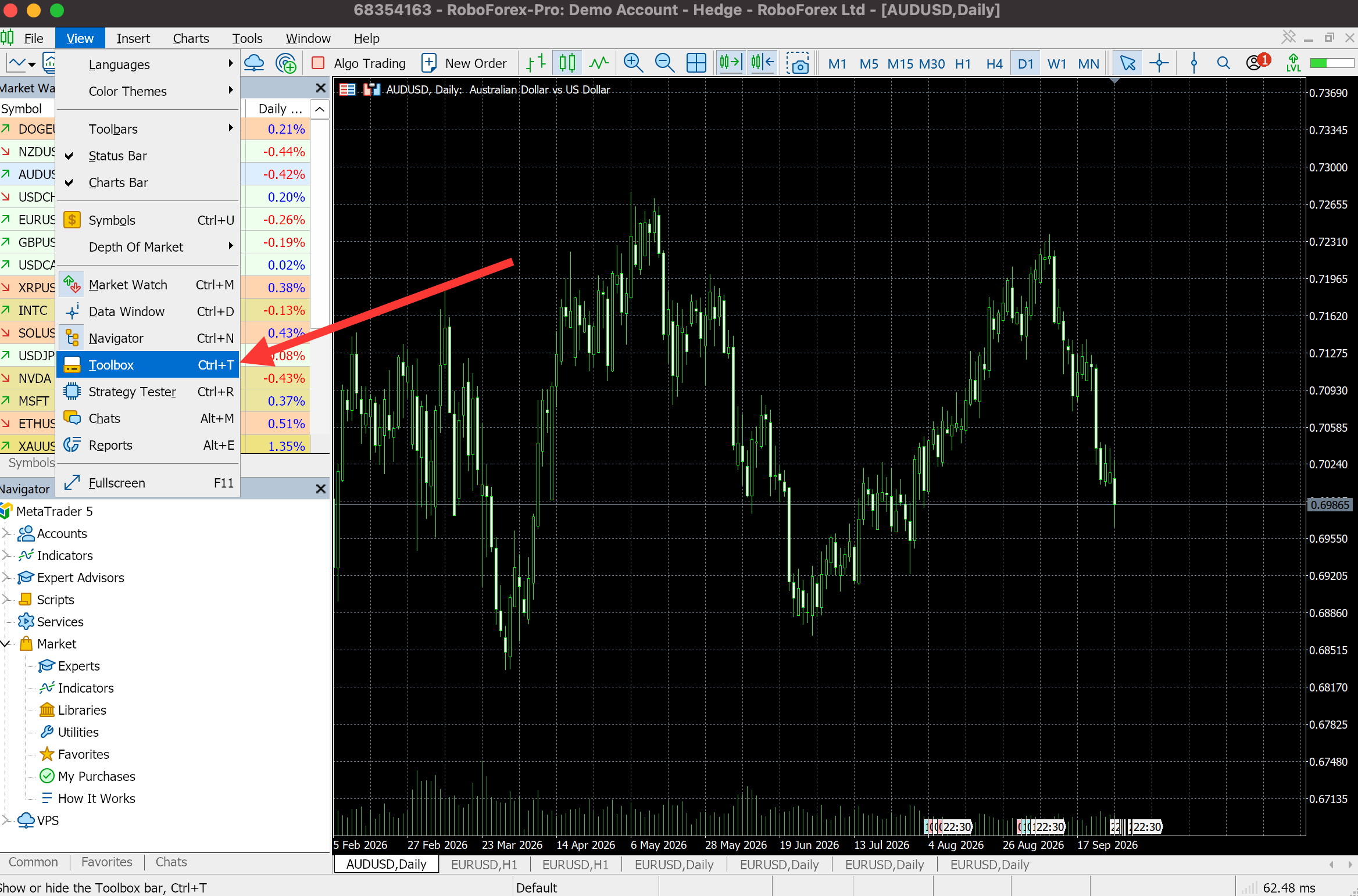
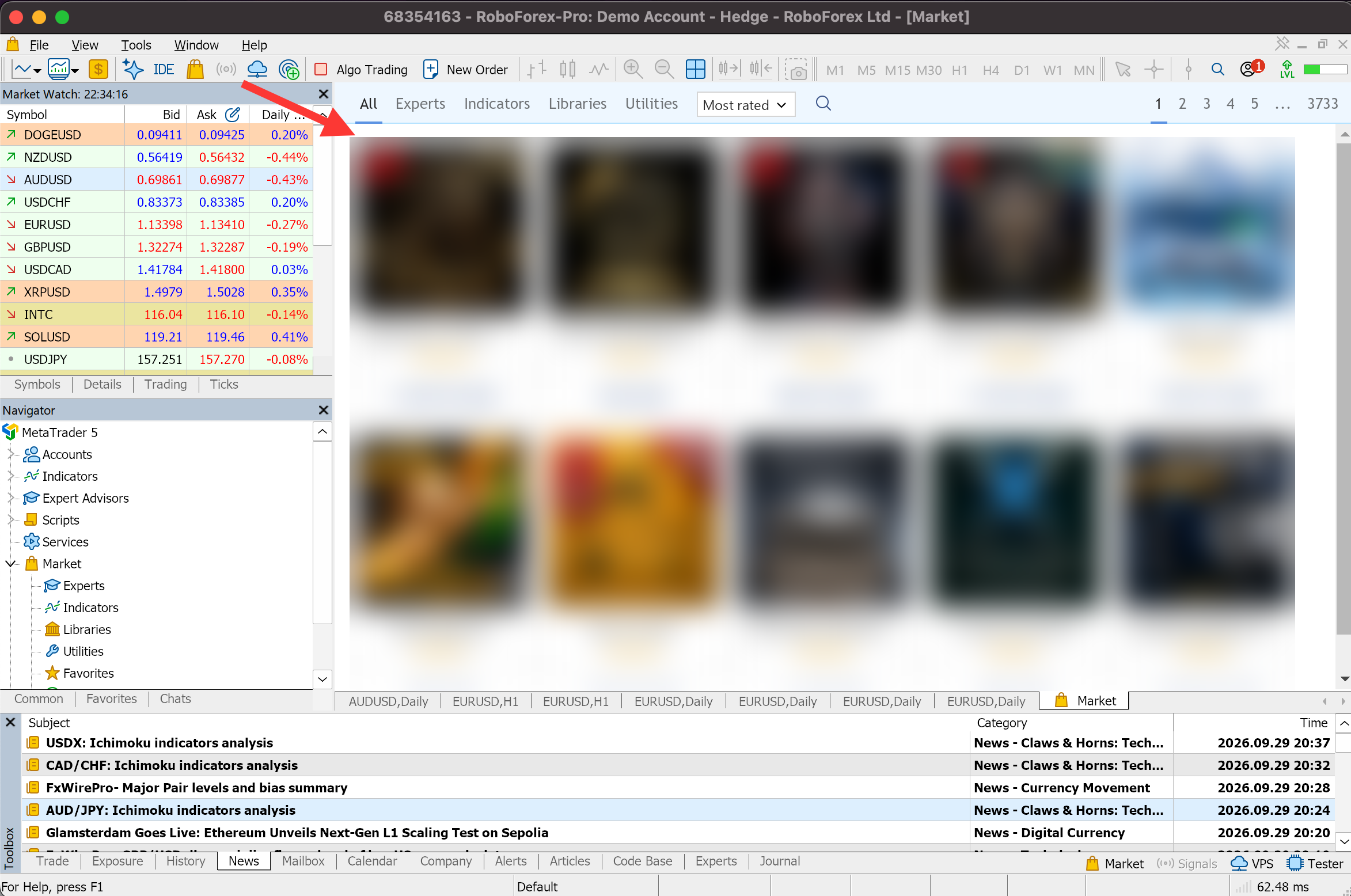
- Click Market at the right end of the Toolbox tab bar, next to Signals, VPS and Tester. The same catalogue opens from Tools → MQL5 Market.
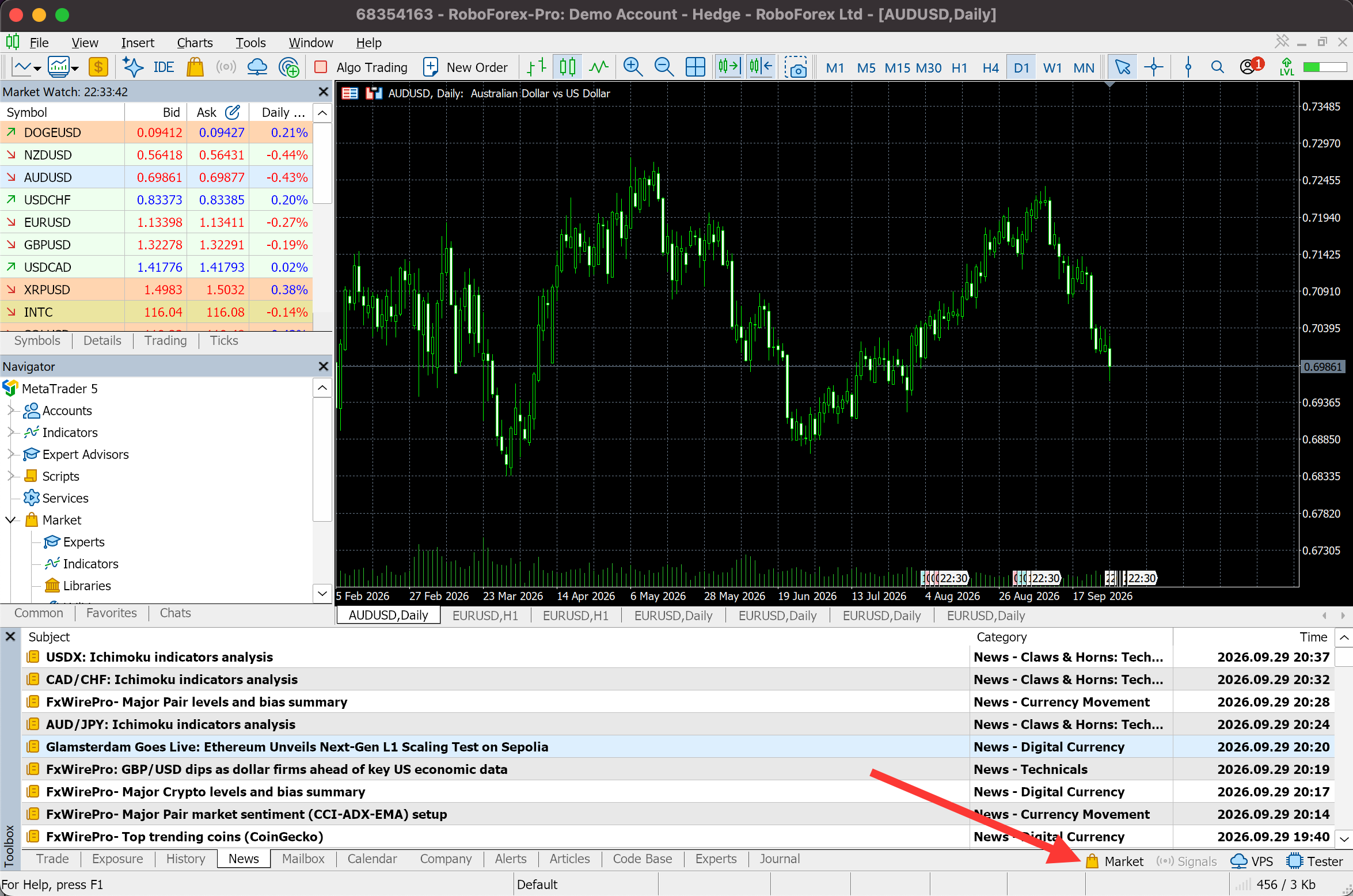
- The MQL5 Market catalogue opens in the main window. Its tabs split products into Experts, Indicators, Libraries and Utilities.
Sign In to Your MQL5 Account
Downloads from the Market need an MQL5 account. The Market uses it to identify you and to keep track of the products you have downloaded, bought or rented.
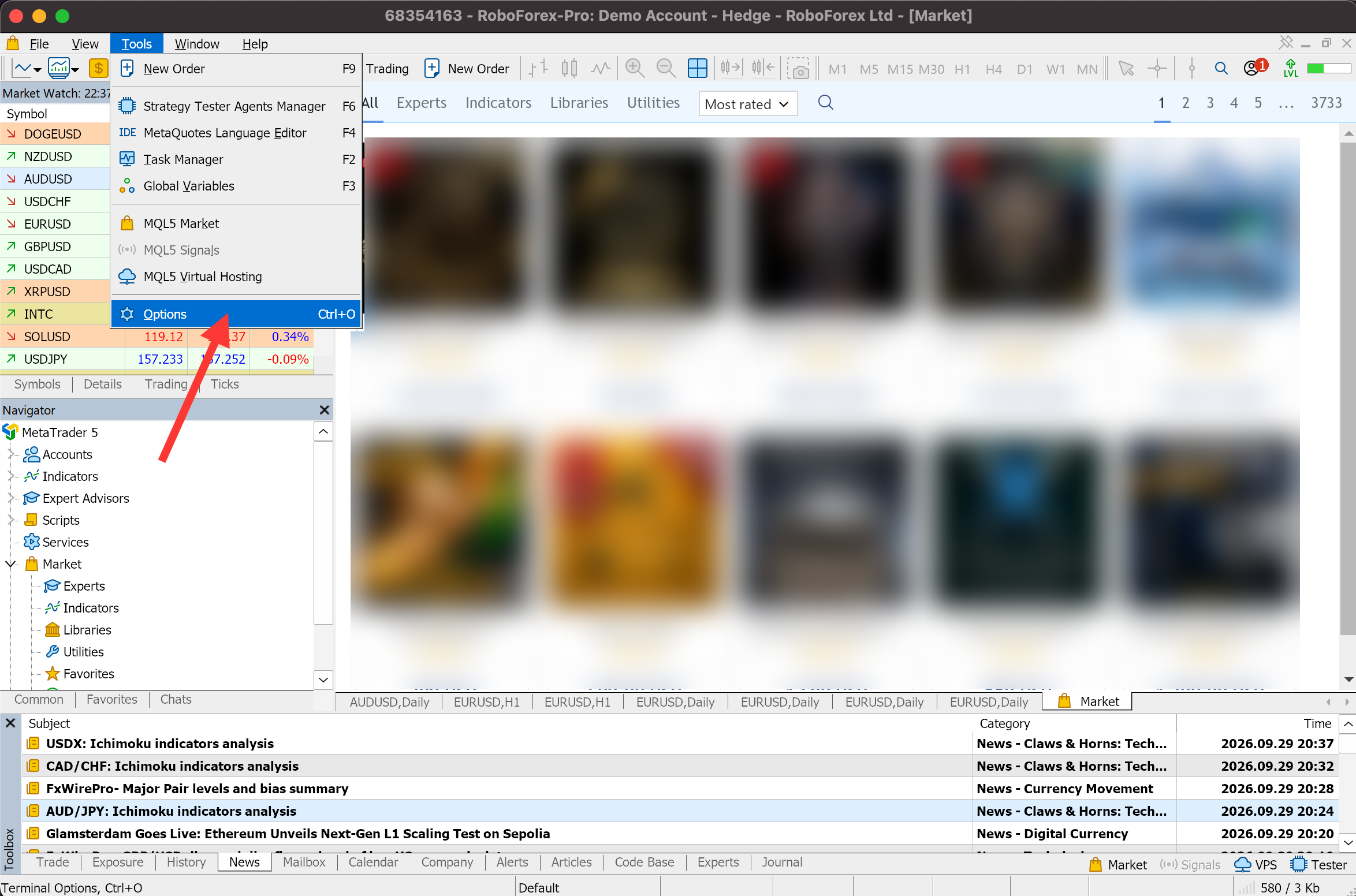
- In the top menu, choose Tools → Options, or Ctrl+O.
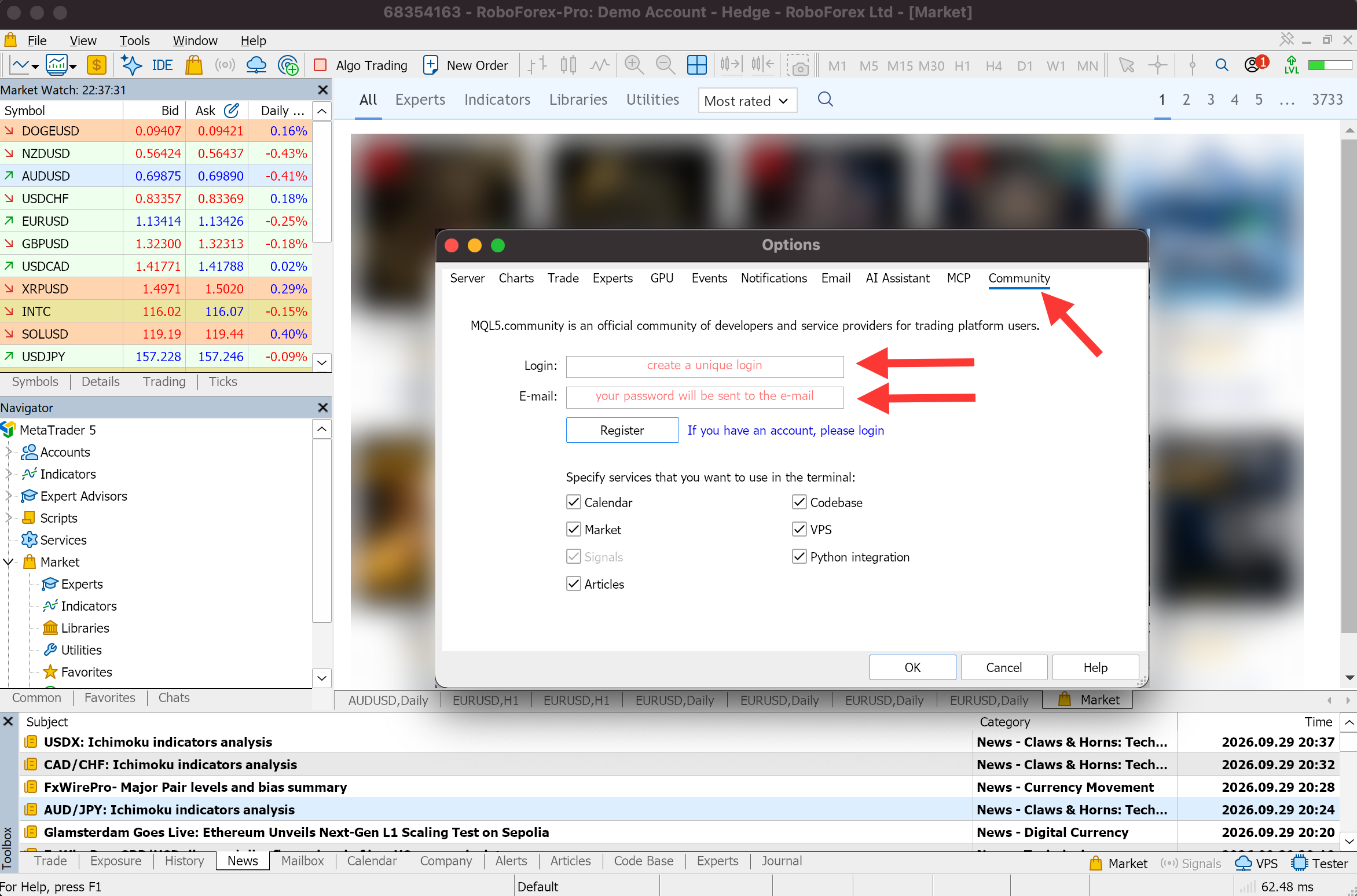
- Open the Community tab.
- If you have an MQL5.com account, click If you have an account, please login and enter your login and password.
- If you have none, enter a login and your email and click Register. The password arrives by email.
- Click OK to save.
Once you are signed in, you can open any product page, read its description, reviews and licence terms, and download it.
Step 2: Download a Free Expert Advisor
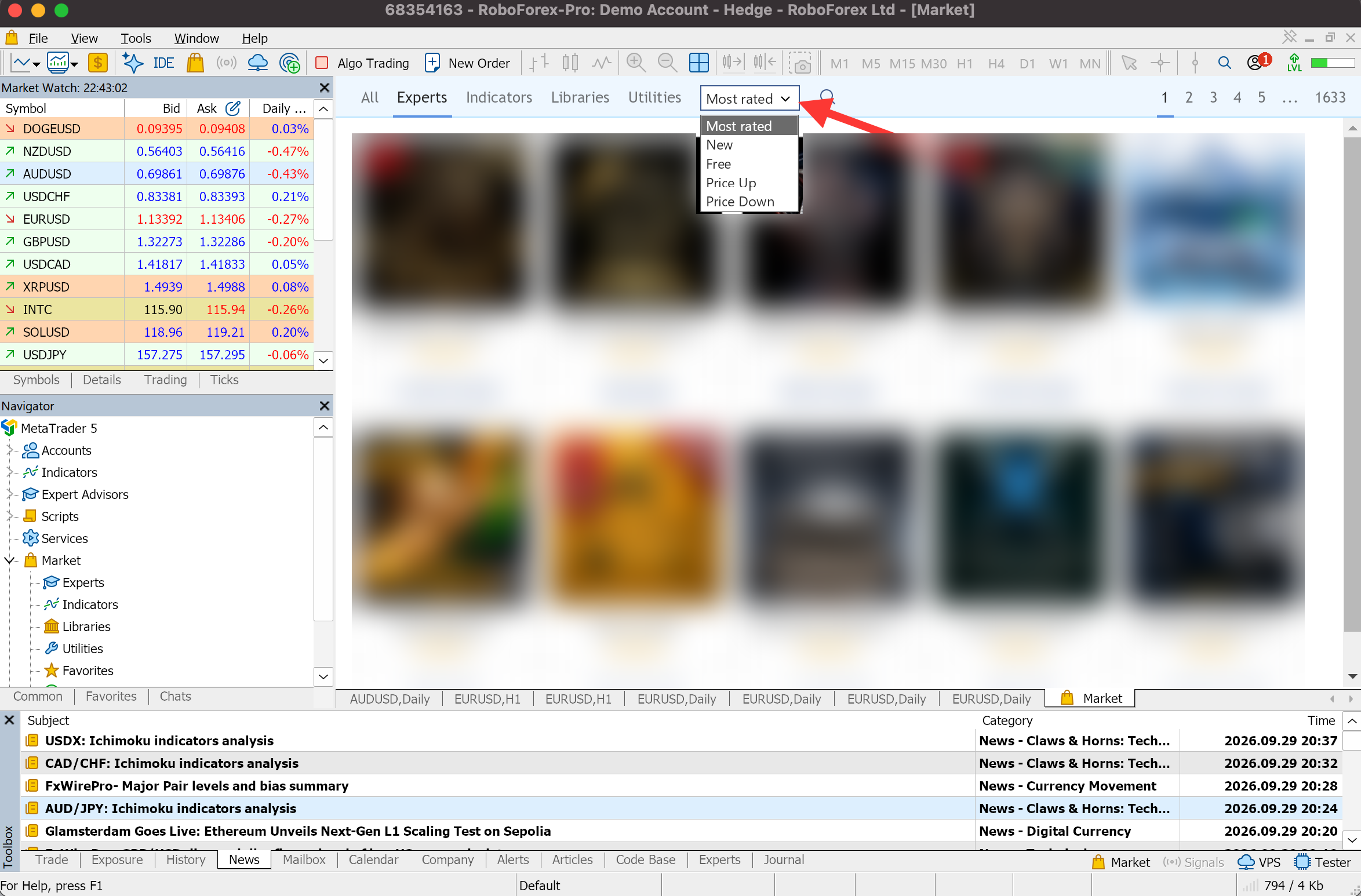
- Open Market and go to the Experts tab.
- Open the sort list next to the tabs, which shows Most rated by default, and choose Free.
- Pick a robot and open its page.
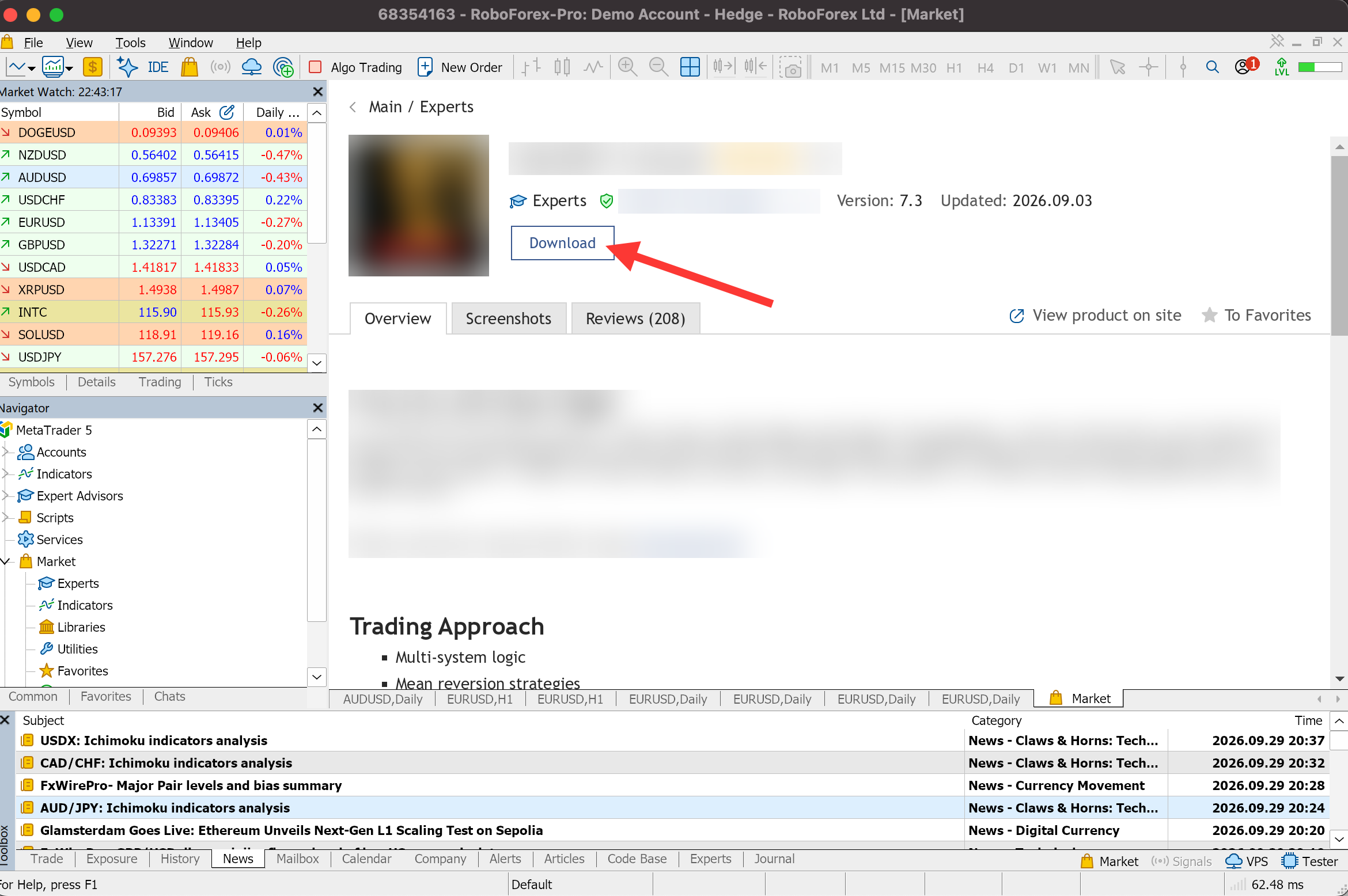
- Read the description, the requirements and the reviews, then click Download.
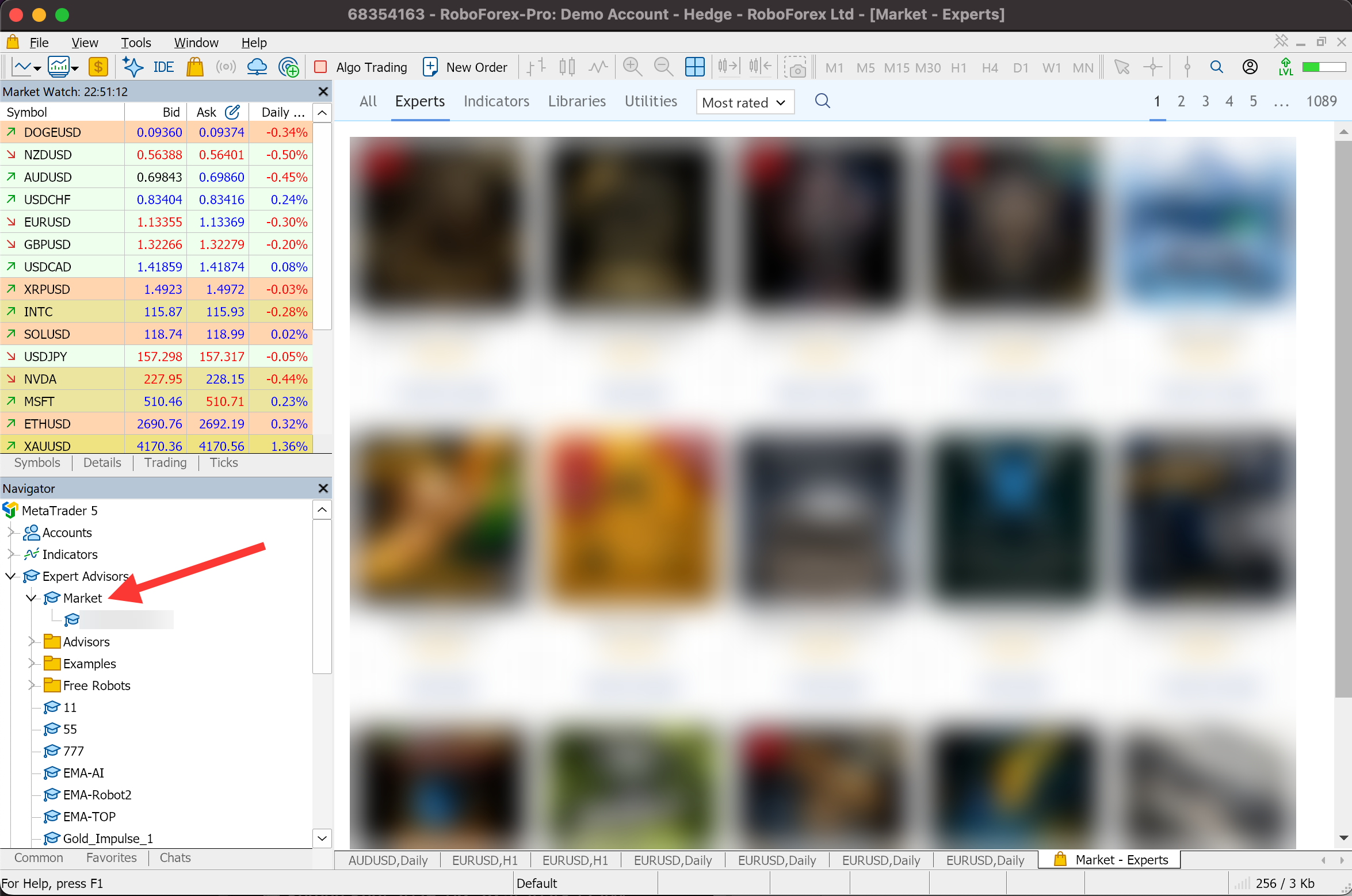
Where to Find the Robot After the Download
A robot from the Market needs no copying into folders. It appears in the Navigator window under Expert Advisors → Market, ready for the Strategy Tester or a chart.
Download a Robot From the Code Base Tab
The MQL5 Code Base has its own tab in the Toolbox. Open Code Base, find the robot, right-click it and choose Download. The terminal compiles the code automatically, saves the robot in the right folder and adds it to the Navigator under Expert Advisors.
How to Install an EA in MT5 From a File
A robot from another website, or a file someone sent you, is installed by hand:
- In the top menu, choose File → Open Data Folder.
- Open MQL5 → Experts.
- Copy the robot's file into the Experts folder.
- Back in MetaTrader 5, right-click Expert Advisors in the Navigator.
- Choose Refresh so the terminal scans the folder again.
An .ex5 file is already compiled and works as soon as it is in the folder. An .mq5 file is source code: open it in MetaEditor and compile it first. Your First MQL5 Expert Advisor shows the compile step with screenshots.
How to Check an Expert Advisor From Another Website
A robot from outside the MQL5 Market has passed nobody's checks. Five checks before it goes on a chart:
- The source. Download from the developer's own site or a known forum thread, and look for the same robot discussed elsewhere. A robot passed around in chats or file-sharing sites has no traceable author.
- The file type. An .mq5 file can be read: you or someone you trust can see what it does. An .ex5 file is closed, so everything you know about it comes from its author.
- DLL imports. If the robot's properties show a Dependencies tab, it calls an external library that runs with access to your computer. Allow DLL imports only for a robot from a source you trust. The steps for DLL and WebRequest are in the automated trading guide.
- WebRequest. A robot that asks you to add web addresses in Tools → Options → Experts exchanges data with those servers. Add only the addresses its description names.
- The test. Run it in the Strategy Tester and then on a demo account, the same as a Market robot.
Step 3: Test a Paid Robot's Demo, Then Buy or Rent
The free demo shows how a paid robot handled past prices and which settings it offers, before you pay.
- Open the page of the paid robot in the Market.
- Click Download demo next to the price.
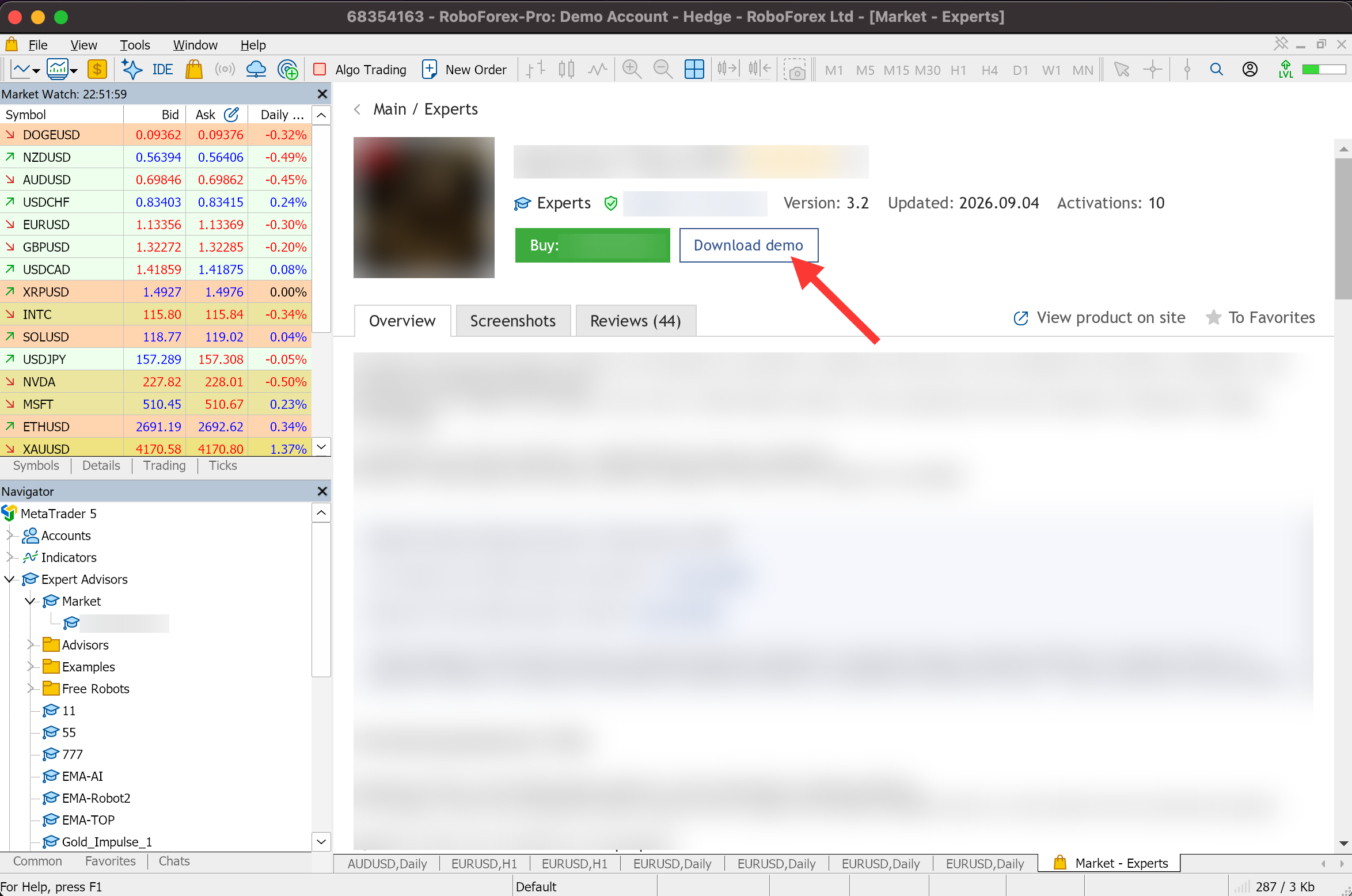
- The demo installs and appears in the Navigator under Expert Advisors → Market.
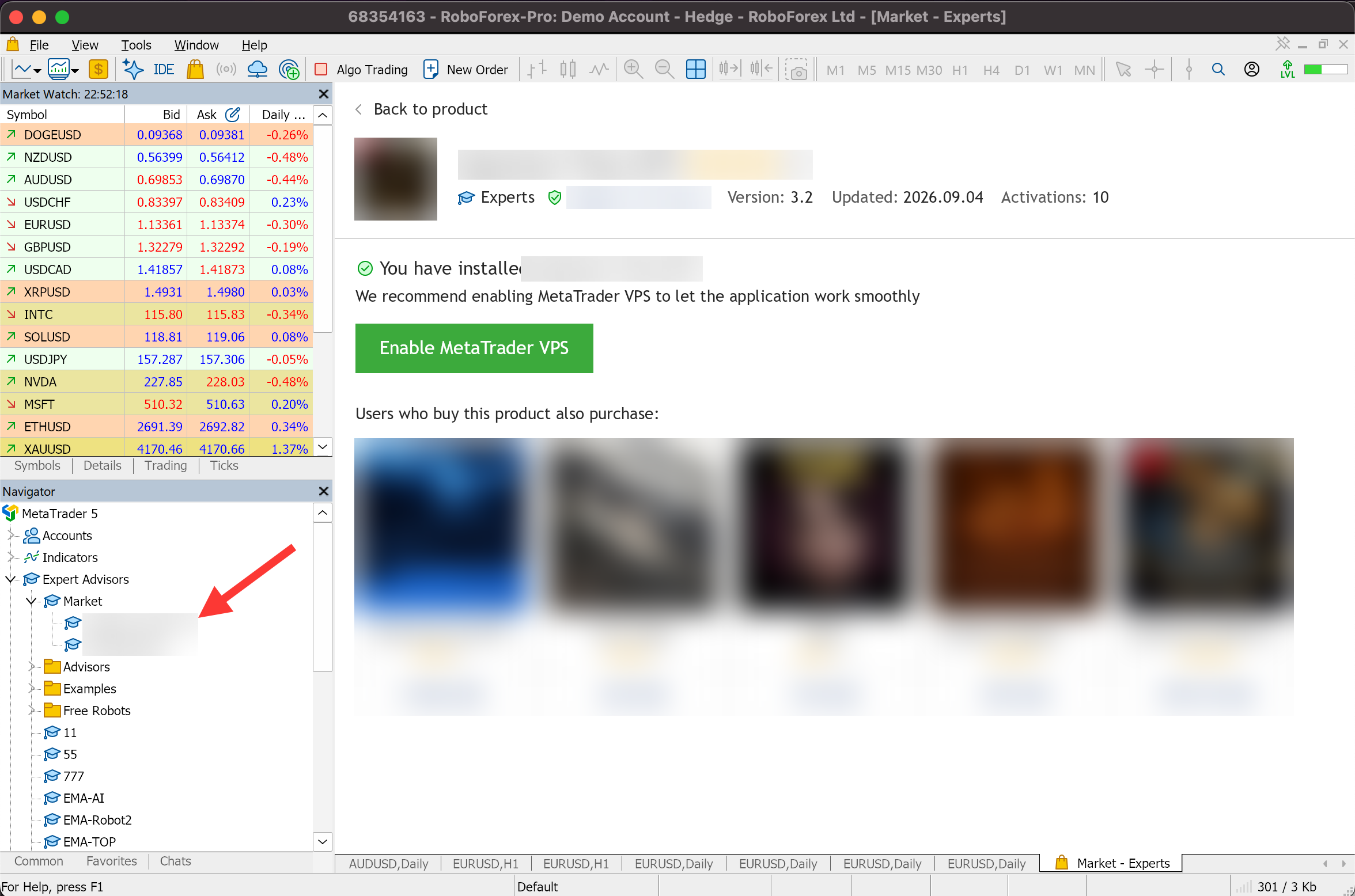
- Go back to the product page and click Test. The Strategy Tester opens with the robot already selected.
- Choose the symbol, timeframe and dates the page recommends, then click Start.
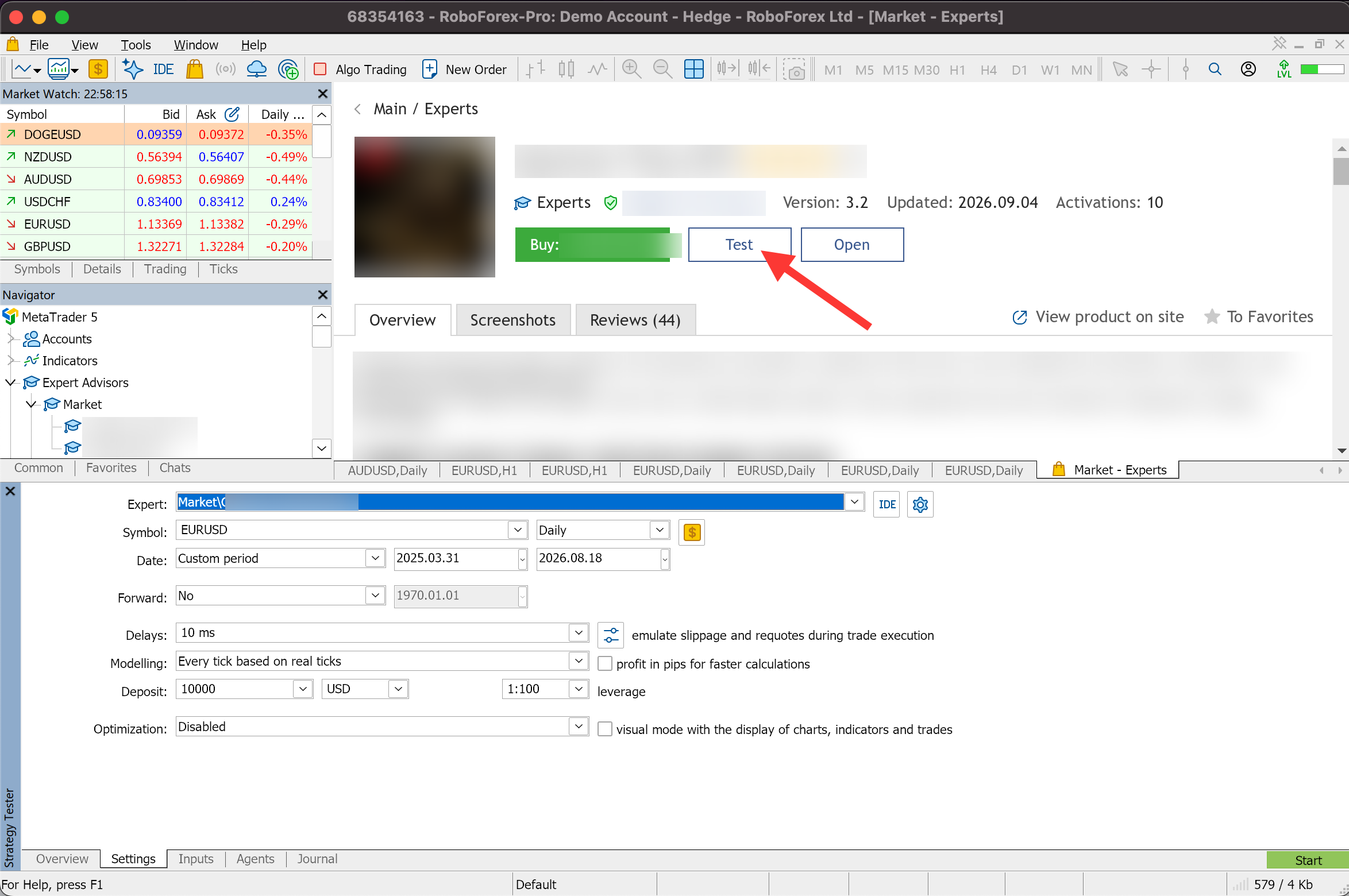
Run the test over several periods, and check the results on different stretches of history. A 15-Minute Backtest: How to Test a Trading Robot in MetaTrader 5 gives the method step by step.
Judge the report by the maximum drawdown, the number of trades and how stable the results are from one period to the next, along with the total return. A good backtest is a test of the past and gives no promise about live trading.
If the results meet your requirements, choose Rent for one of the periods offered or Buy on the product page. You pay through your MQL5 account, with the payment methods MQL5 offers, and the full robot then works on the terms of the licence you chose.
Next Step: From a Downloaded Robot to Your First Automated Trade
A robot that passed the Strategy Tester moves to real prices in stages, each with more at stake than the last.
1
Strategy Tester
Past prices, several periods. No money involved.
2
Demo account
Live prices, virtual funds. See how the robot trades today.
4
Live account
The robot's own settings, with a small lot first.
At each stage the launch is the same:
- Turn on automated trading. Press Algo Trading on the toolbar, then tick Allow Algo Trading on the Common tab of the robot's properties. Each switch is shown with screenshots in the automated trading guide.
- Attach the robot to a chart. Drag it from the Navigator onto the chart of the symbol and timeframe from its product page.
- Check its inputs. Lot size, Stop Loss, Take Profit and the other settings on the Inputs tab.
- Keep the terminal running. A robot trades only while MetaTrader 5 is open. For round-the-clock work, move the terminal to a RoboForex VPS.
A RoboForex cent account fits stage 3: the robot places real orders at a fraction of the usual size.
Run Expert Advisors in RoboForex MetaTrader 5
The MQL5 Market, the Strategy Tester and MetaEditor in one terminal, on Windows and macOS.
Conclusion
An expert advisor download for MT5 starts in the terminal: free and paid robots in the MQL5 Market, free code in the Code Base, and a manual install for anything from another website. The product page tells you what the seller claims, the fit with your account decides whether the robot can trade at all, and the Strategy Tester shows how it handled the past. A robot that clears all three is ready for a demo account, and after that for a cent account with real orders at small size.
FAQ
Do I need an MQL5 account to download an Expert Advisor?
Yes, for the MQL5 Market. Sign in on the Community tab of Tools, Options, or register there with a login and an email. A robot from another website needs no MQL5 account: you copy its file into the Experts folder of the data folder.
Do Expert Advisors work in the MT5 web terminal and mobile app?
No. Expert Advisors are installed and run only in the desktop version of MetaTrader 5. The mobile apps and the web terminal can show the trades a robot opens, but they cannot run the robot itself.
On how many computers can I use a purchased Expert Advisor?
As many as its activations allow. A bought robot comes with at least five activations, the first used at purchase, and the seller can set up to 20. Each activation ties the robot to one computer's hardware and operating system.
Can I use a robot from the Market with any broker?
In most cases, yes. The licence is tied to your computer, so the robot runs on any account you open in that MetaTrader 5 terminal. Some sellers limit their robot to certain accounts, and the product page says so.
Can free Expert Advisors from the MQL5 Market be trusted?
They are published through the official store and come with a product page, reviews and an update history. None of that shows whether the strategy makes money. Test a free robot in the Strategy Tester and on a demo account, as you would a paid one.
How do I know an Expert Advisor suits my account?
Compare its product page with your account: hedging or netting mode, the exact symbol names in Market Watch, the minimum lot and volume step, the recommended deposit and leverage, and the trading hours the robot needs.
Where are downloaded Expert Advisors stored?
Robots from the Market appear in the Navigator under Expert Advisors, Market, and their files sit in MQL5\Experts\Market inside the data folder. Robots you install by hand go into MQL5\Experts. File, Open Data Folder opens the data folder.
Any information provided in articles on this website is based solely on the personal opinions of the authors. These articles should not be construed as trading recommendations or a call to action. The authors and RoboForex accept no responsibility for the results of any trades made on the basis of these recommendations and reviews. Past performance is not indicative of future results. Trading stocks and CFDs involves a high risk of capital loss.