Trading Robot Settings Explained: Lot Size, Stops and Magic Number

Trading robot settings come down to three inputs: the lot size, which sets how much each trade can lose, the Stop Loss and Take Profit levels, which close a trade at a set loss or gain, and the magic number, which marks the trades that belong to the robot. This guide shows how to choose each one on a demo account.
TL;DR
- The lot size comes from the loss you accept, the Stop Loss distance and the pip value: lot = risk in USD / (stop in pips x pip value).
- Stop Loss closes a trade at a loss, Take Profit closes it at a gain, and Trailing Stop moves the Stop Loss behind the price. The same stop with a double lot doubles the loss.
- The magic number is the ID a robot writes on its orders. Give every robot on one account its own number.
A robot decides when to enter a trade. These settings decide what one entry can cost you and how you tell the robot's trades from all the others on the account.
What Are the Three Settings That Control a Trading Robot’s Risk?
The three settings are the lot size, the Stop Loss with the Take Profit, and the magic number. The lot size sets how big every trade is. The two stop levels set where a trade closes. The magic number tells the robot which trades are its own. Their names and their place on the Inputs tab depend on the robot, and some robots keep one of them inside the code.
| Setting | What it decides | Where to find it | Safe start for the first week |
|---|---|---|---|
| Lot size | How big each trade is, so how many USD one pip of price movement is worth | Inputs tab, often named Lots, Volume or Lot | The smallest lot the symbol allows, then the lot from the formula below |
| Stop Loss and Take Profit | The prices where a trade closes with a loss or with a gain | Inputs tab in pips or points, or set inside the robot's code | The robot's defaults, after you check that the loss at the Stop Loss fits your risk |
| Magic number | Which orders and positions belong to this robot | Inputs tab, if the robot has the field, otherwise inside the code | The default with one robot, a different number for each robot when you run two |
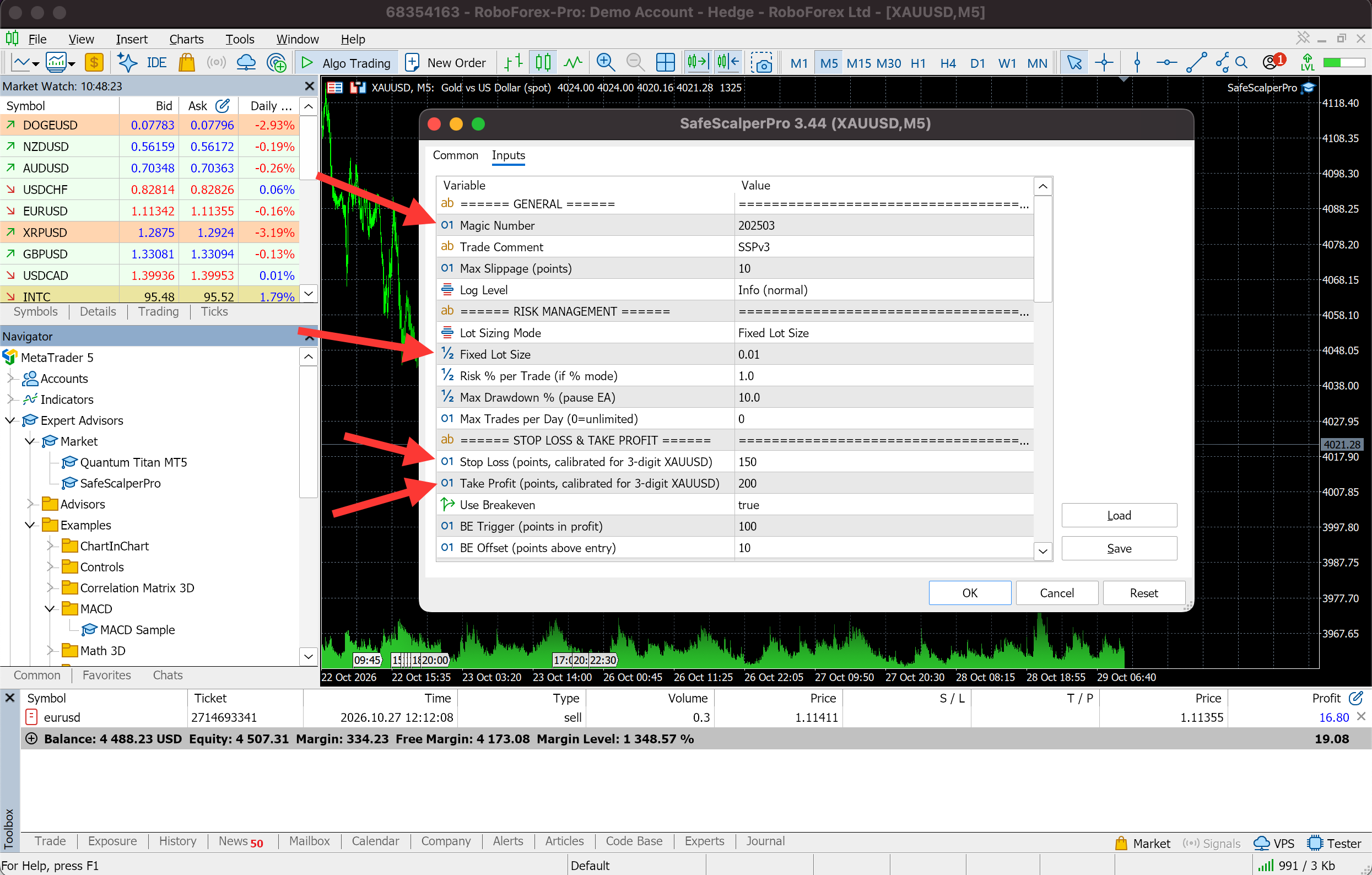
In MetaTrader 5 all three sit in the robot's properties window, on the Inputs tab. The screenshot shows them in one robot from the MQL5 Market. Your robot can use other names and a different order.
How Do You Choose a Lot Size for a Trading Robot?
You choose the lot size from three numbers: the money you accept to lose on one trade, the distance to the Stop Loss in pips and the value of one pip for 1 lot. The formula is:
Lot = risk in USD / (Stop Loss in pips x pip value for 1 lot in USD)
Here is a worked example for EURUSD on a standard account. One pip is worth 10 USD for 1 lot of EURUSD.
- Risk. A balance of 1,000 USD and a risk of 1% give 10 USD for one trade.
- Stop Loss. The distance from the entry price to the Stop Loss is 20 pips.
- Lot. 10 / (20 x 10) = 0.05 lot.
- Check. 0.05 lot x 20 pips x 10 USD = 10 USD, the loss you accepted.
Before you launch the robot, read the pip value of your symbol: right-click the symbol in Market Watch and open Specification, or use the RoboForex forex calculator. Robots label distances in pips or in points. On a EURUSD quote with five decimals, 1 pip equals 10 points, so read the label before you type a value.
Enter your account size, the share of it you accept to risk on one trade, the Stop Loss distance and the pip value. The default pip value of 10 USD fits EURUSD, GBPUSD, AUDUSD and other pairs quoted in USD.
10050,000
0.5%1% in the example5%
5100
10 for pairs quoted in USD. For other symbols take the value from the symbol specification.
Lot size
0.05
10 / (20 x 10)
Loss at the Stop Loss
−10 USD
1.0% of the account
One pip at this lot
0.5 USD
per pip of movement
The lot is rounded down to 0.01, so the loss stays within the risk you set. Spread and commission come on top of the loss at the Stop Loss. Check the minimum lot and the lot step of your symbol in its specification. Educational example, not investment advice.
Double the Stop Loss distance and the same risk gives half the lot, so a wider stop always means a smaller trade.
Try Your Lot Size on a Free Demo Account
Open a RoboForex demo account and run the robot with the lot from the calculator.
Fixed Lot or Percent of Balance?
Many robots let you pick how the volume is set, and the options depend on the robot's code.
- Fixed lot. The robot opens every trade with the same volume. It is simple to control and fits the first tests on a demo account. The money risk of each trade still changes with the Stop Loss distance and the pip value.
- Percent of balance. The robot calculates the volume from the balance or from a risk percentage. The lot grows when the balance grows and shrinks when it falls. When the calculation uses the Stop Loss and the pip value, it keeps the risk at the level you set.
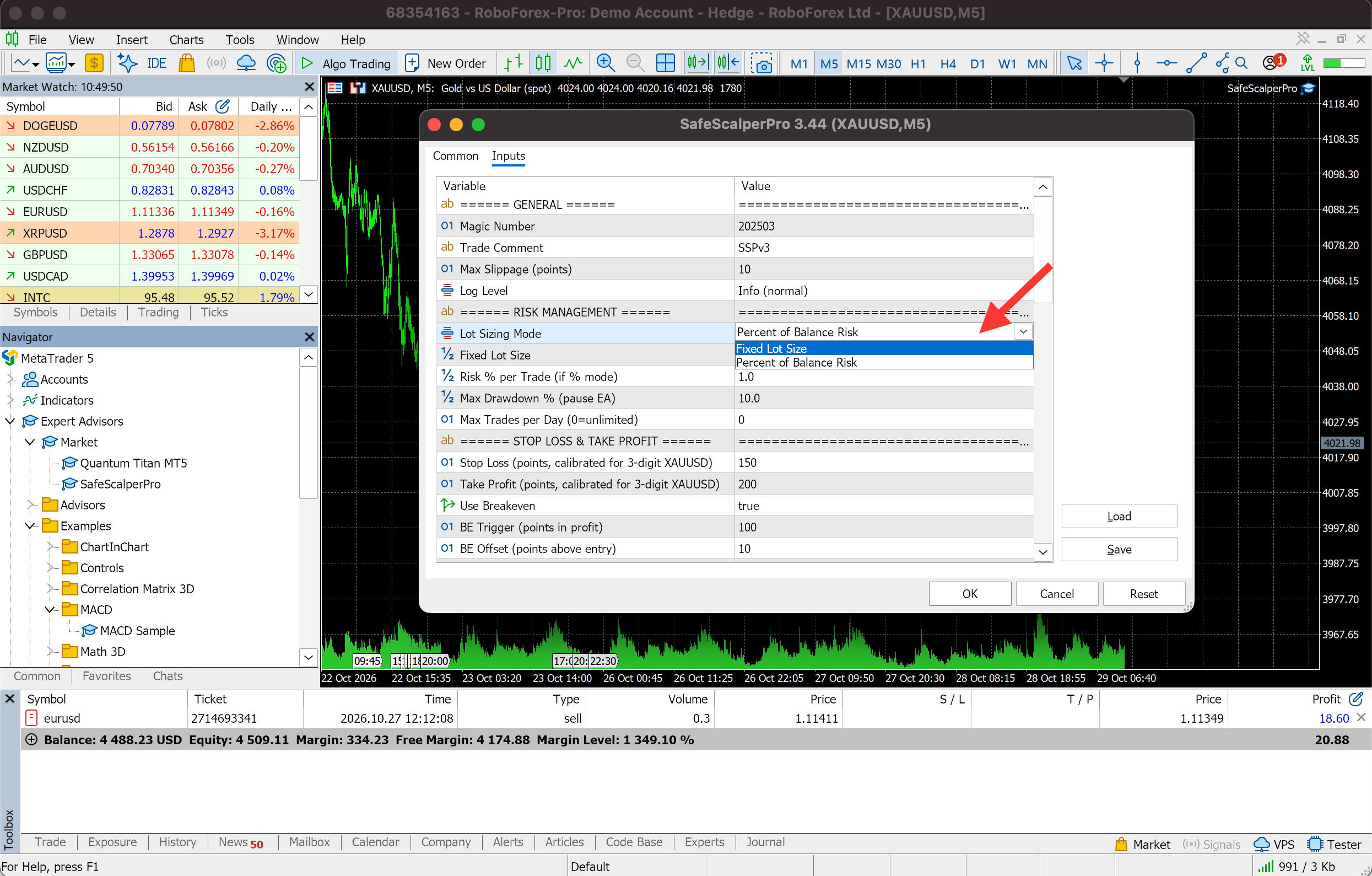
Start with a fixed lot on a demo account and review the test results before you move to a live account. Switch to the percent mode once you have checked how the robot calculates its volume and how it accounts for the risk of each trade.
What Do Stop Loss, Take Profit and Trailing Stop Do?
Stop Loss, Take Profit and Trailing Stop are three price levels that manage a trade after it opens. The first two close the trade, and the third moves the first one.
- Stop Loss. The price where the position closes with a loss. The level and the lot together fix the maximum loss of the trade.
- Take Profit. The price where the position closes with a gain.
- Trailing Stop. A Stop Loss that follows the price when the trade moves your way, so part of the gain stays protected.
The picture shows one EURUSD buy with the settings from the example above. The Stop Loss sits 20 pips below the entry and the Take Profit 50 pips above it.
One EURUSD buy of 0.05 lot with a Stop Loss and a Take Profit
Take Profit 1.1650 +25 USD
50 pips x 0.05 lot x 10 USD = 25 USD gain
Entry 1.1600 buy 0.05 lot
20 pips x 0.05 lot x 10 USD = 10 USD loss
Stop Loss 1.1580 −10 USD
Educational example with illustrative prices. The gap heights follow the pip distances. Spread and commission are not included.
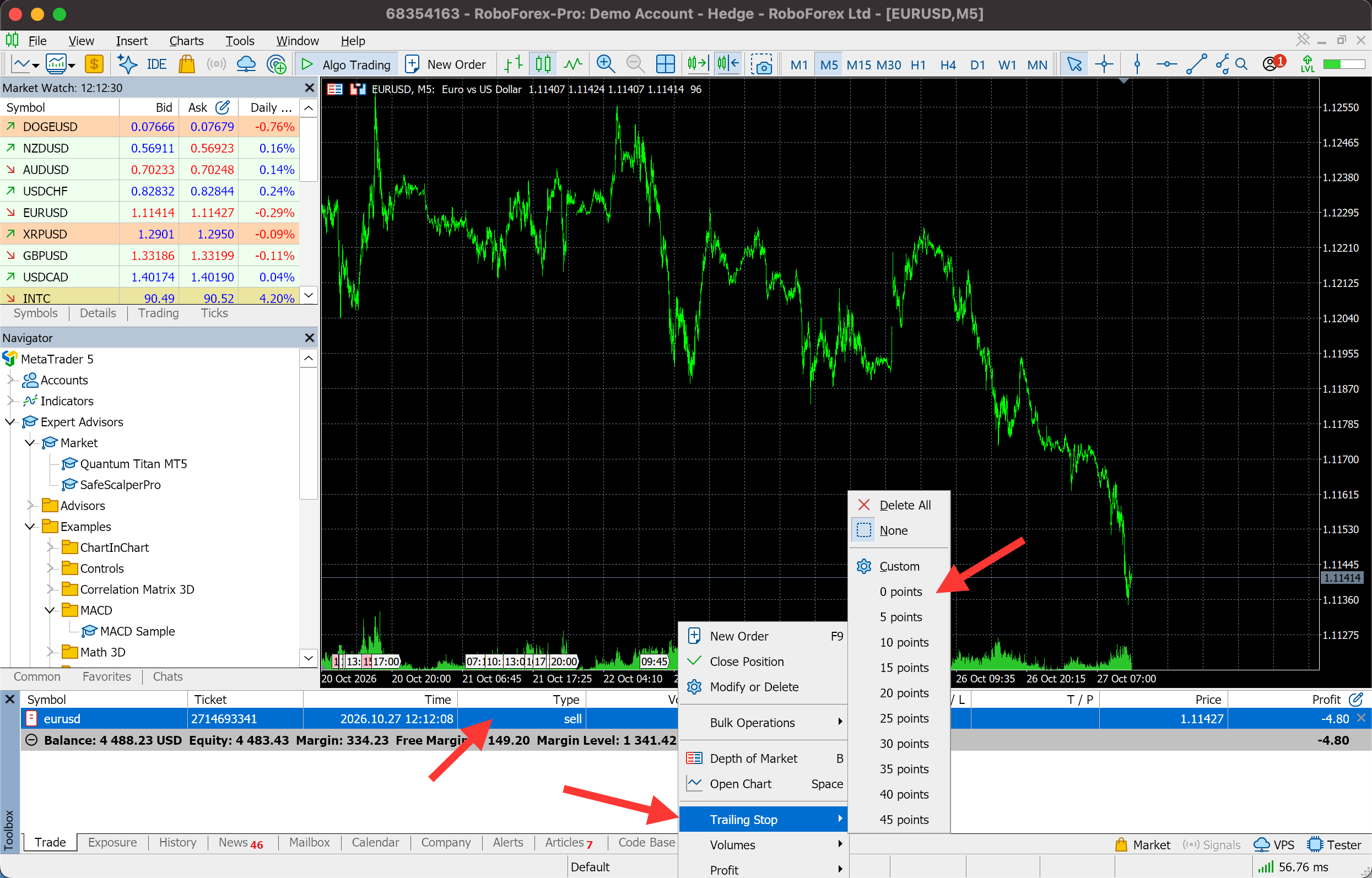
The standard Trailing Stop of MetaTrader 5 is handled by the terminal. To set it, right-click an open position in the Trade tab of the Toolbox, choose Trailing Stop and pick a distance in points from the list, or Custom for your own value. The terminal then moves the Stop Loss while MetaTrader 5 stays running and connected to the server. A robot with its own trailing logic can work differently, and its description says how. More on the two orders in What Is Stop Loss and Take Profit.
How Lot Size and Stop Loss Affect Risk
The Stop Loss and the lot work as a pair. At the same Stop Loss distance a double lot doubles the loss: 0.10 lot on the trade above loses 20 USD instead of 10 USD. Size the lot with the formula first, then place the stop, and add the spread and the commission to the loss you expect.
Some robots, such as MACD Sample from the MetaTrader 5 examples, have no Stop Loss input at entry and close trades by the rules in their code. For such a robot the lot is your main risk control, so size it for the worst loss you accept. Read the robot's description to see how it exits a losing trade.
What Is a Magic Number and Why Does It Matter When You Run Two Robots?
A magic number is an ID that a robot writes on every order it sends, so it can find its own trades among all the others on the account. Orders placed by hand carry the number 0.
Practical Example: the Trade Tab With Two Robots
With two robots on one account the Trade tab of MetaTrader 5 lists every open position in one table. Each robot reads the magic number to see which of these positions it may manage. In this example robot 1 uses the number 11001, robot 2 uses 55001, and you open one trade by hand:
| Symbol | Trade | Magic number | Robot 1 (11001) | Robot 2 (55001) |
|---|---|---|---|---|
| EURUSD | Buy 0.05 lot | 11001 | Manages it | Leaves it alone |
| GBPUSD | Sell 0.10 lot | 55001 | Leaves it alone | Manages it |
| EURUSD | Buy 0.02 lot, opened by hand | 0 | Leaves it alone | Leaves it alone |
The numbers are examples. Use any whole numbers, one for each robot.
The separation works only when the robot's code checks the magic number before it modifies or closes a position. Two different numbers keep two robots apart as long as both of them run that check.
How Netting and Hedging Accounts Affect Magic Numbers
A RoboForex MetaTrader 5 account can be opened as a hedging account or as a netting account, and the type decides what a magic number can do.
- Hedging. Every trade is a separate position, even on the same symbol and in opposite directions. Each robot finds its own positions by the magic number and manages them on its own.
- Netting. One symbol holds one combined position. When two robots trade the same symbol, their trades add to it, cut it or flip its direction. The magic number still marks each deal, but it cannot split the combined position between the robots.
Run two robots on the same symbol only on a hedging account. The difference is explained in Netting vs Hedging.
How to Configure the Magic Number
Open the robot's properties, go to the Inputs tab and type the number into the magic number field.
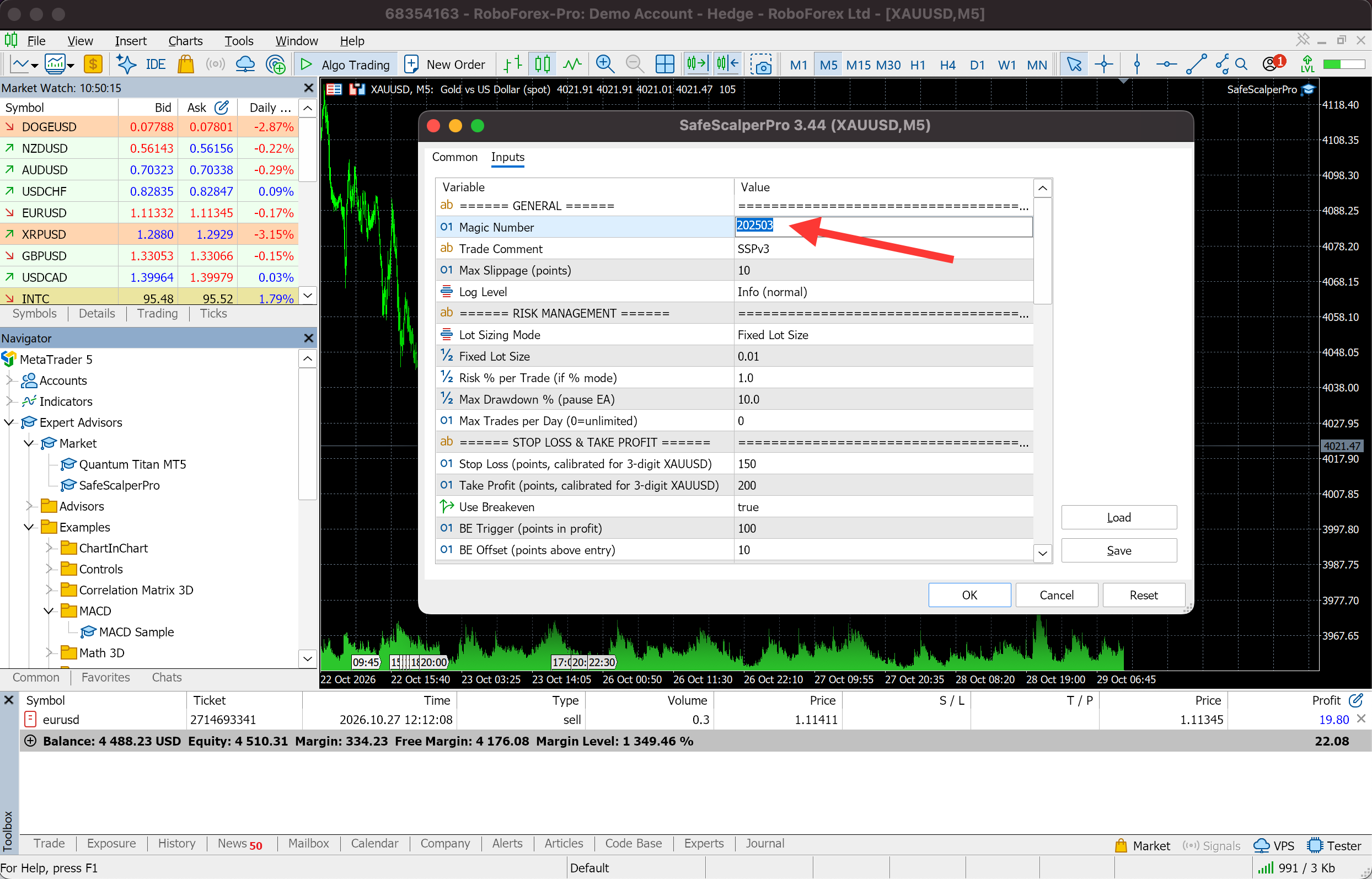
- One robot on the account. Keep the default value.
- A second robot, or a second copy of the same robot on another symbol or timeframe. Give each a different number, for example 11001 and 55001. Many robots have no such field and set the number inside their code, so check the description before you run a second one.
- Manual trading beside a robot. Keep the robot's number above 0, so it does not treat your trades as its own.
Several robots on one account add up their risk. Two robots that each risk 1% of the account can lose 2% at the same time, so size each one with that total in mind.
Run Expert Advisors in RoboForex MetaTrader 5
Desktop MT5 for Windows and macOS, with algo trading and the Strategy Tester built in.
Which Other Inputs Are Worth Checking Before the First Run?
Robots from the MQL5 Market often share four more inputs besides the three above. The names change from robot to robot, so match them by meaning.
| Input | What it means | Value to start with |
|---|---|---|
| Maximum spread | The robot skips a trade when the spread is wider than this value | The usual spread of your symbol in the hours the robot trades. A limit set too low blocks most entries, a limit set too high lets the robot trade in thin markets |
| Slippage or deviation | How far from the requested price the robot accepts a fill | The default from the robot's description |
| Trading hours | The hours of the day when the robot may open trades | The session the robot was built and tested for |
| Trade direction | Buy only, sell only or both | Both, unless the description says otherwise. One direction only changes the results the robot was tested with |
These inputs shape when the robot enters the market. Run the robot on a demo account first and check that its trades match the conditions you set.
How Do You Save and Reuse Robot Settings?
You save robot settings in a .set file from the Inputs tab and load the file when you need the same values again.
- Double-click the robot's name in the top right corner of its chart to open its properties.
- Open the Inputs tab and enter the values you want.
- Click Save and give the file a name that says what it is for, for example EURUSD_M15_Demo.set or EURUSD_H1_LowRisk.set.
- Later, open the Inputs tab of the same robot, click Load and choose the file. Reset returns every input to the robot's defaults.
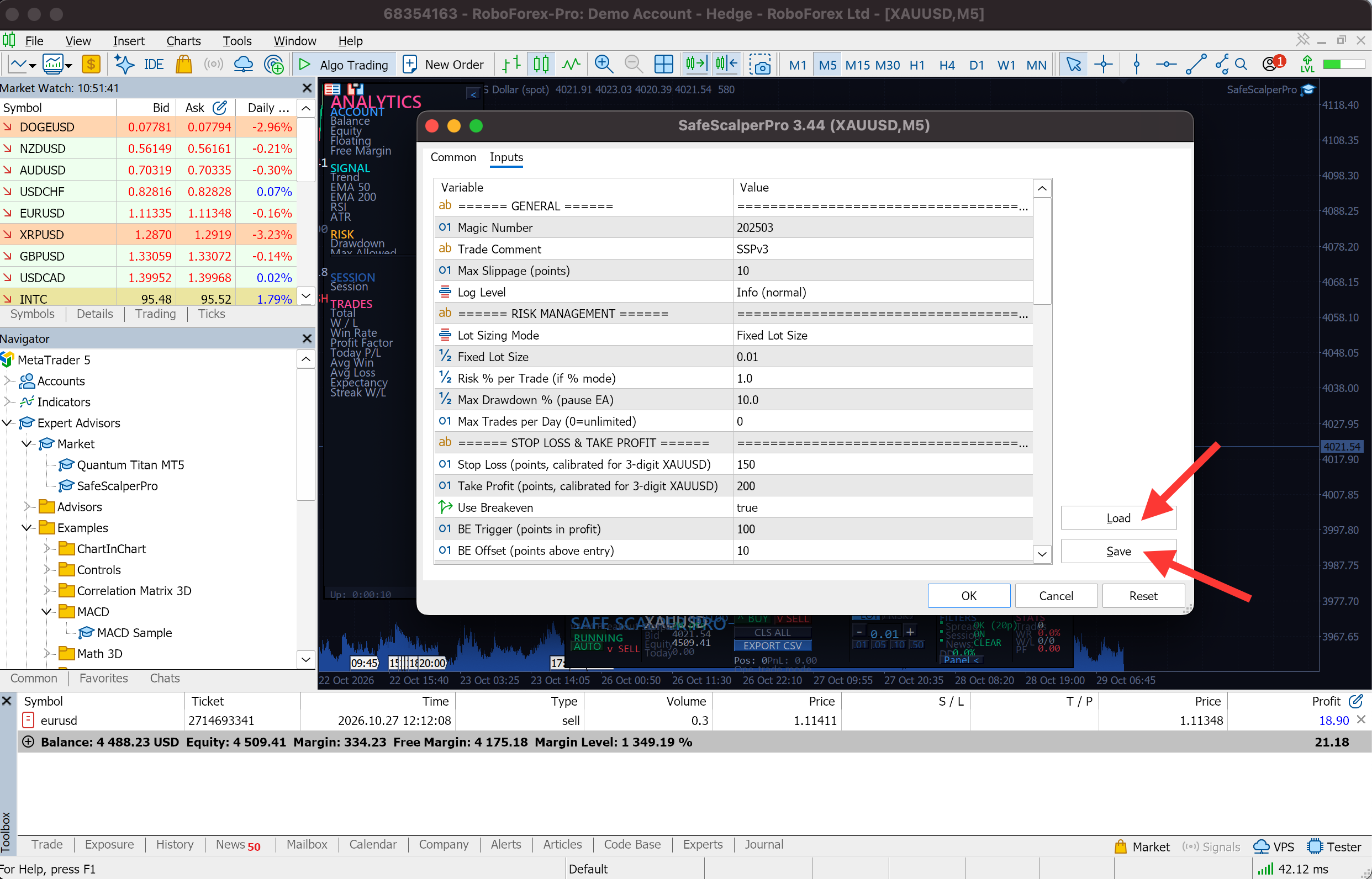
The file stores the values of the Inputs tab and no part of the robot's code. After a load, read the inputs once to confirm every value came through. The permissions on the Common tab stay with each chart, so check them after you attach the robot again.
Which Settings Should You Test Before Going Live?
Test the lot size and the stop levels first, because they decide the size of every loss. Change one input at a time, so you can see what each change does. The Strategy Tester has the same Inputs tab, so a set that you save for a run on history loads straight into the robot on your chart. The steps are in A 15-Minute Backtest. The test period, the quality of the price history, the tick modelling mode, the spread and the commission all change the result, so keep them the same when you compare two sets.
After the test, run the same set on a demo account and compare the trades with the test results. Look at the largest drawdown and the longest losing run in USD, and check whether your lot keeps them inside the loss you accept. Past results do not guarantee future returns.
Conclusion
Three settings fix the risk of a trading robot: a lot that comes from your risk, your Stop Loss and the pip value, a Stop Loss and Take Profit you can read on the chart, and a magic number that is different for every robot on the account. Put your own balance and risk into the calculator, then start the robot on a RoboForex demo account with the lot it shows.
FAQ
What lot size should I use for a trading robot?
Use the formula: risk in USD divided by the Stop Loss distance in pips times the pip value for 1 lot. With 1,000 USD, a 1% risk and a 20-pip stop on EURUSD it gives 0.05 lot. For the first demo run the smallest lot the symbol allows is a safe start.
Can I change robot settings while it is running?
Yes. Open the robot's properties from its chart, change the Inputs and press OK. The robot restarts with the new values, and positions it opened stay open. Their Stop Loss and Take Profit stay where they were unless the robot's code moves them. Change one input at a time and note the date, so you can tell what each change did.
What happens if two robots use the same magic number?
Each robot treats the other's orders as its own. Unless its code also checks the symbol, it can modify or close them, or count them when it checks whether a position exists, so the two strategies interfere with each other. Give every robot its own number.
Does a robot need a Stop Loss?
The terminal does not require one. A robot without a Stop Loss input has to close losing trades by rules inside its code, and then the lot is your main limit on the loss. Without a stop a fast market can take a large part of the deposit in one trade. Read the robot's description for how it exits a losing trade and test it on a demo account first.
What does a magic number of 0 mean?
Orders placed by hand carry the magic number 0. If a robot is set to 0 and filters trades by magic number, it can treat your manual trades as its own. Use a number above 0 for a robot that runs next to manual trading.
- A 15-Minute Backtest: How to Test a Trading Robot in MetaTrader 5: run your lot size and stops on history before they trade on demo.
- Expert Advisor Download for MT5: Free, Paid and Rented Robots From the MQL5 Market: where to find the next robot to set up.
- MetaTrader 5 Automated Trading: How to Enable Algo Trading and Expert Advisor Permissions in MT5: the permissions a robot needs before its settings matter.
- What Is a Trading Robot and How Does It Work?: what happens inside a robot between a signal and an order.
Any information provided in articles on this website is based solely on the personal opinions of the authors. These articles should not be construed as trading recommendations or a call to action. The authors and RoboForex accept no responsibility for the results of any trades made on the basis of these recommendations and reviews. Past performance is not indicative of future results. Trading stocks and CFDs involves a high risk of capital loss.