Trading Robot Checklist: 15 Checks From Installed to First Trade

This trading robot checklist takes you from MetaTrader 5 installed to the first trade your robot opens. It has 15 items in four stages, one line each. Tick them on a demo account, and when an item does not pass, its link opens the guide that covers that step in full.
TL;DR
- Four stages: platform ready, robot ready, settings ready, first trade confirmed.
- One list of 15 checks. Run it on a demo account before the robot trades real money.
- Every check links to the guide that owns it, so you read only the step where you are stuck.
Which Four Stages Take a Robot From Installed to First Trade?
The four stages are platform ready, robot ready, settings ready and first trade confirmed. Each one ends in a state you can see in the terminal.
- Platform readyMetaTrader 5 on a demo account, algo trading allowed
- Robot readyThe robot in Navigator and on the right chart
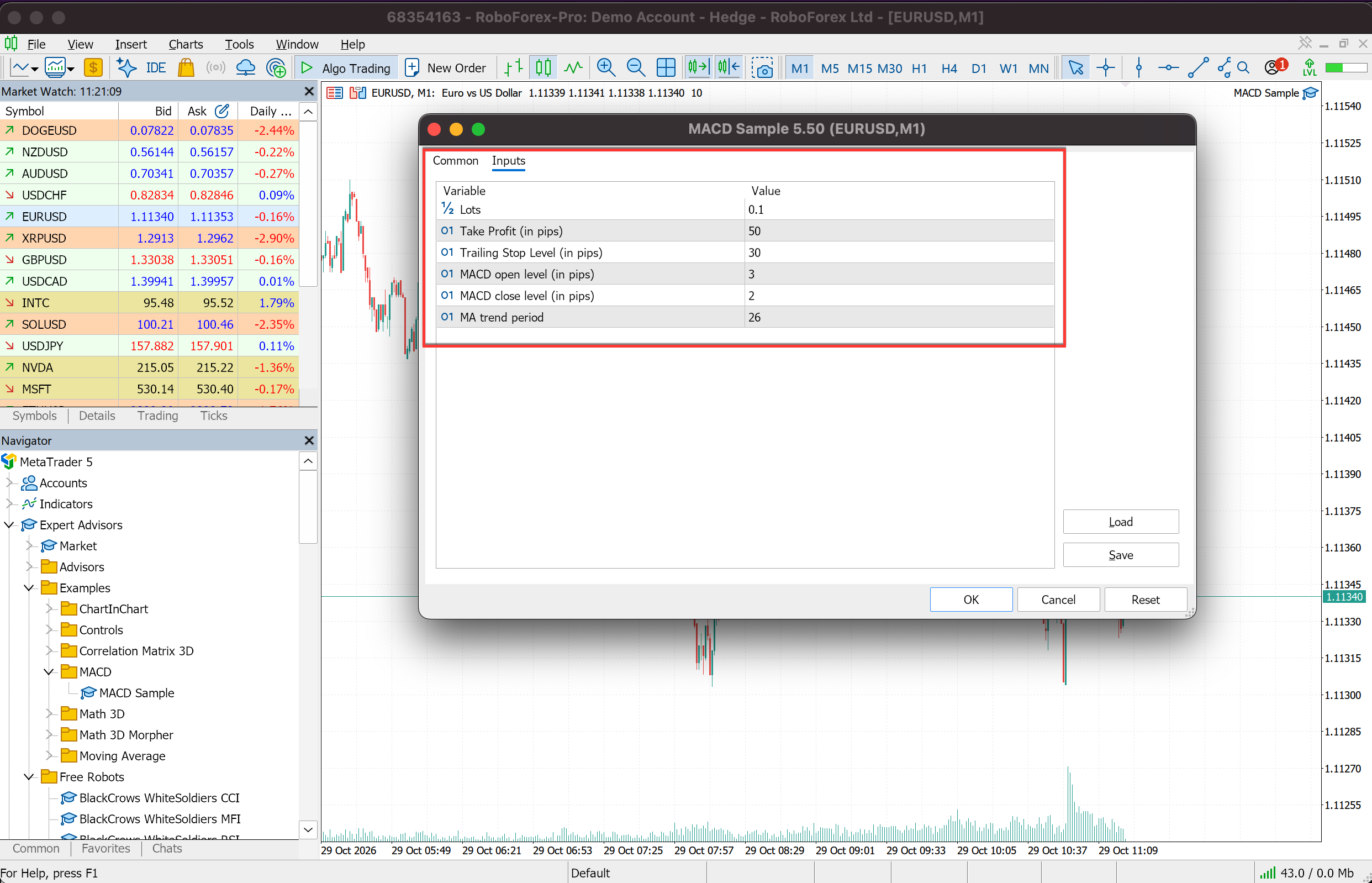
- Settings readyLot, stops, magic number and the robot's permission
- First trade confirmedA clean start in the logs, then a position on the Trade tab
What Is on the Trading Robot Checklist?
Fifteen checks, in the order you meet them. Tick an item when it passes. The list does not save, so run it again for every new robot.
0 of 15 checked
Stage 1. Platform ready
1. Demo account. MetaTrader 5 is installed and logged in to a RoboForex demo account. MT5 Download and Setup
2. Connection. The bottom right corner shows a connection speed, and the Journal has no authorisation errors. MT5 Download and Setup
3. Terminal options. Tools, Options, Expert Advisors allows algorithmic trading. MetaTrader 5 Automated Trading
4. Toolbar button. Algo Trading on the toolbar shows a green triangle. MetaTrader 5 Automated Trading
Stage 2. Robot ready
5. Source. You know where the robot comes from and have its description with the symbol, timeframe and account mode it needs. Expert Advisor Download for MT5
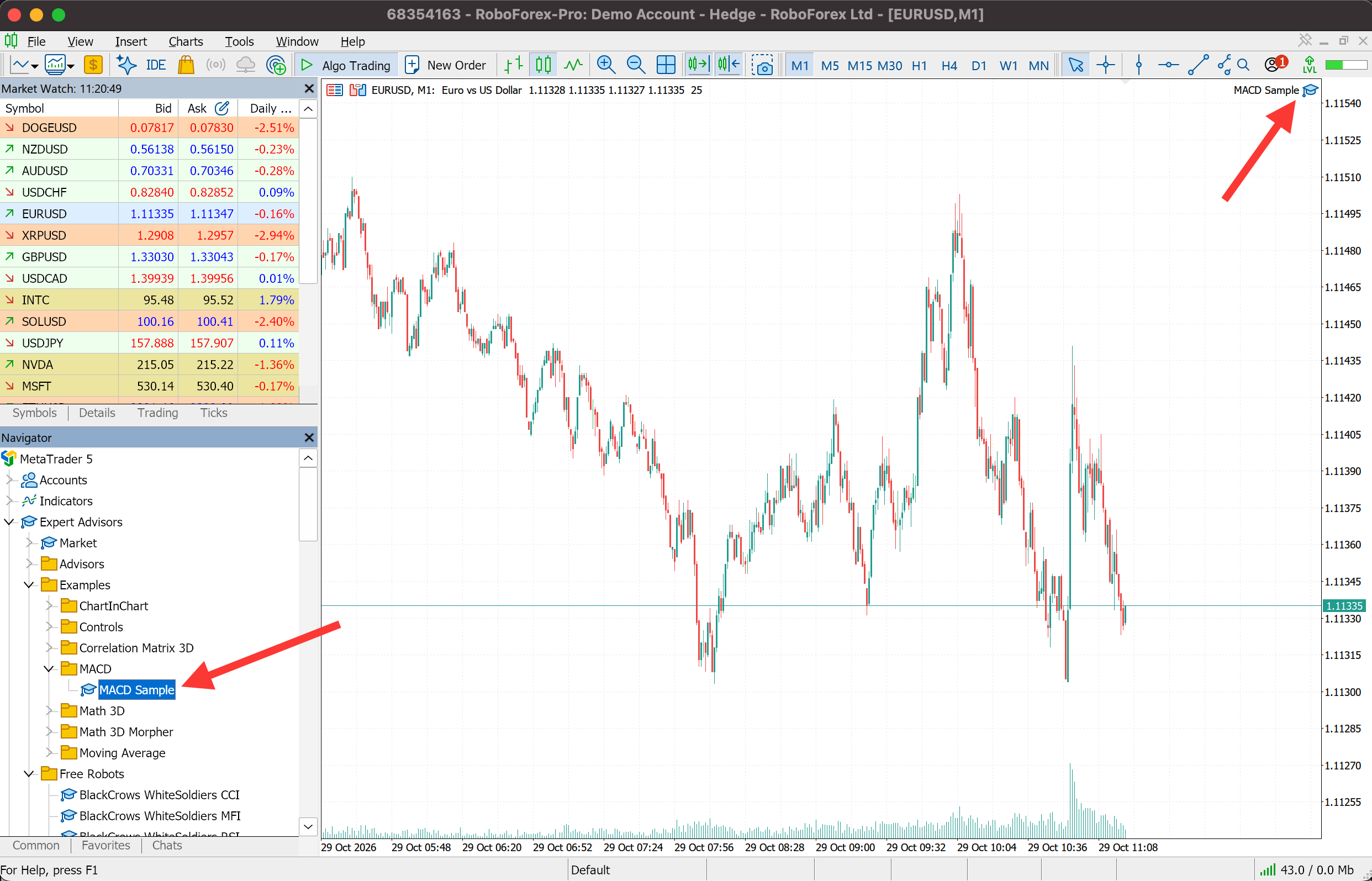
6. Navigator. The robot is listed under Expert Advisors. How to Install an EA in MT5
7. Chart. The robot sits on a chart of the symbol and timeframe named in its description. How to Install an EA in MT5
8. Account mode. The robot supports your account mode, hedging or netting. Netting vs Hedging
Stage 3. Settings ready
9. Lot size. The lot fits your balance and the loss you accept on one trade. Trading Robot Settings Explained
10. Stops. You know where the robot closes a losing and a winning trade, from its inputs or its description. What Is Stop Loss and Take Profit
11. Magic number. Each robot on the account has its own number. Trading Robot Settings Explained
12. Robot permission. Allow Algo Trading is ticked on the Common tab of the robot's properties. MetaTrader 5 Automated Trading
Stage 4. First trade confirmed
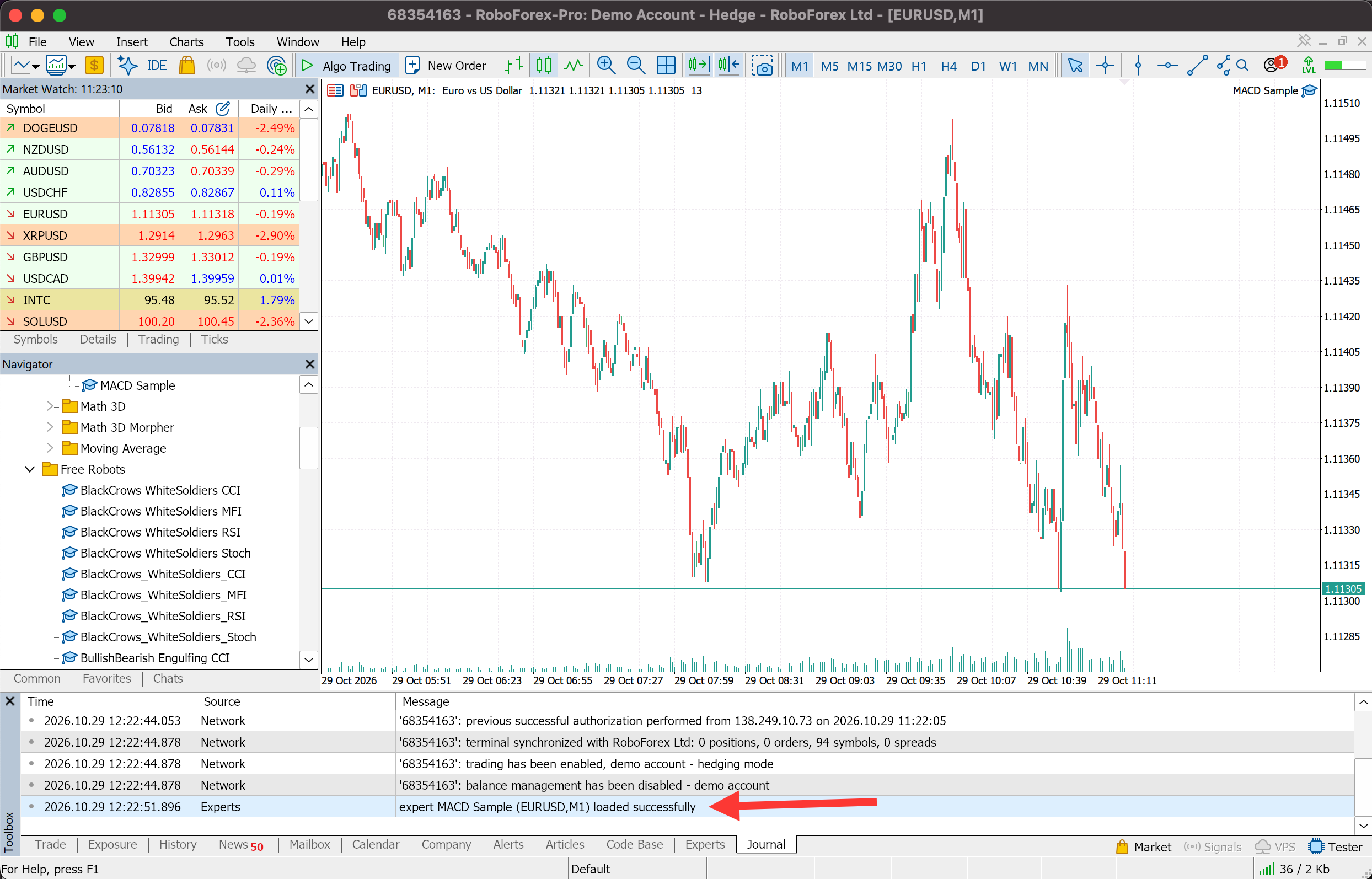
13. Clean start. The Journal shows the robot loaded successfully, with no errors after that line. MetaTrader 5 Automated Trading
14. Robot icon. The cap next to the robot's name on the chart is blue. How to Install an EA in MT5
15. First trade. After the robot's entry signal, its position appears on the Trade tab of the Toolbox. How to Install an EA in MT5
✓ All 15 checked. Your robot is trading on the demo account.
Item 15 is the one you cannot force: the robot opens its first position when its entry rules line up, which can take minutes on an M1 chart and days on a daily one.
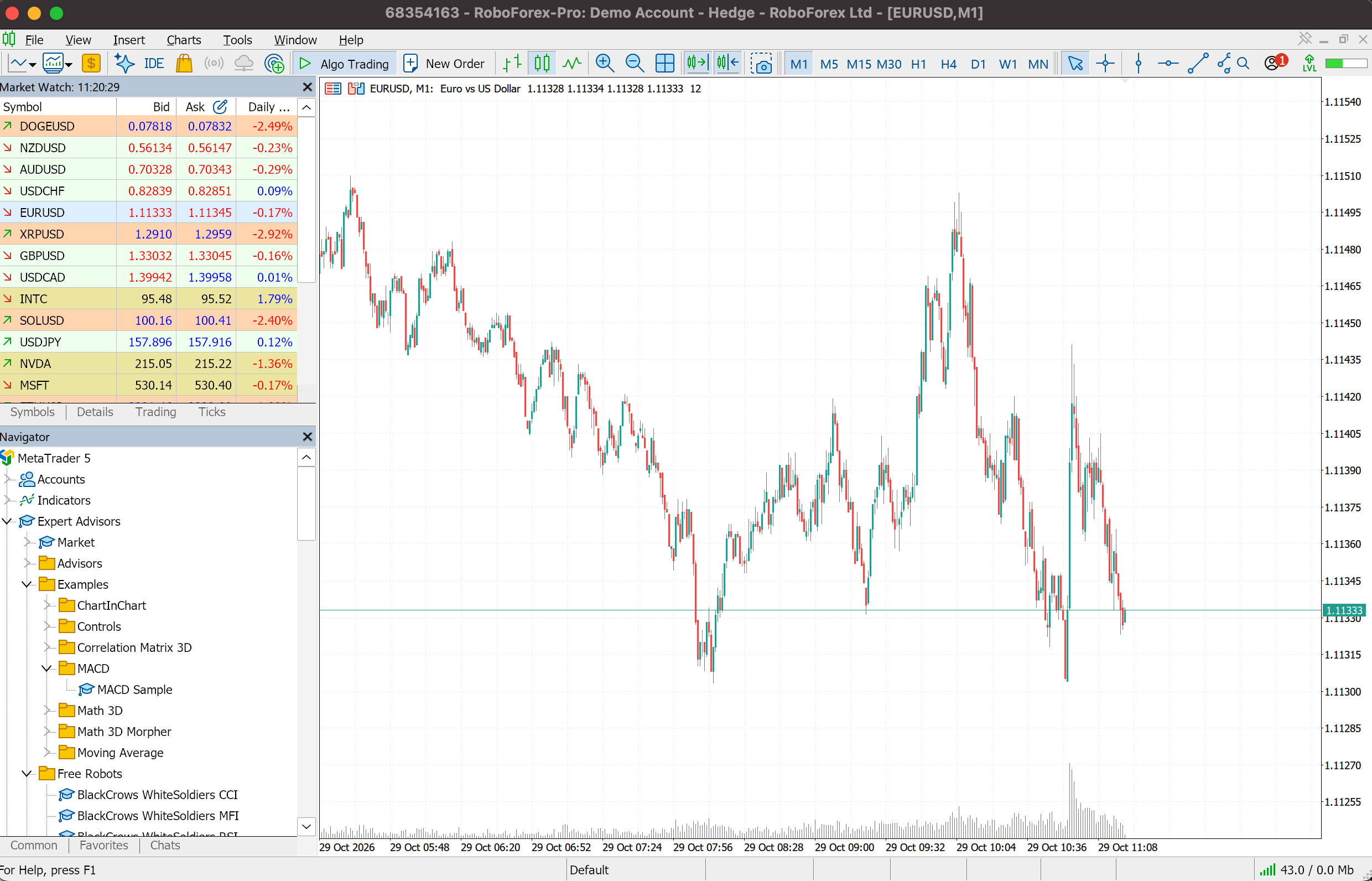
Here is what each finished stage looks like with MACD Sample, the robot that comes with MetaTrader 5.
Run the Checklist on a Free Demo Account
Open a RoboForex demo account and take your first robot through all four stages with virtual money.
Which Item Gets the Robot Trading?
Match what you see in the terminal to the items to recheck, then open the guide with the full list of causes.
| What you see | Items to recheck | Full diagnosis |
|---|---|---|
| The robot is missing from Navigator or from the chart | 5 to 7 | Five Checks in How to Install an EA in MT5 |
| The Journal says automated trading is disabled, or the cap is grey | 3, 4 and 12 | Seven Checks in MetaTrader 5 Automated Trading |
| The Journal shows an error such as no money or invalid volume | 8 and 9 | Seven Checks in MetaTrader 5 Automated Trading |
Clean logs and no trades usually mean the robot is waiting for its signal. Compare the chart with the entry rules in its description before you change any setting.
What Do You Do After the First Trade?
The first trade proves the robot can send an order. Whether its strategy is worth real money is a separate test. Run the same robot and settings on history in the Strategy Tester, as in A 15-Minute Backtest, and leave it on the demo account long enough to see a losing run as well as a winning one. The path from demo to a live account in small steps is laid out in the last part of How to Install an EA in MT5. The robot trades only while MetaTrader 5 runs, so for round-the-clock work move the terminal to a VPS. Past results do not guarantee future returns.
Run Expert Advisors in RoboForex MetaTrader 5
Desktop MT5 for Windows and macOS, with algo trading and the Strategy Tester built in.
Conclusion
Fifteen checks in four stages take a robot from MetaTrader 5 installed to its first trade. Run the list once with MACD Sample on a demo account to learn where each switch sits, then again with the robot you plan to use. When an item does not pass, its link opens the guide that fixes it.
FAQ
What should I check before starting a trading robot?
Check four stages: MetaTrader 5 is connected to a demo account with algo trading allowed, the robot is in Navigator and on the right chart, the lot, stops and the robot's own Allow Algo Trading permission are set, and the Journal shows the robot loaded without errors. This trading robot checklist splits the four stages into 15 items.
How long does it take to set up a trading robot?
Once MetaTrader 5 and the robot are installed, the 15 checks take a few minutes. The first trade can take longer, because the robot waits for its own entry signal.
Can I start a robot on a real account straight away?
The terminal allows it. Start on a demo account and test the robot on history first, so a wrong setting or a weak strategy costs virtual money. Good test results do not guarantee future returns.
Which robot should I use for a first test run?
MACD Sample. It comes with MetaTrader 5 and sits in Navigator under Expert Advisors, Examples, MACD. Its default inputs are 0.1 lot, a Take Profit of 50 pips and a Trailing Stop of 30 pips. Use it to learn the steps on a demo account. It is a code example, so its results say nothing about the robot you plan to trade with.
- What Is a Trading Robot and How Does It Work?: what happens inside a robot between a signal and an order.
- A 15-Minute Backtest: How to Test a Trading Robot in MetaTrader 5: the first test after the first trade.
- Expert Advisor Download for MT5: Free, Paid and Rented Robots From the MQL5 Market: where to find the robot you run through the list next.
Any information provided in articles on this website is based solely on the personal opinions of the authors. These articles should not be construed as trading recommendations or a call to action. The authors and RoboForex accept no responsibility for the results of any trades made on the basis of these recommendations and reviews. Past performance is not indicative of future results. Trading stocks and CFDs involves a high risk of capital loss.